Preview a template and use it
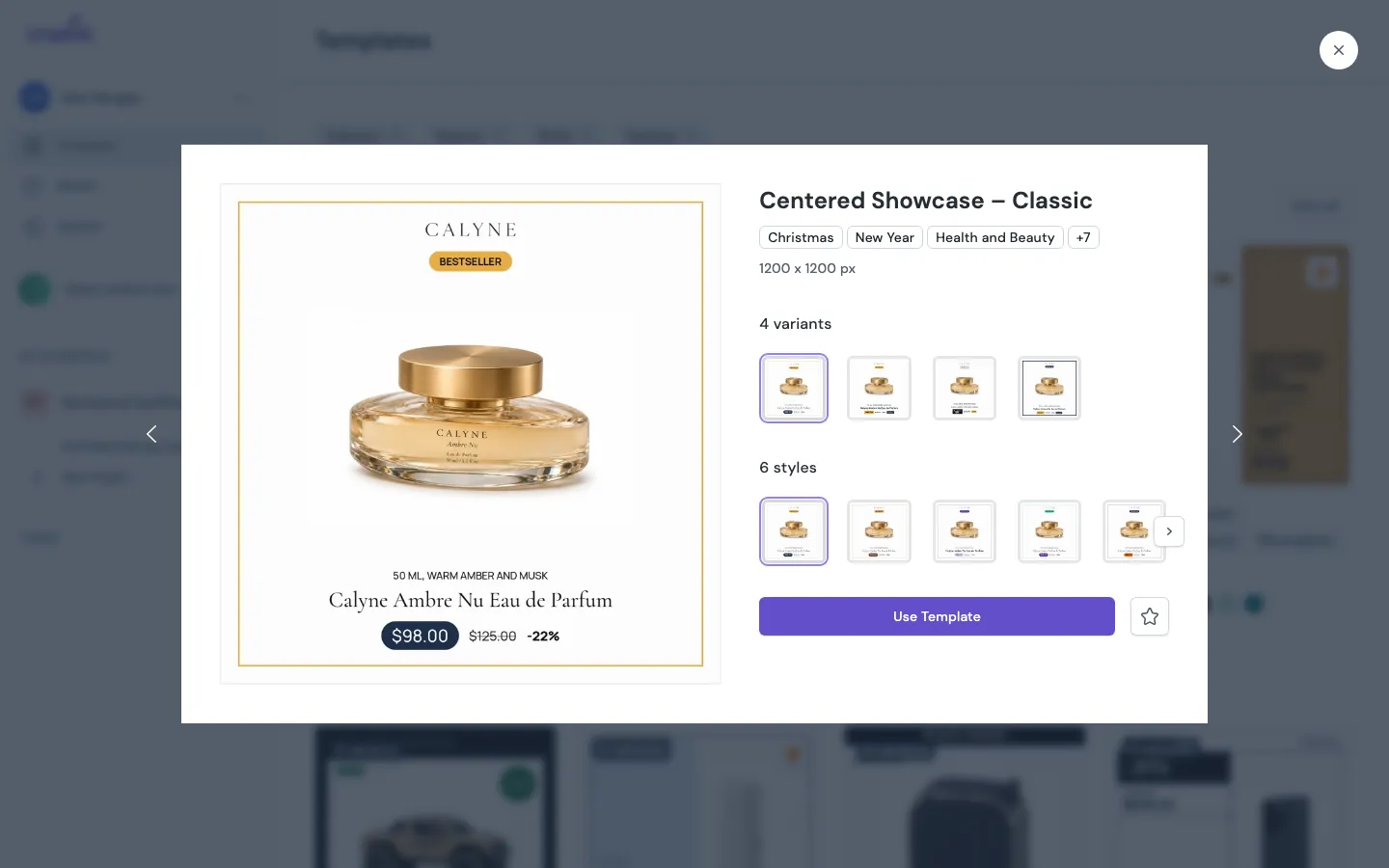
Click a template in the templates list to open its preview. The preview shows a large image of the template, its details and the button that adds it to your team.
Open the preview
Section titled “Open the preview”- Click a template tile on the templates page, or on a single industry page.
- The preview opens on top of the list. While it loads it shows Loading Template data....
The address of the page now contains the template (and the style, if you picked one). You can reload the page or share the link and the preview opens in the same state. Closing the preview removes both from the address.
If the template does not exist, the preview shows a “not found” message instead of the details.
Read the details
Section titled “Read the details”Next to the image you see:
- the template name;
- up to three tags, and a “+N” badge for the rest (hover it to see them);
- the size of the main image, for example
1200 x 1200 px; - how many variants and styles the template has, when it has any.
Move between templates
Section titled “Move between templates”Use the arrows on the sides of the preview, or the left and right arrow keys, to go to the previous or next template of the list you came from. After the last template the arrows continue with the first one. The arrows appear only when the list has more than one template.
To close the preview, use the close button or click outside it.
Choose a variant
Section titled “Choose a variant”A template can belong to a group of variants (for example, other colour versions of the same layout). The variants row shows the base template and the active variants of the group. Click a tile to open that variant. Opening a variant clears the style you picked.
Choose a style
Section titled “Choose a style”The styles row shows the template in each of its styles. The first tile is the template as it is; click another tile to see the template in that style. The big image changes, and the style is used when you add the template.
Star a template
Section titled “Star a template”Click the star next to the button to add the template to your starred templates. Click it again to remove it. A filled star means the template is starred.
Use a template
Section titled “Use a template”- Choose a variant and a style, if you want one.
- Click Use Template.
- If you belong to more than one team, the Add template to team dialog opens. Pick a team and click Add. The caption Select a team turns into a note that the design will be added to that team.
- Cropink creates a design from the template, named after the template, and opens the team’s Designs list.
The dialog lists only teams you own and teams where you may create designs. If you have just one such team, the template is added to it right away, without the dialog. If the template cannot be added, Cropink shows the error message in a notification.