Create a design
There are three ways to get a design into a team: start from a blank design, add one from a template, or bring one in from Figma. This article covers the first two. You need the permission to create designs in the team.
Start a design
Section titled “Start a design”Start from a blank design
Section titled “Start from a blank design”- Open the Designs tab of your team.
- Click Create design. The button shows a loading state while Cropink creates the design.
- The design editor opens on an empty design named Untitled design.
The button is shown on large screens only (a window at least 1032 px wide). On a smaller screen the editor is not available, so only Add from Templates is offered. If the design cannot be created, a notification shows the error and you stay on the list.
In an empty team the same button sits next to Add from Templates in the middle of the page.
Add a design from a template
Section titled “Add a design from a template”-
In the Designs tab, click Add from Templates.
-
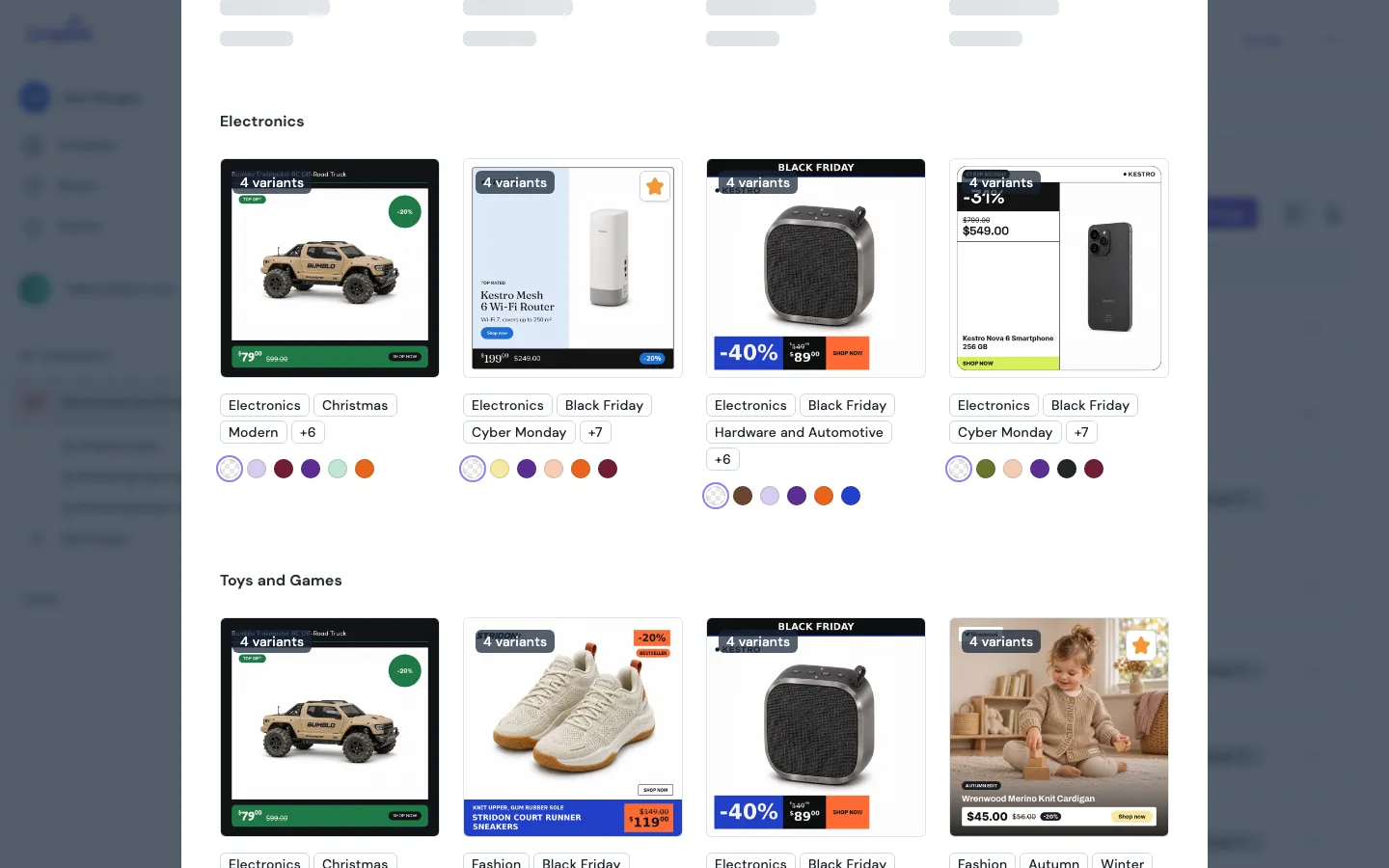
A window opens with the templates of Cropink, laid out like the templates page: filters at the top and rows of templates. Find a template and click it.
-
The template preview opens. Choose a variant or a style if you want one (see Preview a template and use it).
-
Click Use Template.
-
The window closes and the new design appears in the list. Its thumbnail shows a spinner until the preview image is ready.
The design is named after the template. It keeps the style you picked in the preview. If something fails, a notification shows the error and the window stays open. To leave without adding a design, close the window.
Unlike a blank design, a design from a template does not open in the editor by itself. Click its row to open it.
Use a template from the Templates page
Section titled “Use a template from the Templates page”You can also add a design while you browse the Templates page. See Use a template: Cropink asks which team gets the design, then opens that team’s Designs list with the new design in it.
What to do next
Section titled “What to do next”Open the design in the design editor to change layers, map product data and set conditions. To check how it looks with your products, see Preview and share a design. Manage the design from the Designs list.