Logos
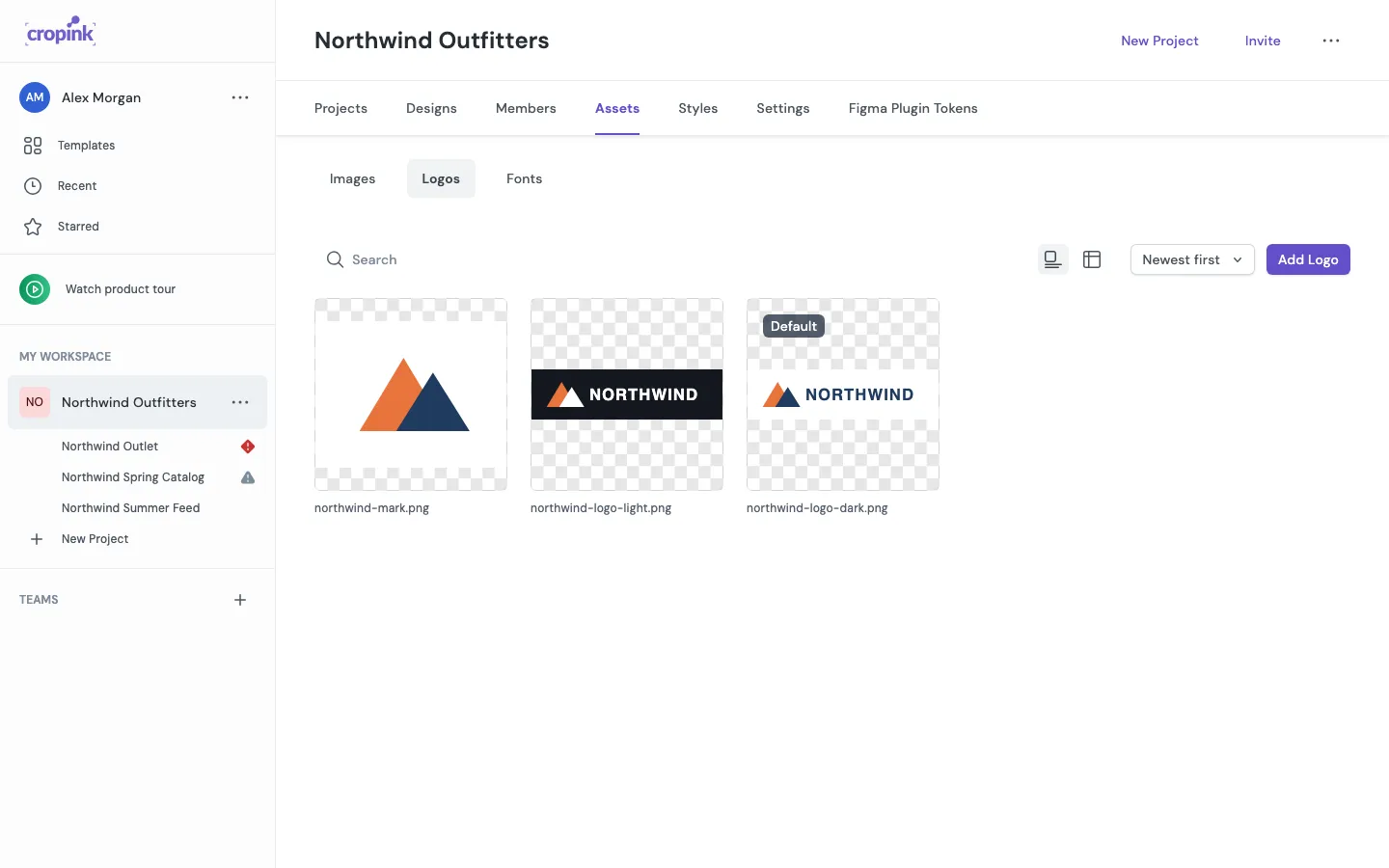
The Logos tab of your team’s Assets holds the logos of the team. You can choose them in your styles and use them across projects and designs. If you do not see Assets in the team header, it is turned off in your Cropink.
Upload a logo
Section titled “Upload a logo”- Open your team and go to Assets › Logos.
- Click Add Logo. In an empty tab, click Add Logo.
- Choose a file.
You can upload one file at a time. Allowed types are JPEG, PNG, WebP and GIF. Any other file is refused with a message that lists the allowed extensions. If the server rejects the upload, you see its message in a notification.
Find a logo
Section titled “Find a logo”Type in Search to filter the logos by name. Use the sort button to switch between Newest first and Oldest first. Sorting uses the date the logo was added.
Grid or table
Section titled “Grid or table”The two icon buttons next to the search field switch the view. The grid shows each logo on a chequered background, so you can see transparent areas, with its name below. The table shows the columns Name, Default, Created at and Updated at. Cropink remembers your choice in this browser.
Logo menu
Section titled “Logo menu”Each logo has a menu (three dots). In the grid it appears when you hover the tile.
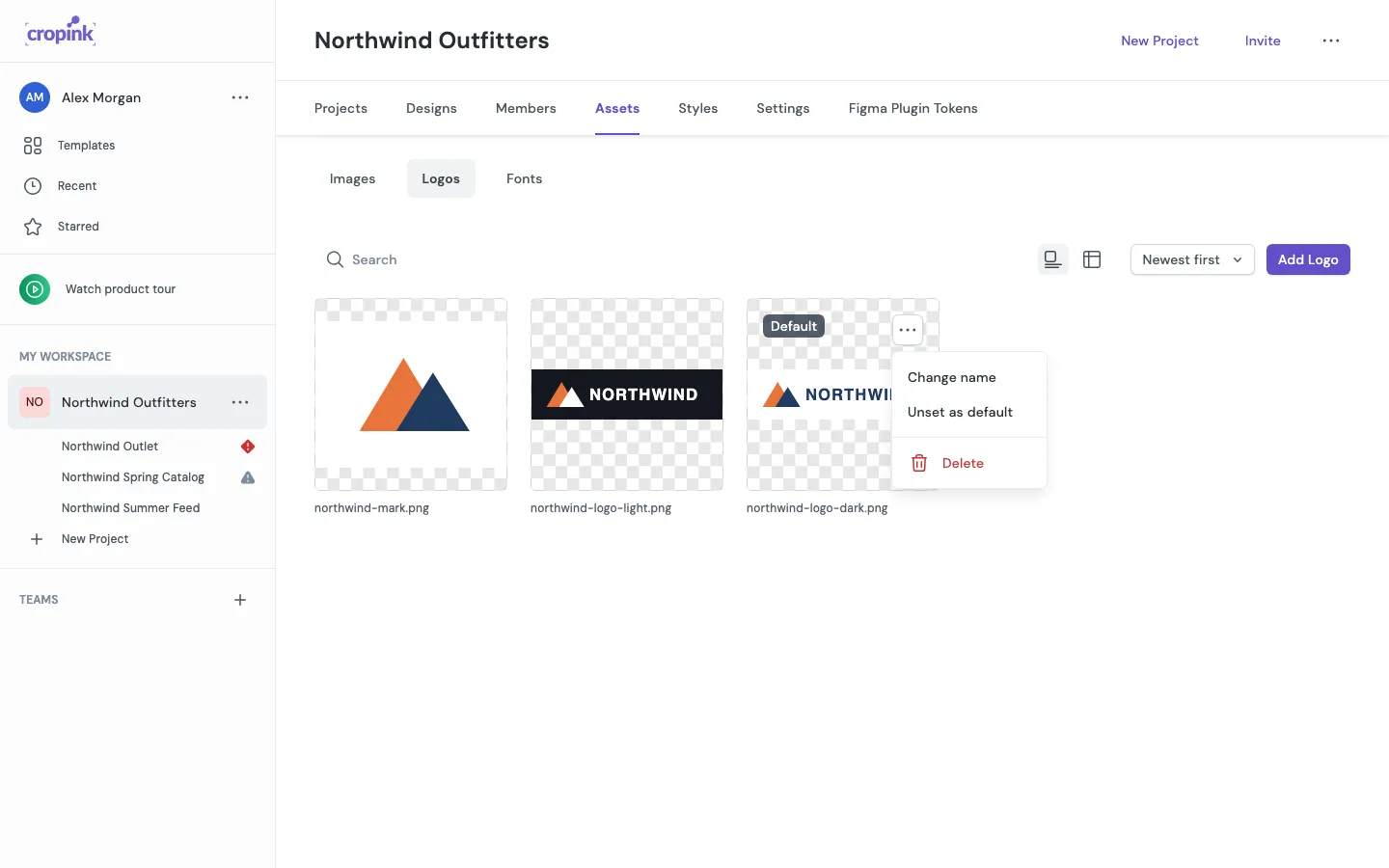
The menu has three actions: Change name, Set as default (or Unset as default for the default logo) and Delete.
Rename a logo
Section titled “Rename a logo”- In the logo menu, click Change name.
- In Change Name, type the new name and click Save.
A notification appears right away.
Set a default logo
Section titled “Set a default logo”- In the logo menu, click Set as default.
- A notification confirms it, and the logo gets the Default badge.
To take the badge away, open the menu of the default logo and click Unset as default. This screen does not say where Cropink uses the default logo.
Delete a logo
Section titled “Delete a logo”- In the logo menu, click Delete.
- In Delete Logo?, click Delete.
A notification confirms the deletion. The action cannot be undone from this screen.
Use a logo in a style
Section titled “Use a logo in a style”Logos you upload here are the ones you can choose in a style: in the wizard when you create a style, and in the Logo section of the style editor. See Create and edit a style.
Empty tab
Section titled “Empty tab”Until you upload the first logo, the tab shows Add logos to use them across all projects and designs and the upload button.
Who can do this
Section titled “Who can do this”The screen does not check your role: everyone who can open the tab sees the upload, rename, default and delete options. If the server refuses an upload, Cropink shows the server’s message.