The Designs list
A design is a layout, made from a template, from Figma or from scratch, that Cropink fills with your product data. The Designs tab of your team lists all designs of the team. From here you create designs, open them in the editor and manage them.
The tab is shown only if your role in the team allows you to view designs. If you do not see it, ask a team owner.
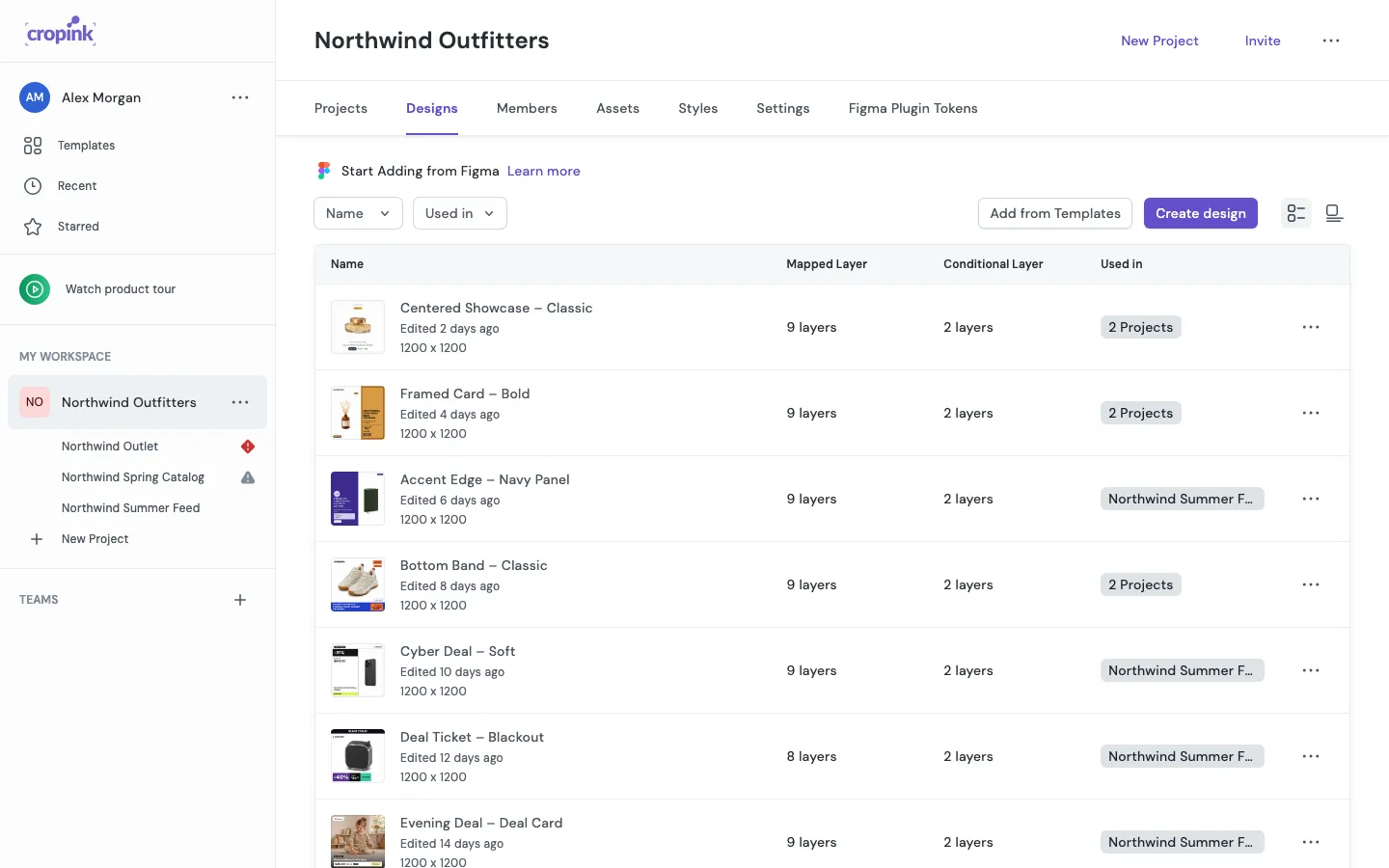
Read the list
Section titled “Read the list”Each row is one design. Click a row to open the design in the design editor. On a small screen it opens the design preview instead. Each row shows:
- Name: a thumbnail, the design name, when it was last edited
(Edited and a time like “2 hours ago”) and the size
of its main image, for example
1200 x 1200. A Bg Remove badge means a layer of the design removes the image background. A small Figma icon on the thumbnail means the design was synced from Figma. - Mapped Layer: how many layers take their content from your product data, for example “3 layers”, or No layers.
- Conditional Layer: how many conditions are set up on the layers of the design (shown as, for example, “3 layers”).
- Used in: the project that uses the design, by name. When several projects use it, the cell shows the number, for example “2 Projects”. A dash means no project uses the design yet.
When a design was just created, its thumbnail shows a spinner until the preview image is ready. If the image cannot be made, the thumbnail shows a broken-image icon instead.
The two buttons at the right end of the toolbar switch between small and large thumbnails.
On a narrow screen the table turns into one card per design.
Find a design
Section titled “Find a design”Above the list there are two filters:
- Name: click it and type part of the design name. The match ignores upper and lower case.
- Used in: tick one or more projects to see only the designs they use. Not used shows the designs that no project uses. The list holds only projects that use at least one design.
When you use both filters, a design must match both. Click Clear filters to remove them. If nothing matches, the list says No designs match the filters.
Row actions
Section titled “Row actions”Click the three dots at the end of a row to open the menu.
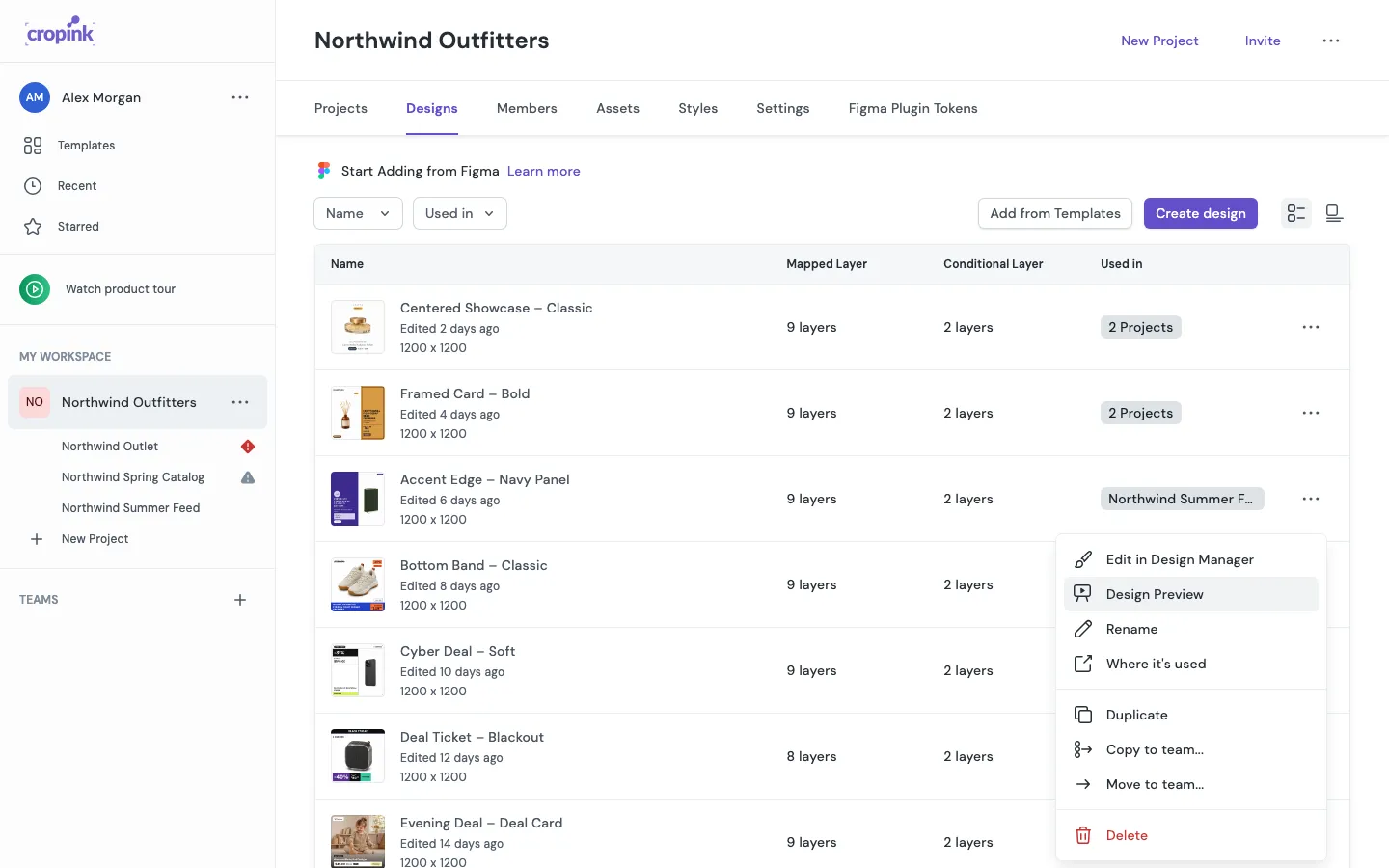
- Edit in Design Manager: opens the design in the editor, like a click on the row.
- Design Preview: opens the design preview.
- Rename: type a new name and confirm. Cropink says Design name has been changed
- Where it's used: see where the design is used (below). It is greyed out when no project uses the design.
- Open in Figma: opens the Figma file of a design that came from Figma, in a new tab.
- Duplicate: makes a copy in the same team. Cropink says Design has been duplicated and the copy appears in the list.
- Copy to team... and Move to team...: see below. These two may not be available on your account.
- Delete: see below.
A design with no content yet, for example one just created with Create design and not edited, has only Edit in Design Manager and Delete in its menu.
What you may do depends on your role in the team. Actions you are not allowed to use are greyed out: renaming needs the permission to edit designs, duplicating and copying the permission to clone designs, moving needs both the permission to clone and the permission to delete designs, and deleting the permission to delete designs.
Where a design is used
Section titled “Where a design is used”Where it's used opens a window with the projects that use the design. It says Projects that use this design. Click a project to open its campaigns. Each row shows the project name, a few thumbnails of its designs and the number of campaigns of that project that use this design. Click a row to open the campaigns of the project. Click Close to close the window.
Copy or move to another team
Section titled “Copy or move to another team”Copy to team... and Move to team... open a window with your other teams. You can pick only teams you own or where you may create designs. Pick one, then click Copy or Move.
- A copy keeps the original. Sharing is switched off on the copy.
- A move removes the design from this team. If projects use it, the window lists them and the design is removed from all of them.
Delete a design
Section titled “Delete a design”Delete asks you to confirm. If a project uses the design, the window names the projects and warns that deleting removes the design from all of them. To confirm you then have to type “DELETE”.
Designs you left a moment ago
Section titled “Designs you left a moment ago”When you leave the editor with the back arrow, or discard your changes, you come back to this list and the design you worked on is highlighted for a few seconds, and scrolled into view when the list is long. The same happens when you follow a design from the Recent page or from a campaign.
Add a design
Section titled “Add a design”When you are allowed to create designs, the toolbar has two buttons: Add from Templates and Create design. See Create a design.
At the top of the list, Start Adding from Figma and a Learn more button point to the team’s Figma plugin tokens, the sign-in tokens of the Cropink Figma plugin.
The empty list
Section titled “The empty list”A team without designs shows No Designs Added and Add designs, map product data, and set conditions. Under it there are three ways to start: Start Adding from Figma, Add from Templates and Create design, and a video that shows
How to create a design in Figma?Create design is shown only if you may create designs, and only on a large screen.