Canvas, tools and shortcuts
The canvas is the middle of the design editor. You see the design there, select layers, move and resize them, and add new ones with the toolbar at the bottom.
The canvas
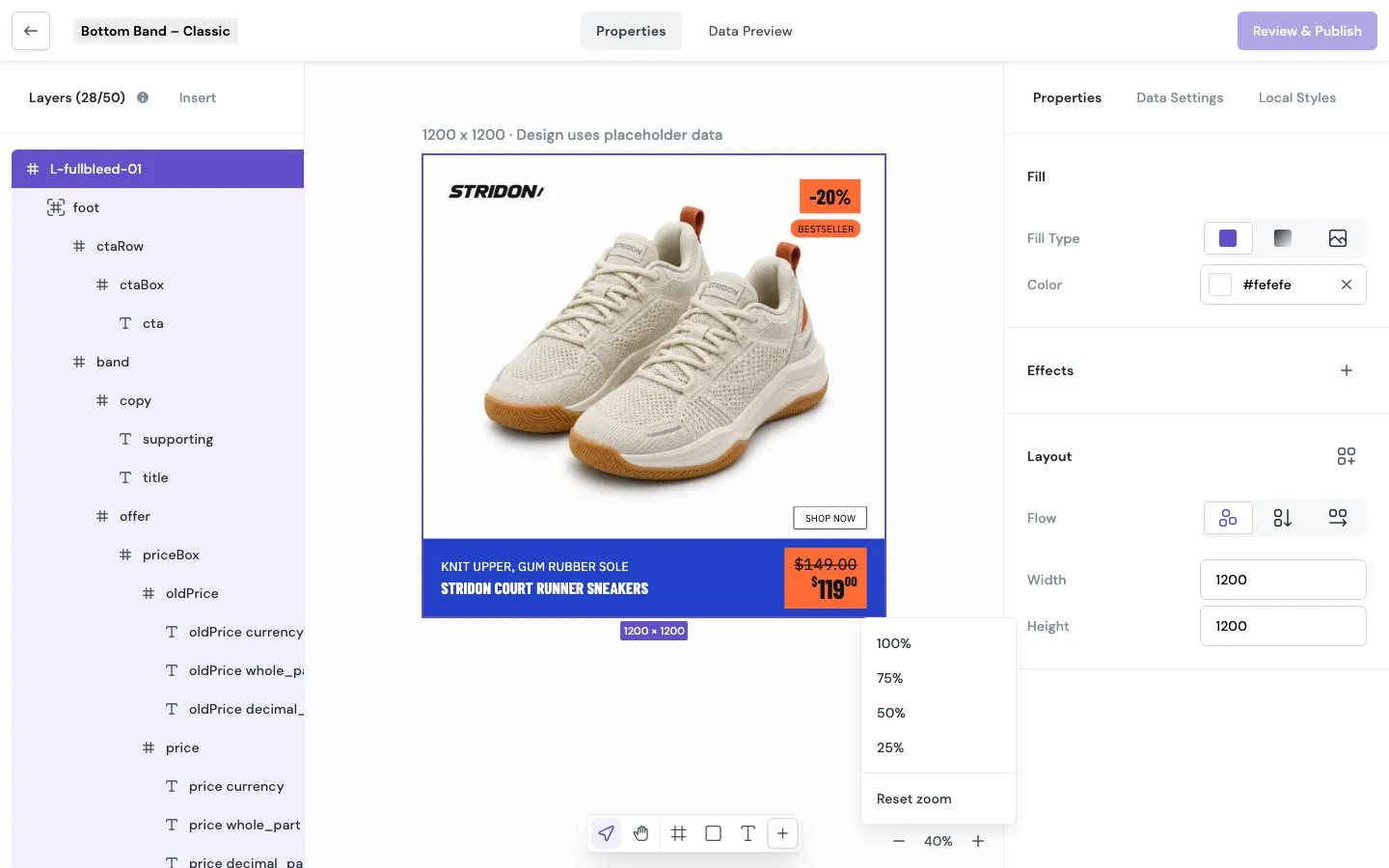
Section titled “The canvas”The canvas shows the design fitted to the available space. It uses placeholder data until you open Data Preview. The caption above the design gives its size in pixels.
If the canvas cannot draw the design, it shows Failed to render preview with a Retry button; click it to draw the canvas again. If the design settings fail to load, you see Preview is unavailable - failed to load design settings.
Right-click does nothing on the canvas. On a Mac, Ctrl+click therefore does not select a layer; use Cmd+click.
Select layers on the canvas
Section titled “Select layers on the canvas”Click the canvas first, so that keys go to it. A click on a toolbar button returns the focus to the canvas.
- Click a layer to select it. The layer you click is the deepest one at that point.
- Ctrl+click or Cmd+click selects the outermost layer under the pointer, just below the design itself.
- Double-click selects like a click. On a text layer, it also opens the text for editing. Ctrl+double-click or Cmd+double-click goes one level deeper.
- Shift+click adds a layer to the selection or takes it out.
- Drag a box on an empty part of the canvas to select every layer it touches. Hold Shift to add to the selection.
- Enter selects the layers inside the selected frame. Shift+Enter selects the layer that holds it.
- Tab selects the next layer in the same frame, in the order of the Layers panel. Shift+Tab selects the previous one.
- Ctrl+A or Cmd+A selects all layers on the current level.
- Escape clears the selection.
A frame and a layer inside it are never selected together. You can also select layers in the Layers panel.
Move a layer
Section titled “Move a layer”Drag a layer to move it. While you drag, red guides show when the layer lines up with the edges or the centre of the frame or of its neighbours, and the layer catches on them. A selection of several layers snaps as one box.
- Hold Shift to keep the layer on one axis.
- Hold Ctrl or Cmd to turn snapping off.
- There is no snapping inside a frame with auto layout.
Drag a layer over a frame to move it into the frame: a dashed outline shows the frame that takes it. Hold Space to place the layer over the frame without moving it into the frame, or hold Ctrl or Cmd to go as deep as the pointer goes. Press Escape to cancel.
You cannot place a layer by dragging when its frame lays it out with auto layout. The layer snaps back, but you can change its place in the flow in the Layers panel. The top-level frame cannot be dragged. To change the size of the design, set the size of the top-level frame in the Properties.
Nudge with the arrow keys
Section titled “Nudge with the arrow keys”Select one or more layers and press an arrow key to move them by 1 px. Hold Shift to move them by 10 px. The keys work when the canvas has the focus and not while you type in a field.
Resize a layer
Section titled “Resize a layer”Select a layer and drag one of its handles: a square on each corner and an invisible strip along each side. A badge shows the new size.
- Hold Shift to keep the ratio of width to height.
- Hold Alt to resize from the centre.
Everything inside the layer scales with it. Font size, corner radius, border weight, padding and gap do not scale. You cannot resize the top-level frame on the canvas; use its Width and Height in the Properties.
- Click the layer.
- Drag a corner handle. Hold Shift while you drag to keep the ratio.
- Drag a corner handle with Alt held to grow the layer from its centre.
Edit text on the canvas
Section titled “Edit text on the canvas”Double-click a text layer, or select it and press Enter, to type in the layer. Press Escape to finish. The text you type becomes the placeholder text of the layer. While the name of the layer is the same as its text, the name follows what you type. Editing in place is one step for undo. Keys such as V, H and Delete do not act while you edit.
Add a layer with the toolbar
Section titled “Add a layer with the toolbar”The toolbar at the bottom of the canvas has two groups.
- Pointers. Move selects, moves and resizes layers (V). Hand pans the canvas (H): while it is on, you cannot select or drag layers. Hold the space bar to use the hand for a moment.
- Add. Frame, Rectangle and Text put a new layer into the design.
A new layer is selected as soon as it appears, and it counts toward the number of layers the design can hold (see Work with layers). Each new layer starts like this:
- Frame: a white frame of 240 x 240 px that clips what is inside it. It is named Frame. It does not join the flow of an auto-layout frame.
- Rectangle: a grey rectangle (#D9D9D9) of 240 x 240 px, named Rectangle.
- Text: the text Text in the font Inter, Regular, 40 px. The layer is as wide as its text and is named Text.
The new layer lands in a place that depends on what is selected:
- With one frame selected, it goes into that frame, on top.
- With one other layer selected, it lands right above that layer, in the same frame.
- With nothing selected, or with several layers selected, it goes to the design itself.
- Click Text in the toolbar.
- Double-click the new layer and type your text. Press Escape.
- Drag the layer to where you want it. Use the guides to line it up.
- Press the arrow keys to fine-tune the position.
Delete from the canvas
Section titled “Delete from the canvas”When layers are selected, a Delete button appears next to the toolbar. It removes the selected layers, like the Delete key. The top-level frame cannot be removed.
Insert
Section titled “Insert”The left panel can have a second tab, Insert. It lists ready-made elements, grouped in categories; click a category to open it and use Back to return. Type in the search box to find an element by name. Drag an element onto the canvas to add it to the design. When nothing matches, the list says
No elements foundWith Insert on, the plus button (Add) in the toolbar opens the window Add Element. Pick a category on the left, choose an element and click Insert. The element lands like a new shape, as described above.
Insert may not be available on your account; if you do not see the tab or the plus button, it is not turned on for you.
Zoom and pan
Section titled “Zoom and pan”The zoom control is at the bottom right of the canvas.
- Zoom out and Zoom in (the minus and plus buttons) step the zoom through 25 %, 50 %, 75 % and 100 %, then by a factor of 1.25 each step. They stop at 10 % and 500 %.
- The percentage opens a menu with the levels 100 %, 75 %, 50 % and 25 %, and Reset zoom, which fits the design to the canvas again.
- Ctrl+scroll or Cmd+scroll, or a pinch on a trackpad, zooms around the pointer. This goes much further than the buttons: from 2 % to 25 600 %.
- A plain mouse wheel or a two-finger scroll pans the canvas. Shift+scroll pans sideways. The middle mouse button pans too, with any tool.
- Space + drag pans for a moment. H switches to the Hand tool and V back to Move.
- Hold Ctrl or Cmd and scroll to zoom in on a part of the design.
- Hold Space and drag to move the view.
- Press Shift+1 to see the whole design again.
- Select a layer and press Shift+2 to zoom to it.
While an element is being inserted, the zoom and pan are locked for a moment.
Keyboard shortcuts
Section titled “Keyboard shortcuts”Canvas shortcuts work when the canvas has the focus: click the canvas first. Shortcuts that use letters or Delete do not act while you type in a field.
| Action | Windows | Mac |
|---|---|---|
| Move tool | V | V |
| Hand tool | H | H |
| Pan for a moment | Hold Space | Hold Space |
| Select the layer under the pointer | Click | Click |
| Select the outermost layer | Ctrl+click | Cmd+click |
| Add a layer to the selection or take it out | Shift+click | Shift+click |
| Select the layers inside / the parent layer | Enter / Shift+Enter | Enter / Shift+Enter |
| Select the next / previous layer in the frame | Tab / Shift+Tab | Tab / Shift+Tab |
| Select all layers on the level | Ctrl+A | Cmd+A |
| Clear the selection, cancel a drag, a box or a resize | Esc | Esc |
| Edit the text of a text layer | Double-click or Enter | Double-click or Enter |
| Select deeper with a double-click | Ctrl+double-click | Cmd+double-click |
| Move the selection by 1 px / 10 px | Arrow keys / Shift+arrow keys | Arrow keys / Shift+arrow keys |
| Keep a drag on one axis | Hold Shift | Hold Shift |
| Turn snapping off while you drag or resize | Hold Ctrl | Hold Cmd |
| Place a dragged layer over a frame without nesting it | Hold Space | Hold Space |
| Nest a dragged layer as deep as the pointer goes | Hold Ctrl | Hold Cmd |
| Select the deepest layers with a box | Ctrl+drag a box | Cmd+drag a box |
| Pan with any tool | Drag with the middle mouse button | Drag with the middle mouse button |
| Resize keeping the ratio / from the centre | Hold Shift / Hold Alt | Hold Shift / Hold Option |
| Delete the selected layers | Delete or Backspace | Delete or Backspace |
| Copy, cut, paste one layer | Ctrl+C, Ctrl+X, Ctrl+V | Cmd+C, Cmd+X, Cmd+V |
| Paste layers copied in Figma | Ctrl+V | Cmd+V |
| Undo | Ctrl+Z | Cmd+Z |
| Redo | Ctrl+Shift+Z or Ctrl+Y | Cmd+Shift+Z or Cmd+Y |
| Zoom around the pointer | Ctrl+scroll or pinch | Cmd+scroll or pinch |
| Zoom to 100 % | Shift+0 or Ctrl+0 | Shift+0 or Cmd+0 |
| Fit the whole design | Shift+1 | Shift+1 |
| Zoom to the selection | Shift+2 | Shift+2 |
| Zoom to the next / previous level | Ctrl+plus / Ctrl+minus | Cmd+plus / Cmd+minus |
| Pan sideways | Shift+scroll | Shift+scroll |
| Rename a layer in the Layers panel | Double-click the row | Double-click the row |
| Select a layer, add to the selection, select a range in the Layers panel | Click, Ctrl+click, Shift+click | Click, Cmd+click, Shift+click |
| Save or cancel a new layer name or design name | Enter / Esc | Enter / Esc |
| Close a menu or the Add Element window | Esc | Esc |
Undo and redo work everywhere in the editor except in a field, which keeps its own undo, and in Review. Changes you make in quick succession in the same field count as one step. The last 30 steps are kept when you reload the page. See Undo, redo and unsaved changes.
In number fields, such as font size, padding and position, the up and down arrow keys change the value by 1, or by 10 with Shift held.