Product data overrides
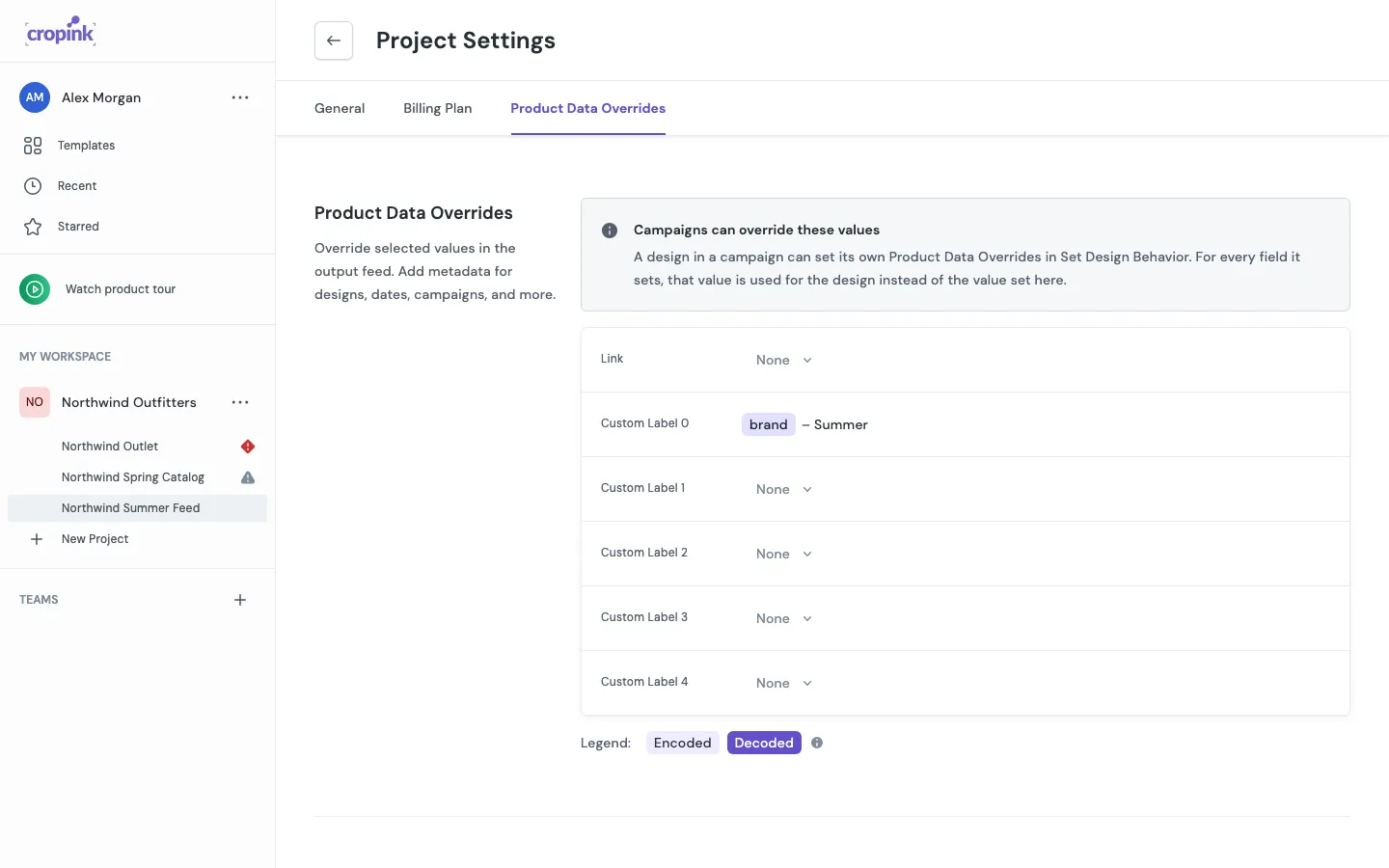
Product data overrides let you set a value in the output feed for all products of a project, no matter what your data source says. Cropink describes them as: Override selected values in the output feed. Add metadata for designs, dates, campaigns, and more. Open the Product Data Overrides tab in the project settings.
The fields
Section titled “The fields”Product Data Overrides lists six fields: Link and custom labels 0 to 4 (Custom Label 0 to Custom Label 4). A field without a value shows None. A field with a value shows it, with variables as violet badges. A value you set here replaces the product’s own value in the output feed.
Below the list, the legend explains the two kinds of variable badges, encoded and decoded.
You need the permission to edit the project. Without it, the fields are disabled.
Edit a field
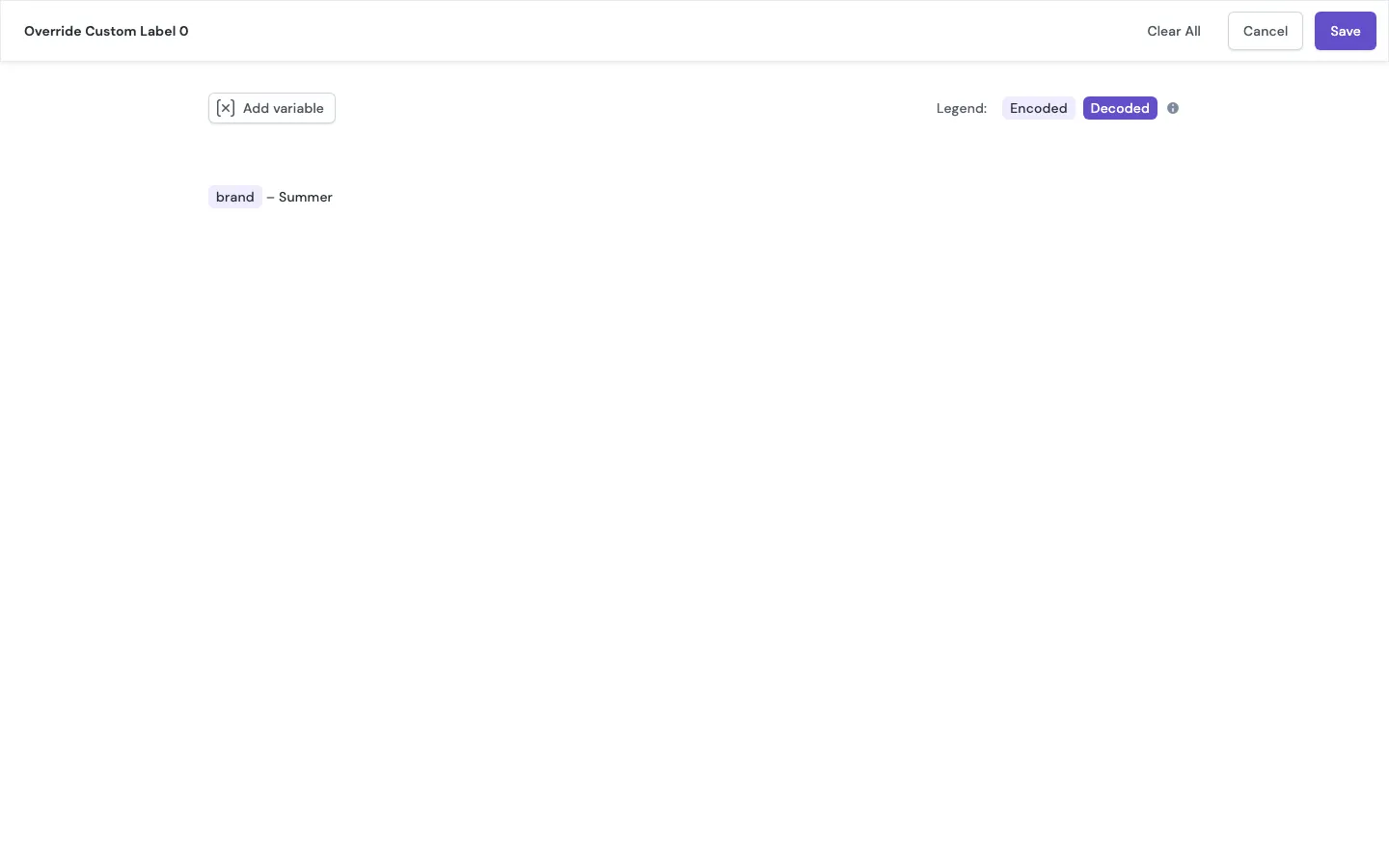
Section titled “Edit a field”- Click a field. The editor opens full screen, titled Override and the field name.
- Type text, or click Add variable to insert a variable. A variable stands for a value that Cropink fills in for each product, so one rule gives every product its own result.
- Click Save, or press Enter. A notification says Product data overrides updated
Variables
Section titled “Variables”Add variable opens the Variables window. It has two tabs, Decoded and Encoded, and groups of variables such as Project Data and Feed Data. Click a variable to insert it where the cursor is.
Click a badge in the editor to change it: a small toolbar lets you pick another variable, switch it between Set as Decoded and Set as Encoded, or delete it. The legend tooltip says: Value encoding options allow you to create an expression that fits your needs.
Clear, cancel and save
Section titled “Clear, cancel and save”- Clear All empties the editor. Click Save afterwards to remove a value you set before.
- Cancel closes the editor. If you changed something, Cropink asks Discard unsaved changes? Confirm with Discard Changes to leave without saving.
- Save is disabled while the editor is empty and the field had no value before.
- Each save is sent at once. While one is being saved, the other fields are locked. If saving fails, the field goes back to its saved value and an error notification shows.
Campaigns can override these values
Section titled “Campaigns can override these values”A banner on the tab says Campaigns can override these values A design in the default campaign can set its own overrides in its behavior settings. For every field it sets, the design uses that value instead of the one from this page; fields it leaves alone keep the project value. See Set design behavior and schedule.
Limited output feed
Section titled “Limited output feed”Limited Output Feed is a switch named
Generate limited output feed. Turn it on and the output feed holds
only the product ID, the image links (image_link and additional_image_link) and the fields you set
on this page. All other product fields are left out. The setting is saved when you switch it, and it needs the permission to
edit the project.
A warning appears while it is on: This feed may not meet Google or Meta product feed requirements. Use it for image overwrite workflows rather than as a complete product feed. Use it when you only want to replace the images of a feed you already have elsewhere. To see the result, open the feed in The output feed.
Where the products come from, and how often they refresh, is set in the data source.