Billing plan and changing it
Every project has a plan: its own, or a share of the team plan. The plan sets how many products the project’s feed can hold. The Billing Plan tab shows the plan and your usage; from there you change it. Open it from the project settings, or from the actions menu in the project header (Billing Plan).
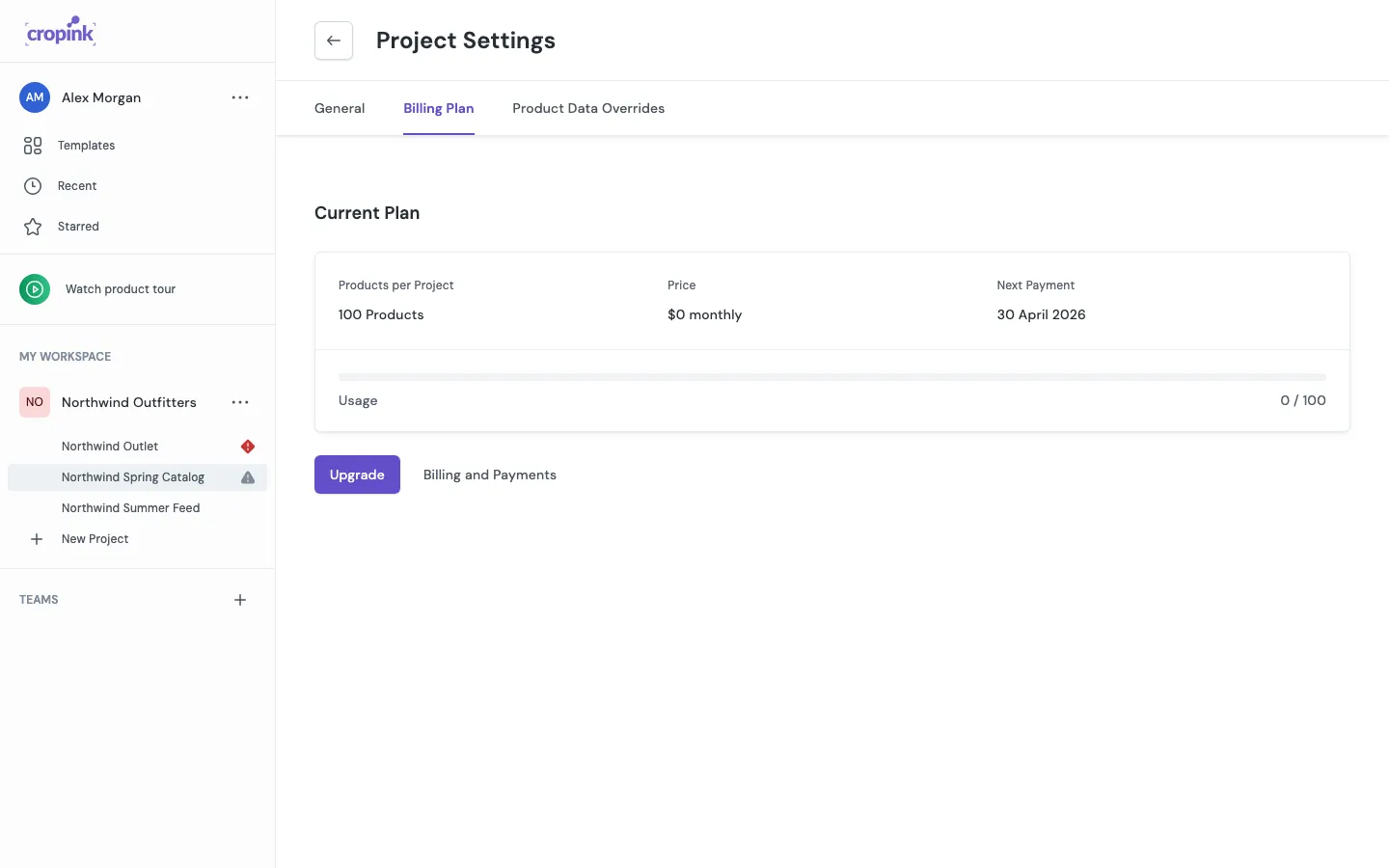
What the tab shows
Section titled “What the tab shows”Under Current Plan there is a plan panel:
- Products per Project: the limit of the plan.
- Price and Next Payment: what you pay, monthly or yearly, and the date of the next payment. If the plan is about to change, the panel shows Ends on instead.
- Usage: a bar with the number of products in the project against the limit.
On a free project the panel shows the free plan and the button reads Upgrade. On a paid project the button reads Change plan. Next to it, Billing and Payments opens your payments page, see Payments.
If a change is already scheduled, a second, dimmed panel shows the next plan, with a line saying that it starts on a date (Upgraded plan is starting on …, Downgraded plan is starting on … or Next plan is starting on …).
Warnings
Section titled “Warnings”- When the project has more products than the plan allows, a warning says Your source file contains more images than the selected plan allows. Only the first products up to the limit go into the output feed. Upgrade to include all of them.
- When a payment failed or the subscription is past due or unpaid, a red banner says so, with the dates. Click Fix payment issue to open the payment provider’s page and update your payment details.
Change the plan
Section titled “Change the plan”Click Upgrade (or Change plan). The Change Plan page opens. The back arrow (Back to billing plan) returns to the billing tab without changing anything.
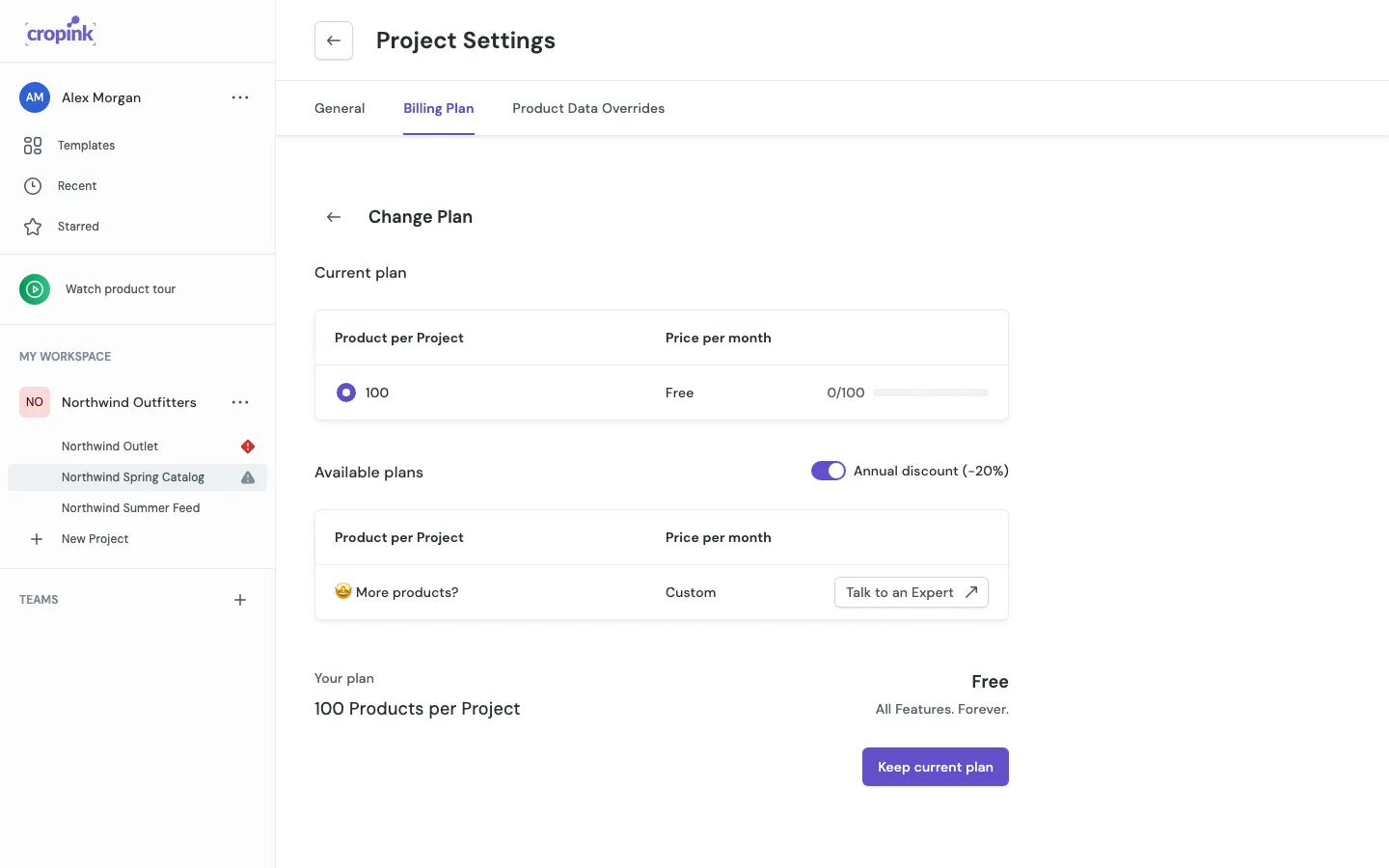
- Under Current plan you see your plan. Under Available plans you see the other plans, with the number of products and the price per month. Click Show higher plans to see the rest of a long list.
- Switch Annual discount (-20%) on or off to see yearly or monthly plans.
- Select a plan. A summary below shows your new plan, what it costs, and a warning if the project has more products than the new plan allows.
- Click the button under the summary. Its name tells what happens: Upgrade, Downgrade or, when you picked your current plan, Keep current plan. When you have picked another plan, Cancel goes back to the billing tab. The button is disabled when you select the plan that is already scheduled as your next plan; its tooltip says Contact support to change your subscription
What happens next depends on the change:
- If a payment is needed, a Checkout window opens with the payment form. Pay there. The plan changes only once the payment is complete, and a notification says Subscription purchased successfully
- Otherwise the change goes through at once, and a notification confirms the upgrade or the downgrade. A downgrade starts on the date shown in the summary, when the current period ends.
- Cancel the subscription. Select the free plan and click the downgrade button. A notification says Successfully cancelled subscription
- Team plan. If your team has a team plan, it also appears as a choice. You then enter the number of products, in thousands, to take from the team’s remaining products, and you pay nothing for the project. Choosing it while the project has its own paid plan asks you to type CONFIRM, because the individual plan is lost and not refunded.
Only the team owner can manage the project subscription; other members get the message
Only the team owner can manage the project subscriptionPayment status banners
Section titled “Payment status banners”When the project page is opened with a payment status, for example when a payment takes you away from Cropink and back, a banner shows the result:
- Success (green): Payment was sucessful and subscription has been updated.
- Failure (red): Payment failed. Please try again.
- Incomplete (yellow): Payment was incomplete. Please follow instructions provided in email to complete payment.
While a trial runs or a payment is past due, the person who owns the subscription also sees a banner on the project with Add payment method. Use it to open the payment provider’s page.