Format prices
By default a price layer shows the price as it is in your feed, for example 149.00 USD. Price formatting changes how
that price is written: $149.00, $1,299.00, $1299 or only the whole part of it. It changes the text of the layer,
not your feed.
Open the window
Section titled “Open the window”The option belongs to the layer, not to the design. It appears for a layer that is mapped to a price field: sale_price,
regular_price, current_price, old_price, discount or discount_percentage. For how to map a layer, see
Map layers to product data.
- Select the layer and open Data Settings.
- Under the mapping field, find the Price Formatting: row. It shows the current result, or Default when you have not changed anything.
- Click the slider button at the end of the row. The Price Formatting window opens
next to the right panel. There is no save button: every change applies at once, and you close the window with the X in
its corner. The row then shows the result, for example
$1,000.00.
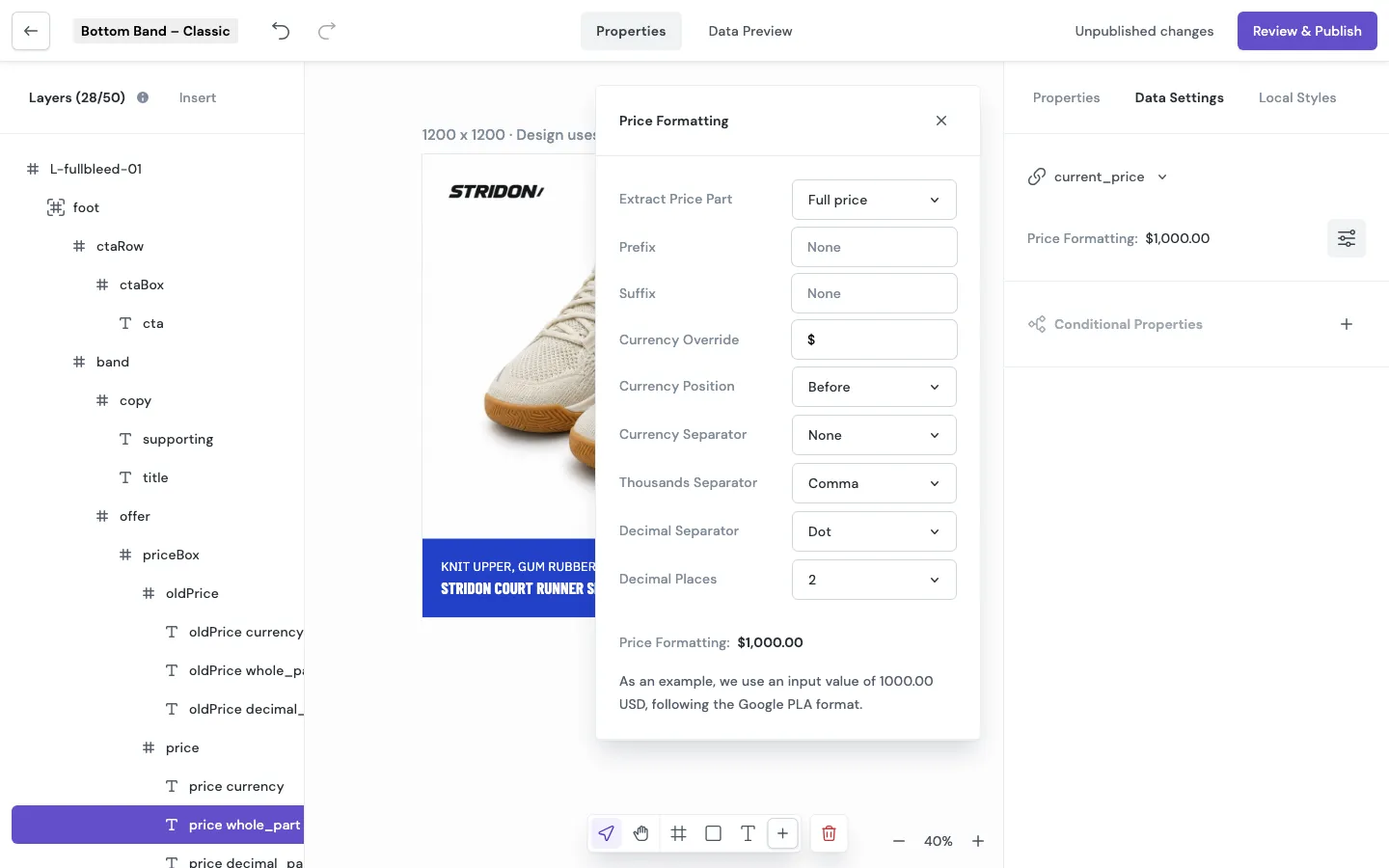
If you clear the mapping of the layer, the window closes and the formatting is cleared with it.
The preview line
Section titled “The preview line”The bottom of the window shows Price Formatting followed by the result, and it follows every change you make. A note under it says that the example input is 1000.00 USD, the Google PLA format. The example is always the same price, whatever your products cost. It is there to show the shape of the result. With no value set at all, the window says that prices are shown as in your feed.
The options
Section titled “The options”Start with Extract Price Part. It decides which part of the price the layer shows, and it decides which of the other fields the window offers.
| Extract Price Part | The layer shows | Fields you can set besides Prefix and Suffix |
|---|---|---|
| Full price (default) | The number and the currency, $1,299.00 |
All of them |
| Whole part | The number before the decimal separator, 1,299 |
Thousands Separator, Decimal Places |
| Decimal part | The digits after the decimal separator, 00 |
Decimal Places |
| Currency | The currency only, $ |
Currency Override |
| Only price | The number without the currency, 1,299.00 |
Thousands Separator, Decimal Separator, Decimal Places |
When you pick a part that has no use for a field, the field disappears. For Currency Override, Currency Position, Thousands Separator, Decimal Separator and Decimal Places the value is dropped as well, and it comes back if you pick a part that uses it again while the window is still open. Currency Separator only hides: it keeps its value and has no effect outside Full price.
- Prefix and Suffix: text put
before and after the result, for every part. For example the prefix
FromgivesFrom 149.00 USD, and the suffix,-on the whole part gives149,-. - Currency Override (Full price and Currency): replaces the currency of the
feed. It is free text: type a symbol such as
$or a code such asUSD. There is no currency list. Leave it empty to keep the currency of the price in your feed. - Currency Position (Full price): Before
or After. While it is
Default, the position follows the feed. A feed price such as
149.00 USDhas the currency after the number, so a$override alone gives149.00 $. Choose Before to get$149.00. - Currency Separator (Full price): the gap between the currency and the
number, None or
Space. While it is
Default, there is a space:
$ 149.00. Choose None for$149.00. - Thousands Separator: Comma,
Space or Dot.
By default there is none:
1299. - Decimal Separator: the same three choices. The default is Dot.
- Decimal Places: from 0 to 5. The default is 2. The price is rounded to
the number you choose. With 0 the decimals and the decimal separator are dropped:
$1299.
The two separators cannot be the same symbol, so each list leaves out what the other one uses. Because the decimal separator counts as Dot until you change it, Dot is missing from the thousands list. To use a dot for thousands, set the decimal separator to Comma or Space first.
The decimal separator and the decimal places go together. Pick one and the other is filled in: a separator sets the places to 2, and a number of places sets the separator to Dot. Set one back to Default and the other one is cleared too.
Example: $1,299.00 and $1299
Section titled “Example: $1,299.00 and $1299”Both examples use the price whole_part layer of “Bottom Band – Classic” and a product that costs 1299.00 USD.
- Select the
price whole_partlayer and open Price Formatting as described above. Set Extract Price Part to Full price. The preview line reads1000.00 USD. - Type
$in Currency Override. The currency in the preview changes. - Set Currency Position to Before.
- Set Currency Separator to None.
- Set Thousands Separator to Comma.
- Set Decimal Places to 2. This also sets
Decimal Separator to Dot
if it was not set. The preview line reads
$1,000.00, and a product that costs1299.00 USDshows$1,299.00. Close the window: the row reads$1,000.00.
For $1299, set Thousands Separator back to
Default and Decimal Places
to 0. The same product then shows $1299. If you keep the comma, you get $1,299.
A few more results for 1299.00 USD, all on Full price:
| Currency Override | Currency Position | Currency Separator | Thousands Separator | Decimal Separator | Decimal Places | Result |
|---|---|---|---|---|---|---|
| none | Default | Default | Default | Default | Default | 1299.00 USD |
$ |
Before | None | Default | Default | Default | $1299.00 |
$ |
Before | Space | Space | Default | Default | $ 1 299.00 |
$ |
After | Space | Space | Comma | 2 | 1 299,00 $ |
Example: a price in two layers
Section titled “Example: a price in two layers”A big whole part and small cents need two layers, one for each part. “Bottom Band – Classic” does this with the layers
price currency, price whole_part and price decimal_part, and with oldPrice decimal_part for the old price. Each
layer has its own formatting and its own text style. They sit side by side in the price frame.
- Map three text layers to the same price field.
- On the first layer, set Extract Price Part to
Currency and type
$in Currency Override. It shows$. - On the second layer, open Price Formatting and set
Extract Price Part to Whole part.
For
1000.00 USDthe preview reads1000. Set Thousands Separator to Comma and it reads1,000. Close the window. Make this layer’s font large (see Text). - On the third layer, set Extract Price Part to
Decimal part. The preview reads
00. Make this layer’s font small and raise it, so it sits next to the whole part as a superscript. - To write the decimals with a dot in front, as the old price does, type
.in Prefix. The row then reads.00. - Check it in Data Preview with a product that costs
1299.00 USD: the design shows$1,299with a small00. The parts sit side by side in thepriceframe, so a wider whole part pushes the cents along.
Leave Decimal Places on Default
for this pair. On the whole part, 0 places rounds the price to a whole number, so 19.99 USD would show 20 instead
of 19. On the decimal part, 0 places leaves no digits at all, and only the prefix is left.
Where you see the format
Section titled “Where you see the format”- In the Data Settings of the layer, in the Price Formatting: row.
- In Data Preview, under the value of the layer in the Output, and in the field of the layer in Edit Product Data (see Preview with real products).
- In Review & Publish, as a change of Price Formatting (see Review and publish a design).
In all of these places the summary is the format applied to the example 1000 USD, as in the preview line, or
Default when only Full price
is set and nothing else.
Check it on a real product
Section titled “Check it on a real product”The preview line uses 1000 USD, so it cannot show how a real price looks. Open
Data Preview, choose a product and read the price on the design. Try a product
with a price above 999, one with cents and one with a sale price, because each can break a layout in a different way.
See Preview with real products.
What it cannot do
Section titled “What it cannot do”- Choose how the price is rounded. It is rounded to the decimal places you set, and there is no rounding mode.
- Hide the decimals only when they are zero. You either show them for every product or none (0 places).
- Pick a currency from a list. Type the symbol or the code yourself.
- Format anything but prices. The option is there only for the price fields listed above.
- Show more than 5 decimal places.