Payments
The Payments tab lists the invoices for your project subscriptions, grouped by team. To open it, click the three dots next to your name at the bottom of the side panel and choose Payments, or click your name and then the tab. See Your account and theme.
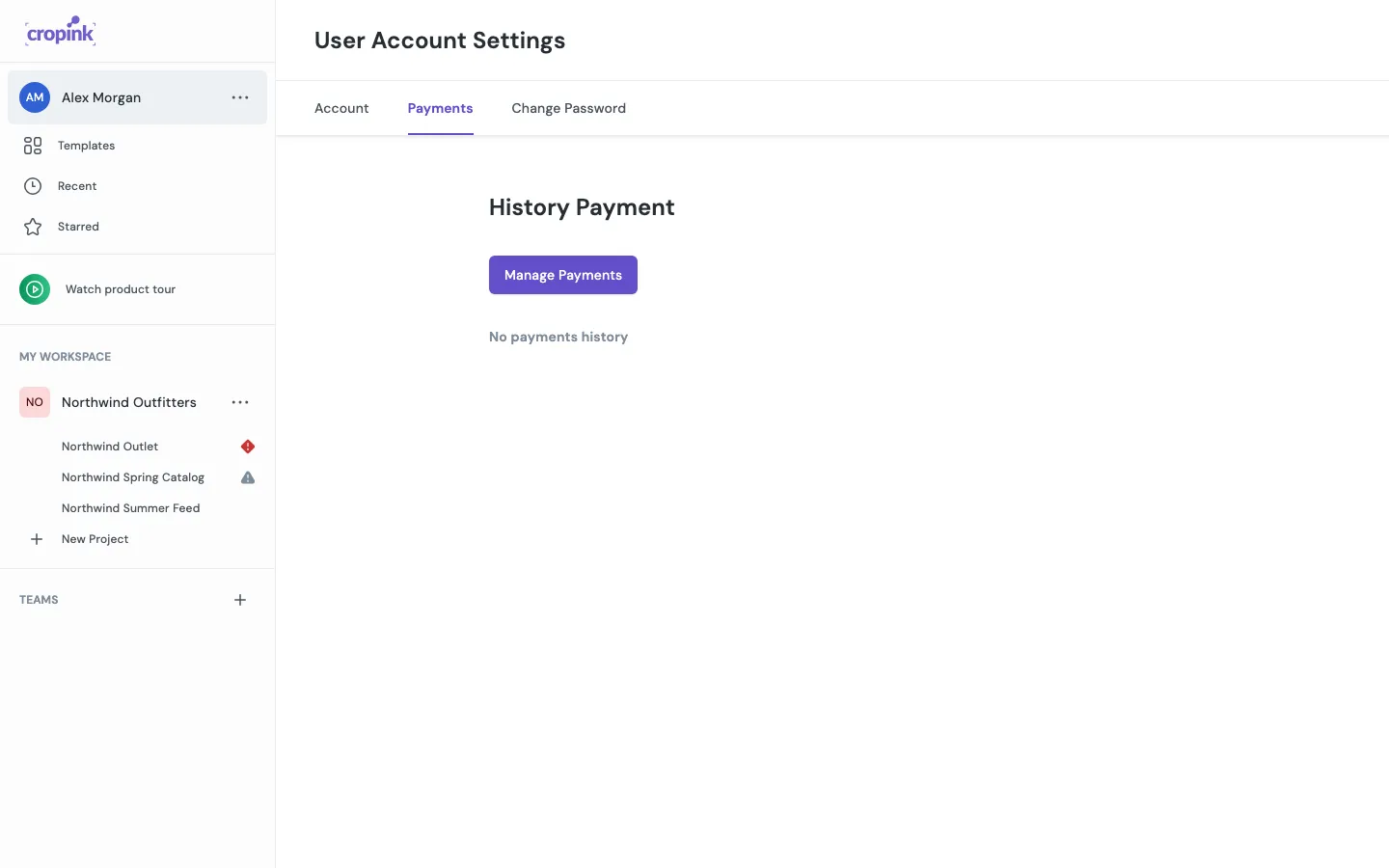
Payment history
Section titled “Payment history”Under History Payment you see one card for each team that has invoices. A card shows the team name and a table:
- Date: the date of the invoice;
- Project: the project the payment is for;
- Amount: the total of the invoice;
- A link, Invoice, in a column without a header: opens the invoice in a new browser tab.
A card shows five entries. Click Load More to see five more; the button disappears when everything is shown.
If there is nothing to show, the page reads No payments history. To see or change the plan of a project, see Billing plan and changing it.
Manage your payment details
Section titled “Manage your payment details”Click Manage Payments to open the payment provider’s page in a new browser tab. This is where you manage how you pay. The button appears once the page has loaded and finished preparing the link.