Local styles and team styles
A style keeps the colours, logos and fonts of your brand in one place. In the design editor, the Local Styles tab shows the ones this design uses. Change a slot there and every layer linked to it changes with it. You can also replace the whole set with a style of your team.
What local styles are
Section titled “What local styles are”Local styles are the colours, logos and fonts of one design. A layer takes part only if it was linked to a style in Figma, with the Cropink plugin. Layers that were never linked do not appear in this tab.
Each item in the tab is a slot, for example “Background Color 1” or “Text Color 2”. Several layers can follow the same slot.
Open the tab
Section titled “Open the tab”Select the Local Styles tab on the right of the editor.
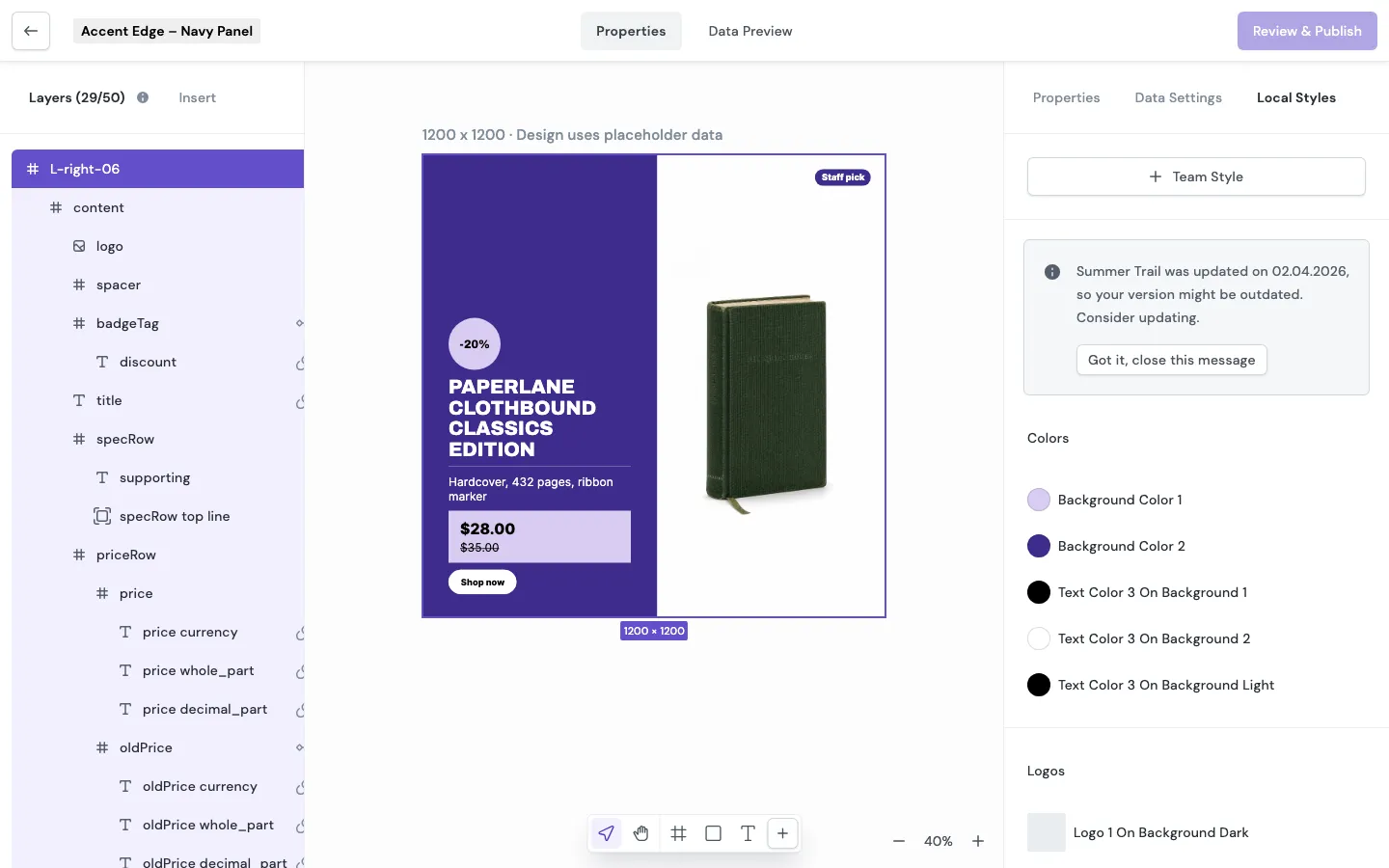
At the top you see the Team Style button and, when it applies, a banner (see The banners). Below, the tab lists up to three sections:
- Colors, grouped by kind (background, text, stroke) and numbered.
- Logos, each with a thumbnail.
- Fonts, each with a sample (Aa) in the slot’s font and the font name.
A section the design does not have is not shown.
If the design has no linked layers at all, the tab shows No Styles Mapped: To set styles, use Cropink’s Figma Plugin and map layers’ properties to styles. The Team Style button is not shown either, so a design without any linked slot cannot take a team style.
Change a colour, a logo or a font
Section titled “Change a colour, a logo or a font”- Open the Local Styles tab.
- Click the edit icon of the item you want to change.
- For a colour, pick a colour or type a hex value in the picker. The design updates while you pick.
- For a logo, choose another one in the image picker.
- For a font, search the list of your team’s fonts and the system fonts, then choose one.
Every layer linked to that slot changes at once. You can undo the change like any other.
Find the layers that use a slot
Section titled “Find the layers that use a slot”Each item has a target icon when layers follow it. Click it to see a list of the layers that use the slot, with the property each one takes from it. Click a layer in the list to select it on the canvas.
The list shows only the layers that still follow the style. A layer you detached (see the next section) is not in it.
Layers that follow a style and layers you detached
Section titled “Layers that follow a style and layers you detached”A layer linked to a slot shows its colour, font or image as a style value in the Properties tab, with a link icon. While it is linked, it follows the slot. Click the link icon (Detach Style) to detach the layer: it stops following the slot. Later edits of the slot no longer change it, and it disappears from the target list.
For the other properties of a layer, see the Properties.
Apply a team style
Section titled “Apply a team style”A team style is a saved set of colours, fonts and logos, made in Create and edit a style. You can start a design from one.
- In the Local Styles tab, click Team Style.
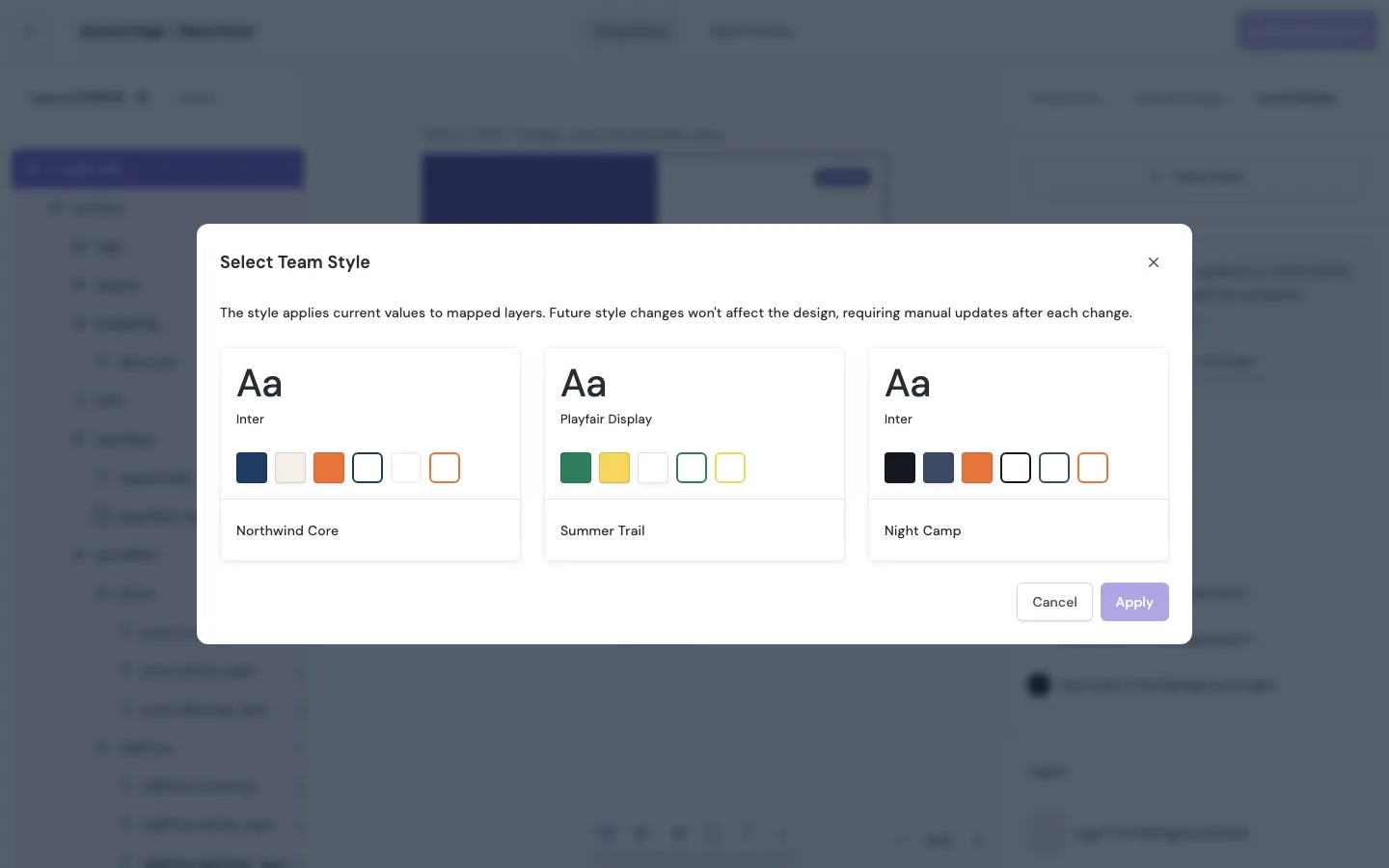
- In the window Select Team Style, choose a card. Each card shows the name, the colours and the first font of a style. In this example, the team has three styles: Northwind Core, Summer Trail and Night Camp.
- Click Apply. The button works once you have chosen a card.
What Apply does:
- It copies the current values of the style into the slots that the design already has. It never adds a slot. If the style has more colours than the design, the extra ones are ignored, and a slot that is empty in the style stays as it is.
- Layers linked to those slots change at once.
- Later changes to the team style do not reach the design. To refresh it, apply the style again.
- You can undo the application. Undo also restores the style that the design had before.
- The style is remembered for the design and sent with it when you publish.
If you have no styles, the window says No styles are available. Go to your team details to create a reusable style and quickly apply colors, fonts, and logos. Click Close to leave. If the list does not load, the window says We couldn't load the team's styles. Close this window and open it again to try once more. A style you changed a moment ago may show up only after you reload the page.
The banners
Section titled “The banners”When a design has taken a team style, a banner under the Team Style button tells you where it stands:
- If the style was updated after the design last took it, the banner says the style was updated on that date, so your version might be outdated. For example, Accent Edge – Navy Panel took Summer Trail on 20.03.2026, and Summer Trail was updated on 02.04.2026. Apply the style again to refresh the design, or click Got it, close this message to close the banner. A closed banner stays closed in this browser tab. It returns in a new tab, or when the style is updated again.
- If the style has not changed since you applied it, the banner says it was applied on that date and has not been updated since. This banner has no close button.
The banners appear only for a style that still exists in your team.