Install Cropink from Shopify
Shopify is an experimental feature and may not be available on your account. If you cannot choose Shopify as a data source, or you do not see a Shopify section in your team settings, it is not turned on for you.
When you install Cropink from the Shopify App Store, Shopify sends you to Cropink to finish connecting your store. You do not need to open this page yourself, and you cannot use it without an installation: opening it with no installation shows a “page not found” screen.
Finish connecting your store
Section titled “Finish connecting your store”- Authorize Cropink in Shopify. Cropink does not show anything during this step.
- Shopify sends you back to Cropink. The store is installed, but it does not belong to a team yet, so Cropink keeps the installation in your browser until you finish.
- If you are already signed in, Cropink opens your dashboard. If not, it opens the sign-up page (or the log-in page if sign-up is not available) and shows Sign up or log in to finish connecting your Shopify store. Sign up or log in as usual.
- On the dashboard, Cropink asks Connect your Shopify store. Choose the team in Choose the team this store should be connected to. Your default team is first in the list and marked Default. Click Connect.
- Cropink shows Your Shopify store is connected. and opens the settings of that team, where the store is listed.
Cropink asks you to pick a team even if you have only one, and lists only the teams where you are allowed to connect a store. If you have none, you see You don't have a team you can connect a Shopify store to. Ask a team owner for access.
If you click Not now, nothing is lost: the installation is kept and the question comes back the next time you open Cropink, until the installation expires. If connecting fails, Cropink shows a message for the error, or Couldn't finish connecting your Shopify store. Please try again., and you can try again. If the installation expired or was already used (This installation link has expired or has already been used. Open the Cropink app in Shopify again.), start again from Shopify.
When you sign up from the Shopify installation, Cropink may connect the store for you right away: it goes to your new team and becomes the data source of your first project. Otherwise the dashboard asks you for a team as described above.
Use the store as a data source
Section titled “Use the store as a data source”When the store is connected, choose it in the connect screen of a project. See Connect a data source.
If it did not work
Section titled “If it did not work”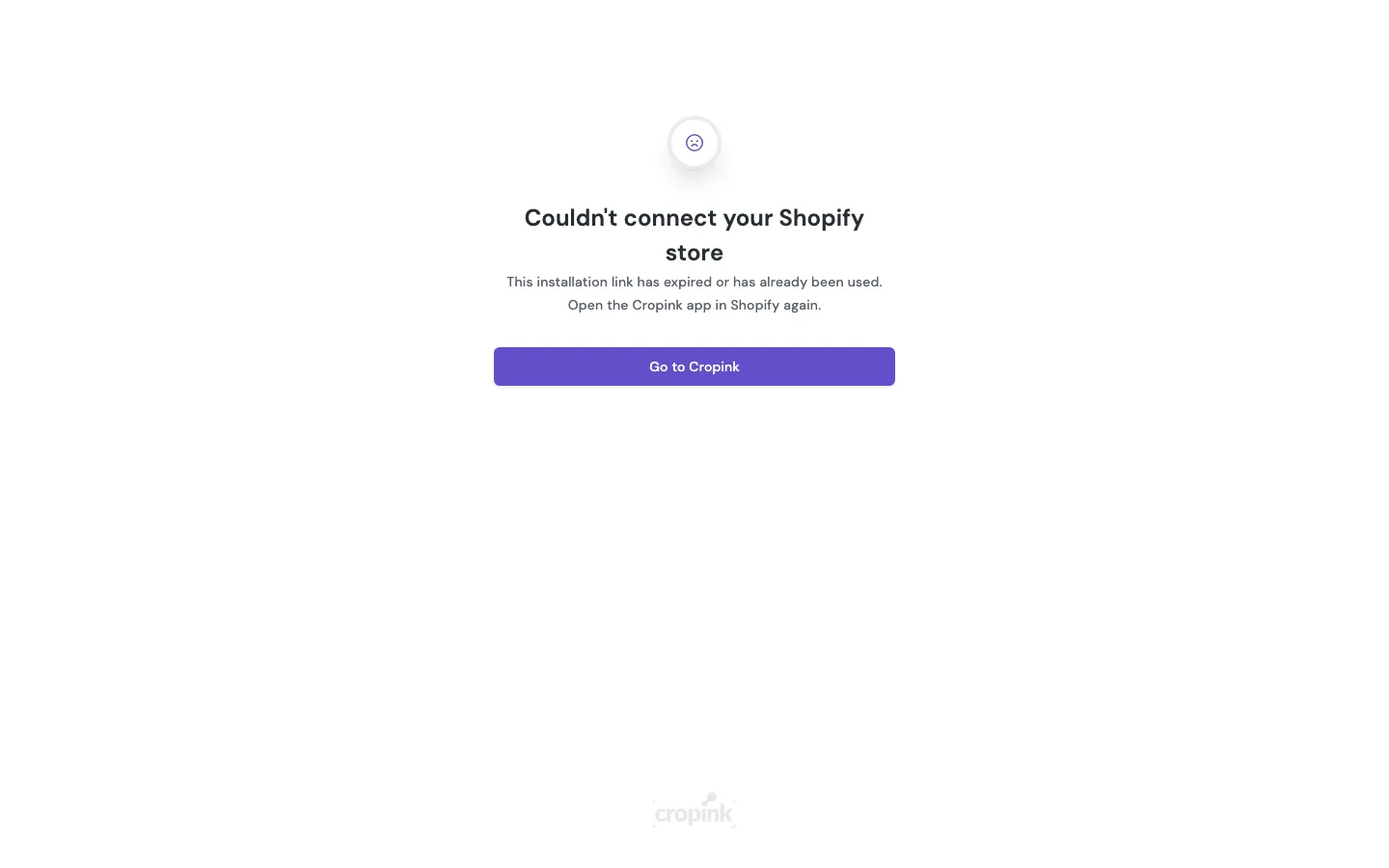
When the installation fails, Shopify sends you back to Cropink with an error. You see Couldn't connect your Shopify store and the reason. For example, an installation link that was already used or has expired says: This installation link has expired or has already been used. Open the Cropink app in Shopify again. Cropink shows the reason it received first. If there is none, it shows the text for the error code, and for an unknown code Something went wrong
Click Go to Cropink to open Cropink, then start the installation again from Shopify.