Figma plugin tokens
The Cropink Figma plugin sends designs and inserts (elements) from Figma to your team. It signs in with a team token. You manage the tokens on the Figma Plugin Tokens tab. The tab is visible only to team members who have the permission to list tokens; the team owner always has it.
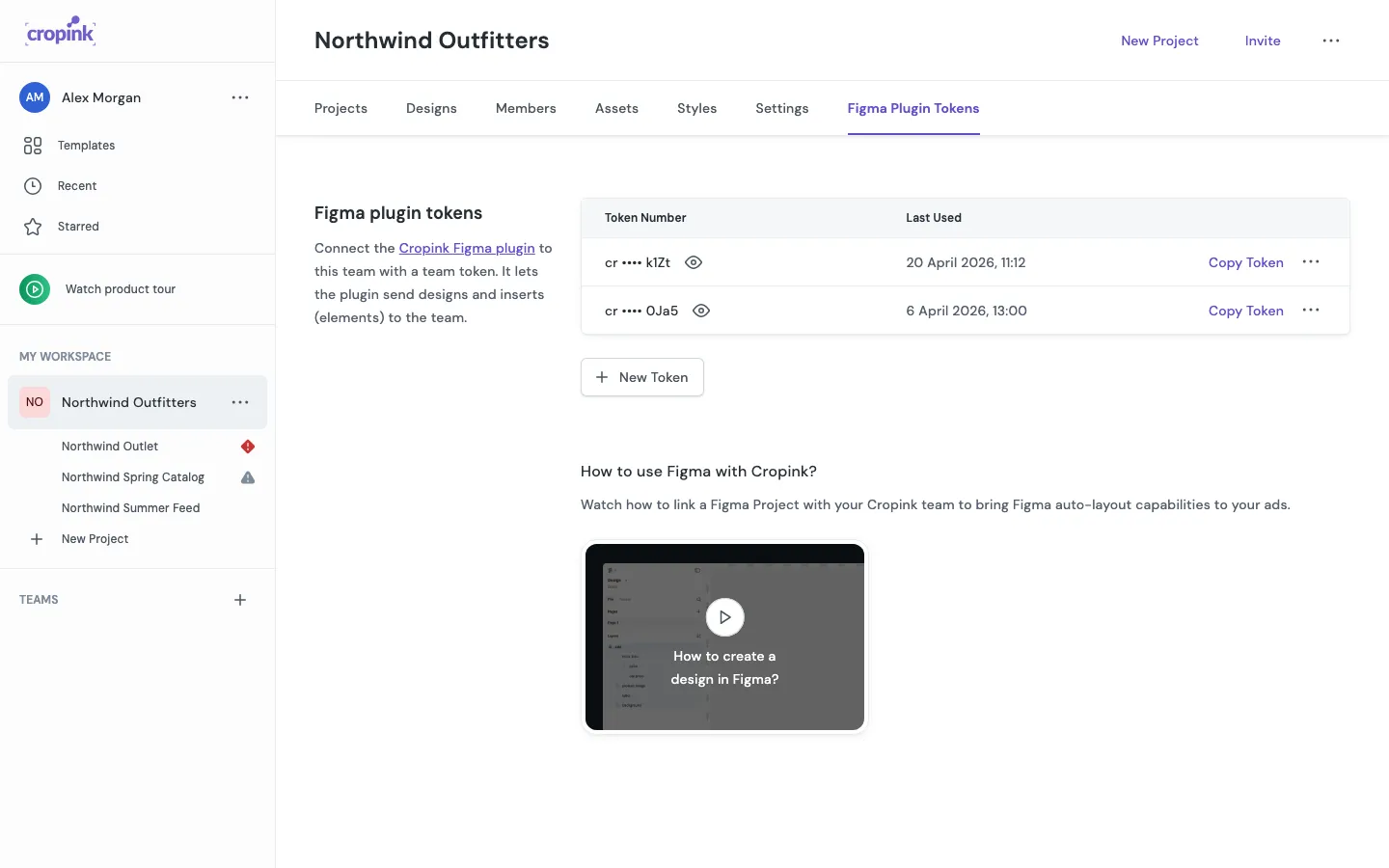
The tokens list
Section titled “The tokens list”The header explains: Connect the Cropink Figma plugin to this team with a team token. It lets the plugin send designs and inserts (elements) to the team. The link opens the plugin page in a new tab.
The table has the columns Token Number and Last Used. A token starts hidden, with only its first and last characters visible. For each token you can:
- click the eye button, or Show token in the row menu, to show the whole token; Hide token hides it again;
- click Copy Token to copy the token without showing it. A notification says Token has been copied to your clipboard If the browser refuses, it says Failed to copy token to clipboard
- delete it (see below).
Last Used shows when the plugin last signed in with the token; a token that has not been used yet shows when it was created. You can show and copy a token at any time; it is not shown only once.
Under the list, a short guide titled How to use Figma with Cropink? and a video (How to create a design in Figma?) explain how to link a Figma project to your team. Click the video preview to play it in a window.
Create a token
Section titled “Create a token”You need the permission to create tokens. Without it the New Token button is not shown.
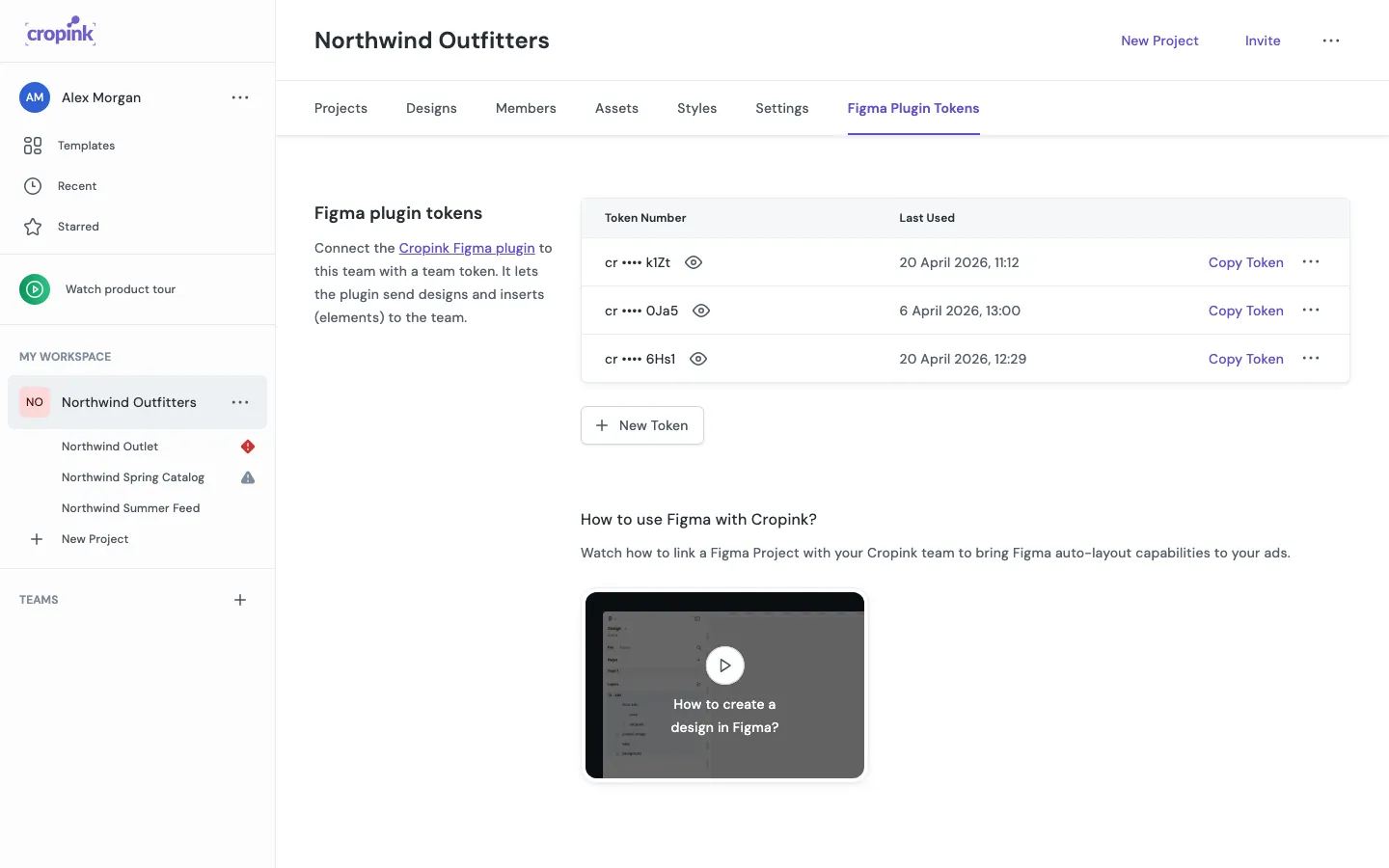
- Click New Token. The button shows a spinner while Cropink creates the token.
- The new token appears as a new row in the list. There is no dialog. Until the plugin signs in, its Last Used date is the date it was created.
- Show or copy the token and paste it into the Cropink plugin in Figma (see Connect the Figma plugin).
If your team has no tokens yet, the page shows no table, only the New Token button. If creating fails, a red notification shows the reason. A team can have several tokens, for example one per person or file.
Delete a token
Section titled “Delete a token”You need the permission to delete tokens. Without it the row menu has no delete item.
- Open the row menu and click Delete.
- The dialog Delete token? warns that any Figma file connected with the token will be disconnected. Type DELETE to enable the confirm button, then confirm.
The plugin can no longer sign in with that token. Create a new one and paste it into the plugin to connect again.
Related
Section titled “Related”- If the Inserts tab is available on your account, layers you send from Figma appear on it. See Figma inserts.
- Designs that came from Figma show a small Figma icon in the designs list.