Create and edit a style
You create a style in a short wizard. Cropink builds the full style from your colours and logo, and then opens the style editor, where you can change every value.
Create a style
Section titled “Create a style”Open Styles and click New Style. The wizard has four steps; a step counter at the bottom shows where you are. Click Continue to go on. To go back, use the step counter. On the first step, Cancel leaves the wizard.
Step 1: name
Section titled “Step 1: name”Name Your Style: type a name of 3 to 50 characters, for example “Default”, a brand name with Light or Dark, or a season like “Summer”. The name is required. You can rename the style later.
Step 2: colours
Section titled “Step 2: colours”Select Style Colors: add up to three colours. The first one is required (At least one color is required). When you fill in a colour, a new empty field appears until you reach three. Click the cross next to a colour to remove it.
These colours are a starting point: Cropink uses them to generate the background, border and text colours.
Step 3: logo
Section titled “Step 3: logo”Select Default Logo: click Add logo and choose one of the logos of your team. Use Change or Remove afterwards. Without a logo, the button reads Continue Without Logo. You can add logos later in the editor.
Step 4: finish
Section titled “Step 4: finish”And Finally - A Quick Review! shows your logo on each background:
- Selected Colors: the colours you picked;
- Neutral Colors: a light and a dark background;
- Cropink’s Suggestions: only if you picked a single colour, Cropink adds more colours so the style fits more templates. Click Remove Color to drop one, and Restore Color to bring it back.
On any background you can set a different logo with Add Logo or Change Logo, for example one that reads better on a dark colour. The reset button on such a logo returns to the default logo.
Click Create Style. The style is created and opens in the editor. If something fails, the server’s message appears in a notification.
Edit a style
Section titled “Edit a style”Click a style card to open the editor. The page has a header, a narrow side-bar with icons, a settings panel and a preview of the style on the right.
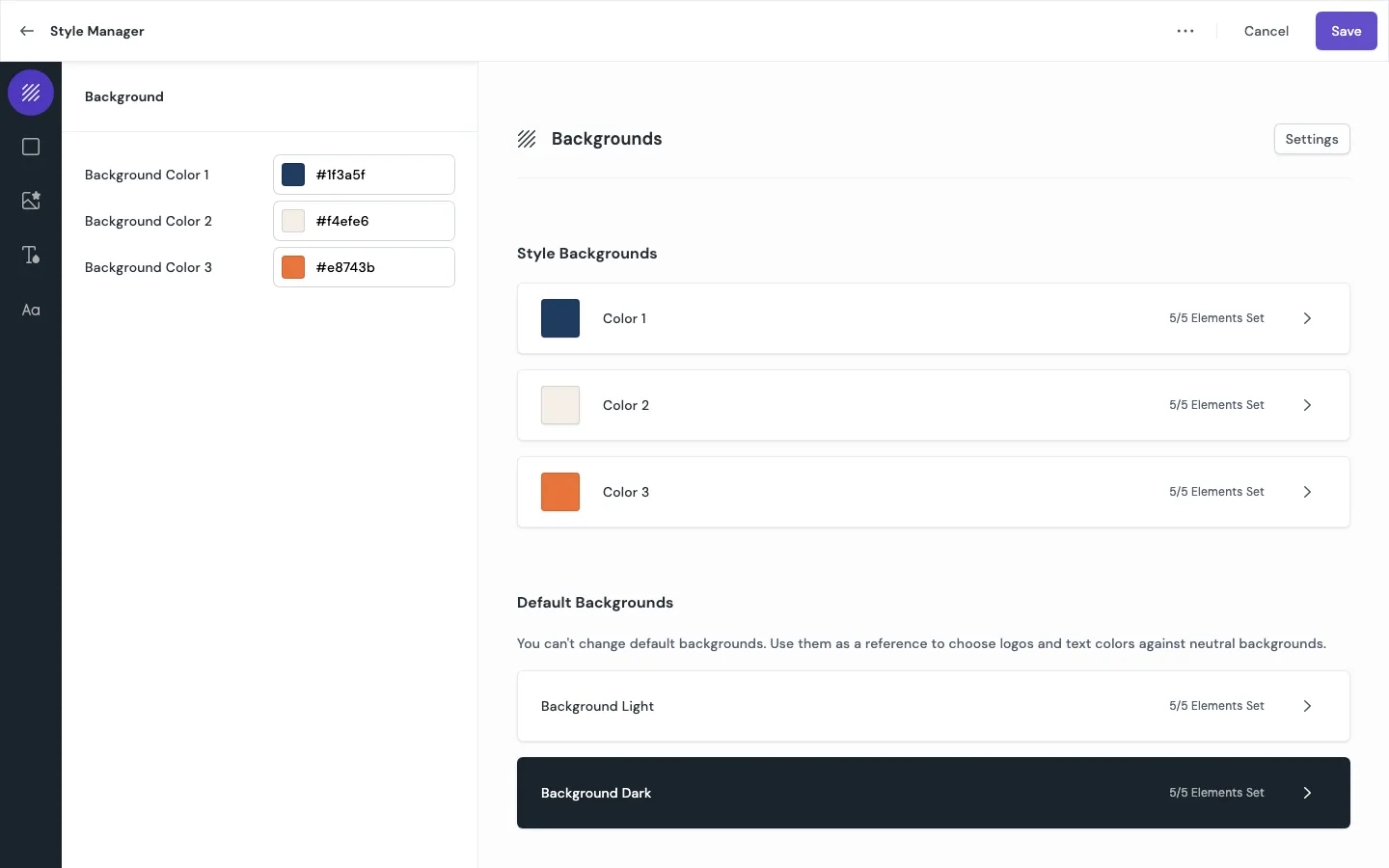
In the header, use the arrow to go back, the menu (three dots) to rename or delete the style, and Cancel or Save to leave or keep your changes. If you go back with unsaved changes, Cropink asks Discard unsaved changes?; choose Back to Edit to keep editing.
The side-bar icons open the tabs (hover an icon to see its name). Values you leave empty fall back to the default colours, logos and fonts of the template, so a template can look different from what you expect.
Background
Section titled “Background”Background: the background colours of the style. The preview shows them under Style Backgrounds. Click a background in the preview to see logos and text colours on it. The default light and dark backgrounds cannot be changed; they are a reference.
Border
Section titled “Border”Border: the border colours.
Logo: for each background, add a logo and choose a file from your team’s logos. Use the minus button to remove it.
Text colour
Section titled “Text colour”Text Color: for each background, the colours of the text placed on it.
Font: pick a font for each slot of the style. The list shows your own fonts first (see Fonts), then Cropink’s fonts.
Click Save. The editor closes and a notification confirms the change.