Create your account
You create an account with your e-mail address and a password. Cropink then asks you to confirm the address with a code it sends by e-mail.
Sign-up may not be available on your setup. If it is not, the sign-up address sends you to the log-in page instead. See Log in and reset your password.
Fill in the form
Section titled “Fill in the form”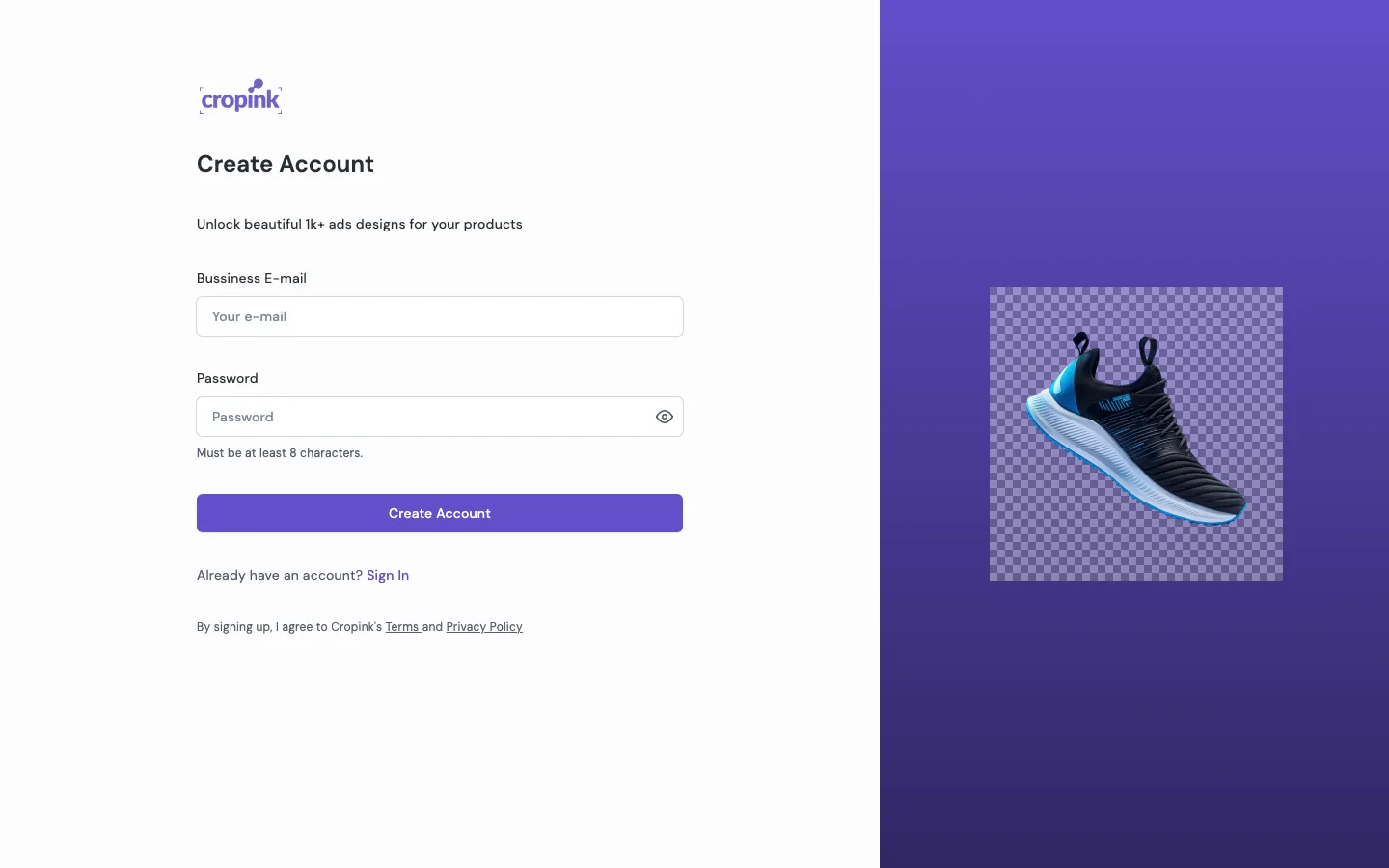
- Type your e-mail in the Bussiness E-mail field. It must look like an address (Entered value does not match email format appears otherwise).
- Type a password in Password. It must be at least 8 characters (Must be at least 8 characters.).
- Click Create Account.
When you leave the e-mail field, Cropink checks the address:
- With a personal address (a free mail provider), a notice says Cropink will ask a few short questions.
- With a disposable or temporary address, a red notice asks you to use a different one, and the Create Account button is disabled. The notice has a Contact Us button that opens an e-mail to Cropink support.
If Cropink cannot start the sign-up, it shows the error above the form.
Already have an account? Click Sign In under the form.
Answer the survey
Section titled “Answer the survey”The survey appears only if you signed up with a personal e-mail address. With a business address you skip it.
The survey asks:
- From what marketing channel did you come to cropink.com? (one answer);
- For what purpose do you need the cropink.com app? (one or more answers);
- In what marketing channels would you like to use cropink.com? (one or more answers);
- Do you have your own or manage any ecommerce store? (one answer). If you answer yes, you also enter your store website;
- Do you have a product file in Google Product Listing Ads or Facebook format? (one answer).
Every question is required. If you miss one, the survey shows This answer is required under it and a banner at the top. The store website must be a valid address (Please enter a valid website URL otherwise).
Click Send and Continue to Registration to go on.
Confirm your e-mail
Section titled “Confirm your e-mail”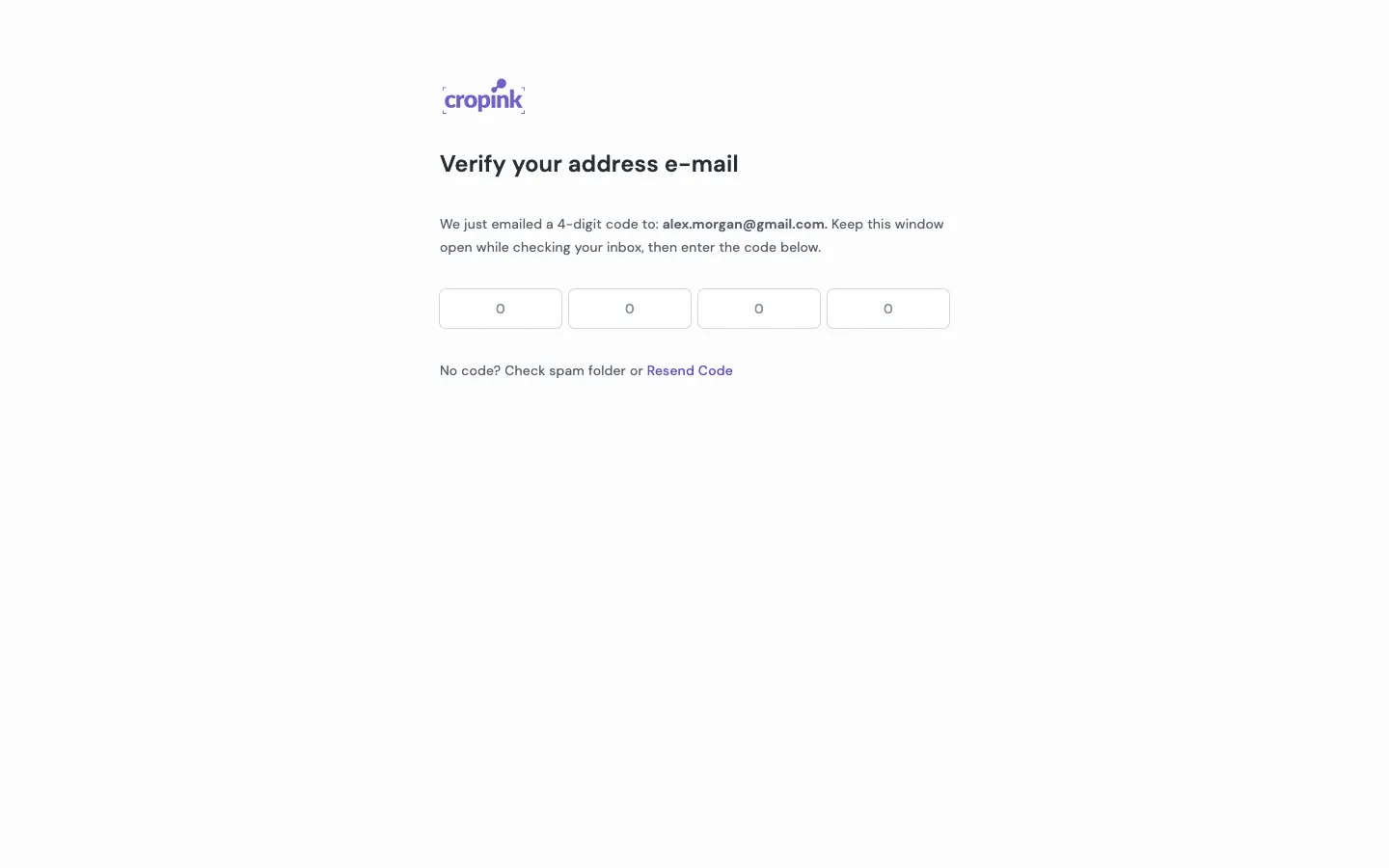
Cropink sends a 4-digit code to your address. Keep the window open while you check your inbox.
- Type the code in the four digit fields. You can also paste it. Only digits are accepted.
- When the fourth digit is in, the code is sent automatically. There is no button to click.
- If the e-mail does not arrive, check the spam folder, then click Resend Code. Cropink shows Verification code has been sent or, if it could not send the code, Failed to send verification code. Please try again later..
If the code is wrong, the error is shown above the digit fields.
After sign-up
Section titled “After sign-up”Your account is created and you are signed in. Cropink then opens the app or the onboarding, depending on your setup. See Set up your first project for what may come next.