Projects of a team
A project is one product feed with its designs and campaigns. The Projects tab of your team lists all of its projects.
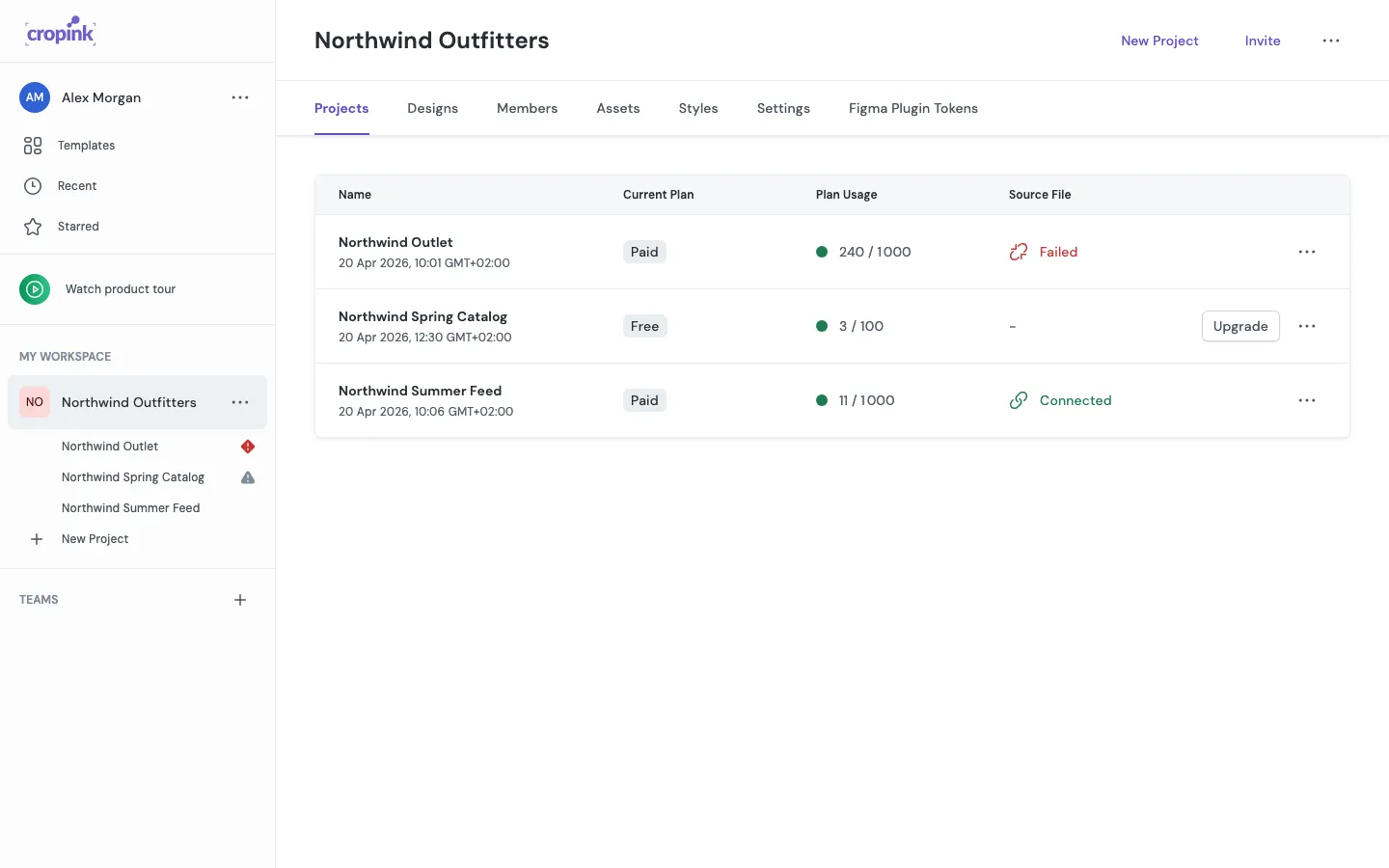
Read the list
Section titled “Read the list”Projects are sorted by name. Each row shows:
- Name: the project name, and below it the date of the last change. Click the name to open the project. A warning icon next to the name means Your source file contains more images than the selected plan allows.
- Current Plan: Free, Paid, Team and so on.
- Plan Usage: a bar with the number of products in your source file against the limit of the plan.
- Source File: the state of the connection to your data source (see below).
A project on the free plan also has an Upgrade button. It opens the billing settings of that project.
Source file status
Section titled “Source file status”| Status | What it means |
|---|---|
| Connected | The resulting file is connected to the source file. |
| Failed | The resulting file is not connected to the source file. |
| Processing | The feed is being processed. Give it a moment. |
| Connecting | The resulting file is connecting. Give it a moment. |
| Inactive | The feed is inactive. Reconnect it to create the resulting file. |
A dash means the project has no data source yet. See Connect a data source.
Create a project
Section titled “Create a project”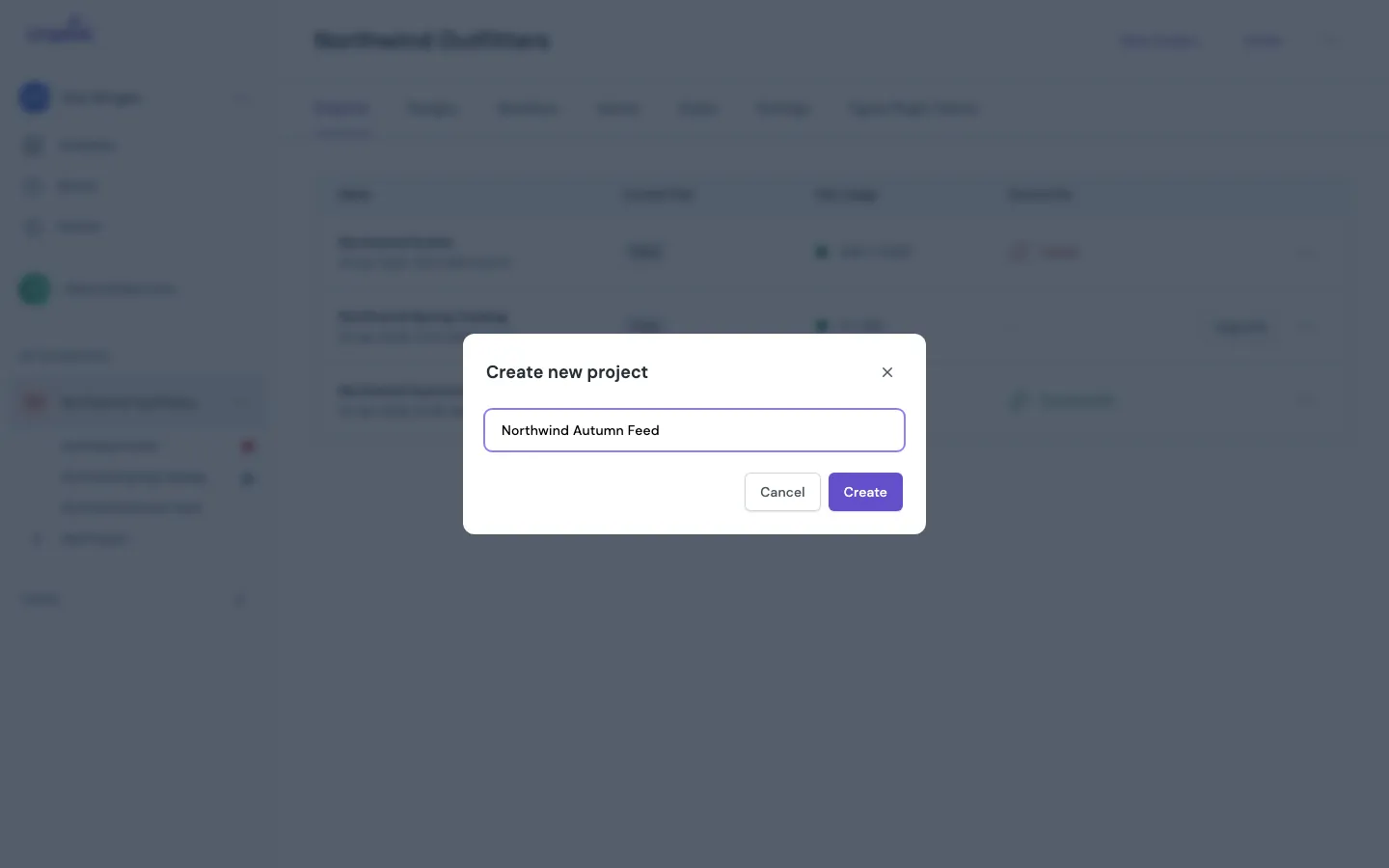
- Click New Project in the team header. It is there on every tab of the team. If your team has no projects yet, the list shows No Projects and a Create first project button instead.
- In Create new project, type a name of 3 to 50 characters. The name is required.
- Click Create. The new project opens. Use Cancel to close the dialog without creating anything.
You do not see the button if your role in the team does not allow creating projects.
A new project has no data source. Its Output Feed tab says No Data Source and offers Connect Data Source.
Open, duplicate or delete a project
Section titled “Open, duplicate or delete a project”Click the three dots at the end of a row:
- Open Project opens the project.
- Duplicate creates a copy of the project and adds it to the list.
- Delete asks you to type DELETE to confirm, and then removes the project.
Duplicate and Delete appear only when your role allows them. You cannot delete a project that has a paid or team plan, or whose subscription is inactive or set to end. Hover a disabled Delete to read
You must downgrade your subscription to freemium to delete the project.