The output feed
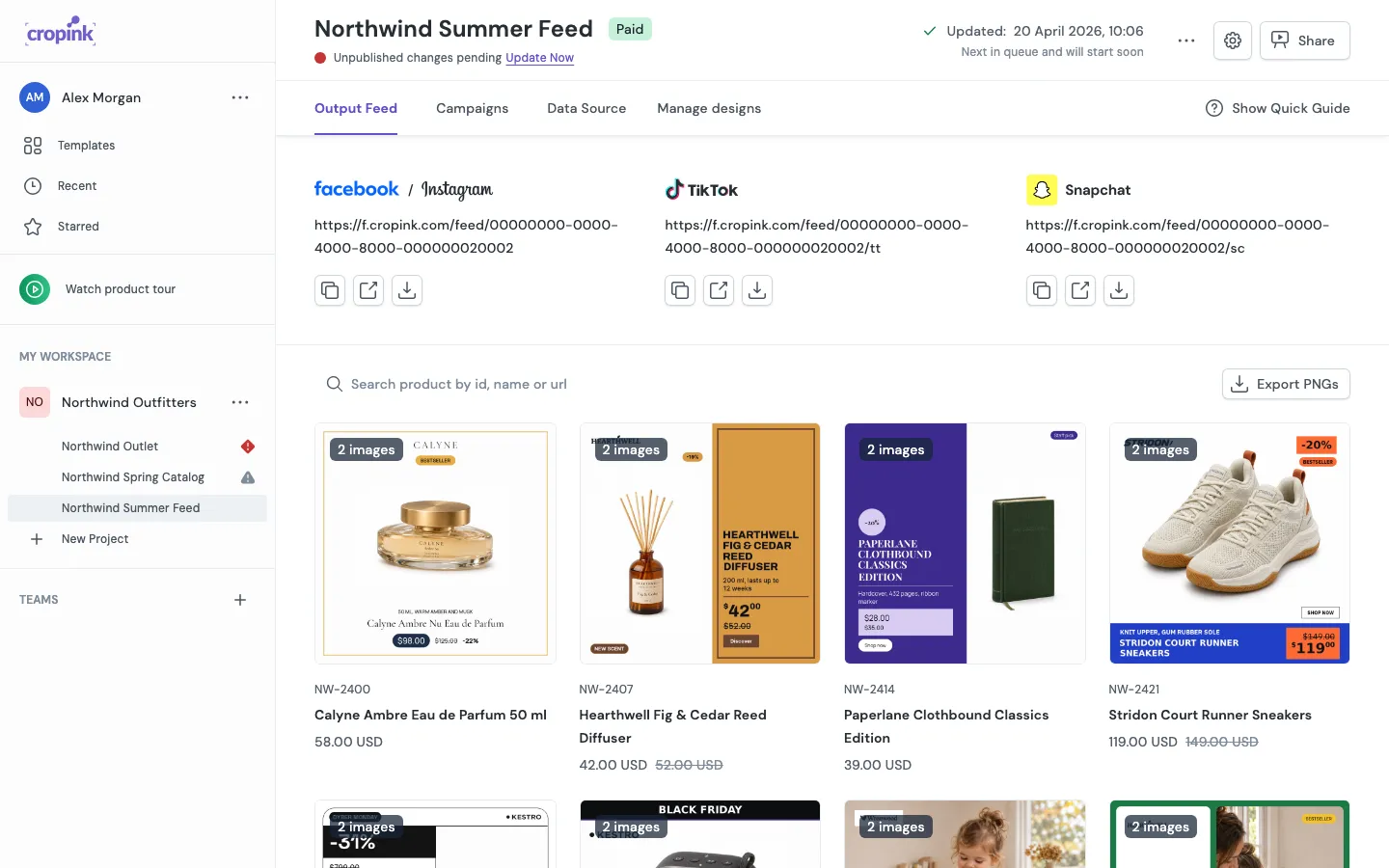
The Output Feed tab is the first tab of a project. It shows the feed that Cropink builds from your data source: the links you give to ad platforms, and every product with its image.
If the project has no data source or has not been updated yet, this tab shows No Data Source and a Connect Data Source button. See Connect a data source.
Copy a feed link
Section titled “Copy a feed link”At the top of the tab there are three feeds: Facebook and Instagram, TikTok and Snapchat. Each has its own link, with three small buttons under it:
- copy the link. A notification says Copied to clipboard;
- open the link in a new tab;
- download the feed file.
When no design is applied to any product yet, a banner says The output feed equals the data source. Click Go to Campaigns to add a design in the campaigns.
Browse products
Section titled “Browse products”Below the feed links you see your products, 12 per page. Each tile shows the product image (the designed one, or your original when there is no design), the product ID, the title and the price. When a product has a sale price, the regular price is crossed out.
- Click the product ID to copy it. A notification says Product ID copied to clipboard!
- To find a product, type at least 3 characters in the search box. Cropink searches the product titles.
- Hover over the image to see the buttons. Download saves the image and Open in new tab shows it in a new tab. They appear once the image has loaded.
- When a product has more than one image (for example, one for each additional image of a campaign), the tile has a badge with the number of images, and the two buttons above are not shown. Click the image to see all of them in a window, each one with its own Download and Open In New Tab buttons. The first image is Image Link (Default), the next ones are Additional Image Link … with a number.
Download the images
Section titled “Download the images”Click Export PNGs above the products. Cropink packs the images of the products on the current page into one ZIP file. If there is nothing to download, a notification says
Only generated images are available for download. No images to download.Check the data of a product
Section titled “Check the data of a product”Click the round info button on a tile (a small “i”, shown on hover). A panel opens on the side of the page.
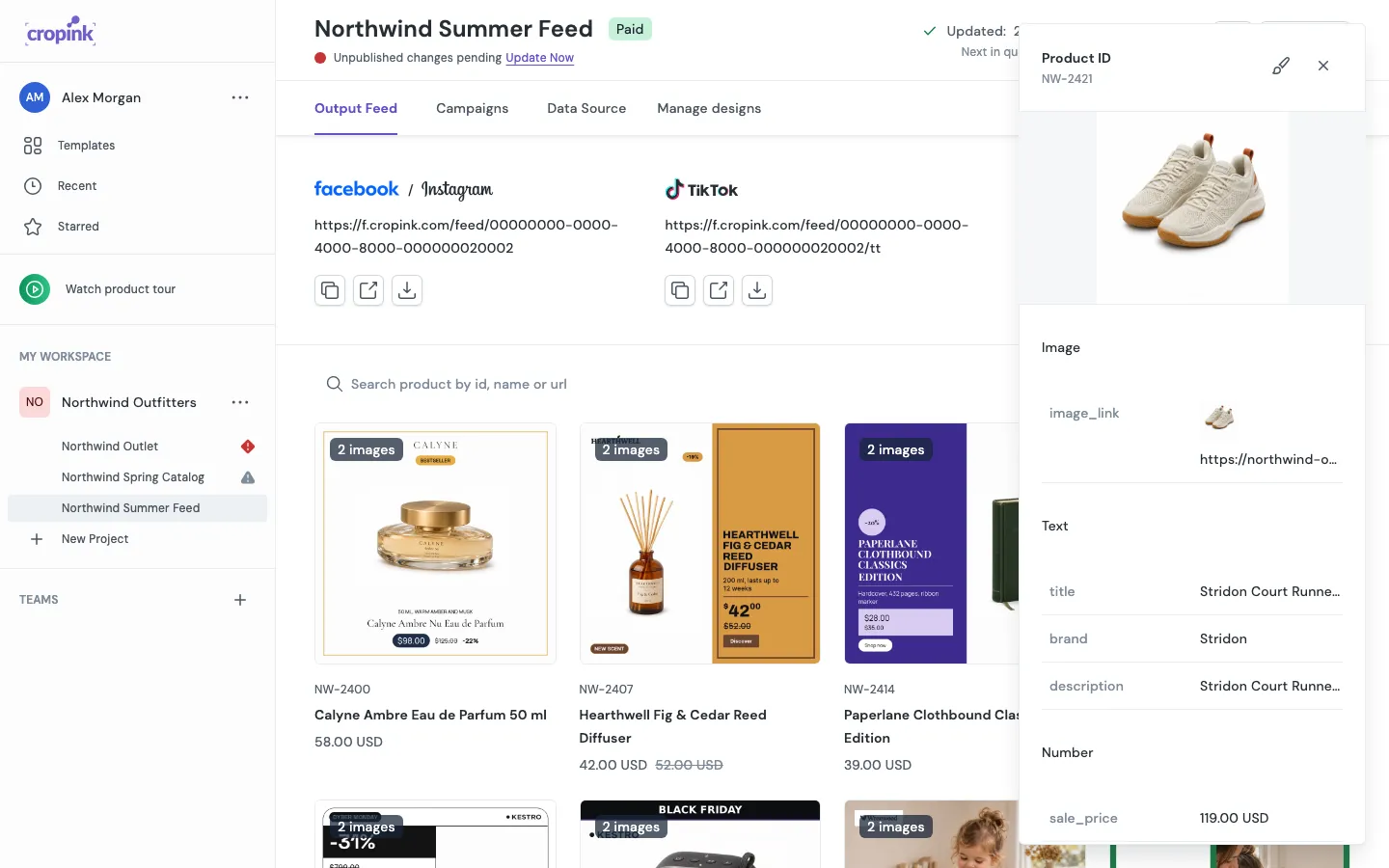
The panel shows:
- Product ID at the top, and the original product image;
- the fields of the product from your data source, grouped as Image, Text, Number, Boolean and Others. An empty field is marked Empty. Click a text value to copy it;
- an editor button with the tooltip Edit in Design Manager. It opens the design that was used for this product in a new tab. When the product has no design, the button is disabled and its tooltip says No design applied
You can drag the panel left or right. Close it with the cross.
Update status
Section titled “Update status”The top right of the project shows when the feed was last updated and, if it failed, a retry link.

- Updated with a date: the last update finished.
- Updating...: the feed is being built. On a paid plan, the line below says Your feed is being updated, or counts the products already processed as … products updated. On a free plan, that line is the upgrade hint (see below)
- Failed: the update failed. Click Retry Connect or see Update failures. Retry Connect starts the update again and opens the Data Source tab.
- Source File not connected: click Connect to connect a data source.
On a free plan, the line below the status is a hint to upgrade to enable automatic updates. When you change the designs or the campaign settings, the header notes Unpublished changes pending and offers Update Now to put them into the feed. When no manual update is left, the link reads (no manual update available) and opens the Data Source tab.
Share the feed
Section titled “Share the feed”To let someone look at the feed without a Cropink account, see Share a project. Their view looks like this tab.