Import a design into Figma
The plugin can draw a design of your team in the Figma file. The drawn frame stays linked to the design, so you can edit it in Figma and publish it back. You need a connected file.
Import a design
Section titled “Import a design”- On the Designs tab, click Import design from Cropink. With a linked frame selected, the button is a smaller link under the linked design.
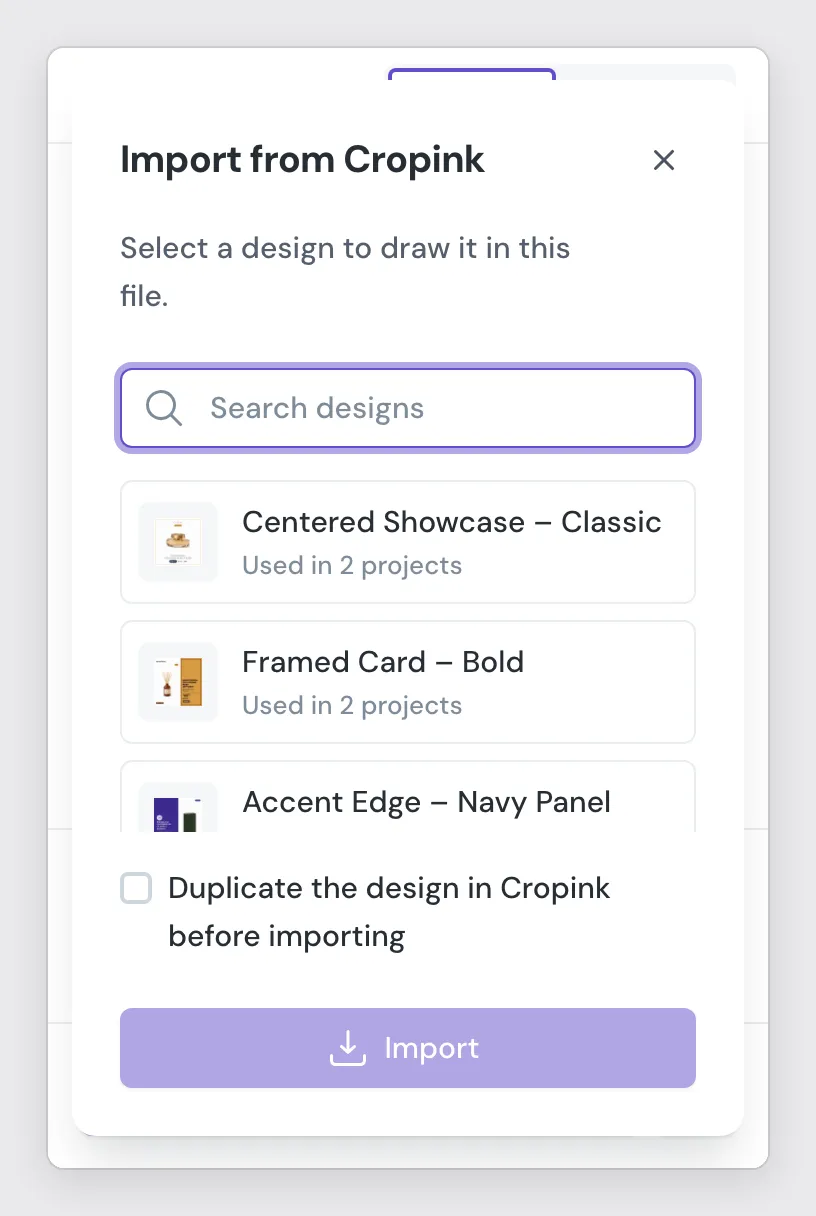
- The window Import from Cropink lists up to 100 of your team’s designs with their previews and how many projects use them. Type in Search designs to find one by name.
- Pick the design and click Import.
The plugin draws the design on a new page named “📥 Cropink / “ followed by the design’s name. Importing the same design again adds another page with a number, such as “(2)”. The new frame is linked to the design: it shows when it was imported, and Publish to Cropink sends your changes to that design. A design that has no Figma data cannot be drawn: Figma then shows that it has no Figma code to import.
Import a copy
Section titled “Import a copy”To experiment without touching the design that your projects use, tick Duplicate the design in Cropink before importing. The button becomes Duplicate and import: Cropink first makes a copy of the design in your team, and the plugin draws that copy, linked to the copy.
Refresh a frame from Cropink
Section titled “Refresh a frame from Cropink”When the design was changed in Cropink after you imported it, select the linked frame and click the refresh button next to Publish to Cropink (Refresh from Cropink). The window Refresh from Cropink? explains that the current version is drawn on a new page and that your frame is left as it is. Click Refresh in a new page.
Fonts not installed
Section titled “Fonts not installed”When Figma does not have a font the design uses, the plugin draws that text in a default font instead and shows Fonts not installed with the names of the missing fonts. Install those fonts and import the design again for a faithful copy. Dismiss hides the message.