Review and publish a design
The review is the last step of the design editor. It shows what you changed, shows the In Campaign: status of the design and lets you publish. Nothing you edit reaches your projects until you publish it.
Open the review
Section titled “Open the review”In the editor, click Review & Publish at the top right. The button works only when the design has changes; the header then shows Unpublished changes.
Before it opens the review, the editor checks the design. A condition that is not filled in (see Data Settings) stops you: the editor selects the layer, opens its Data Settings and marks the empty fields in red. Fix them and click the button again.
The browser’s Back button also takes you from the review back to the editor.
What the review shows
Section titled “What the review shows”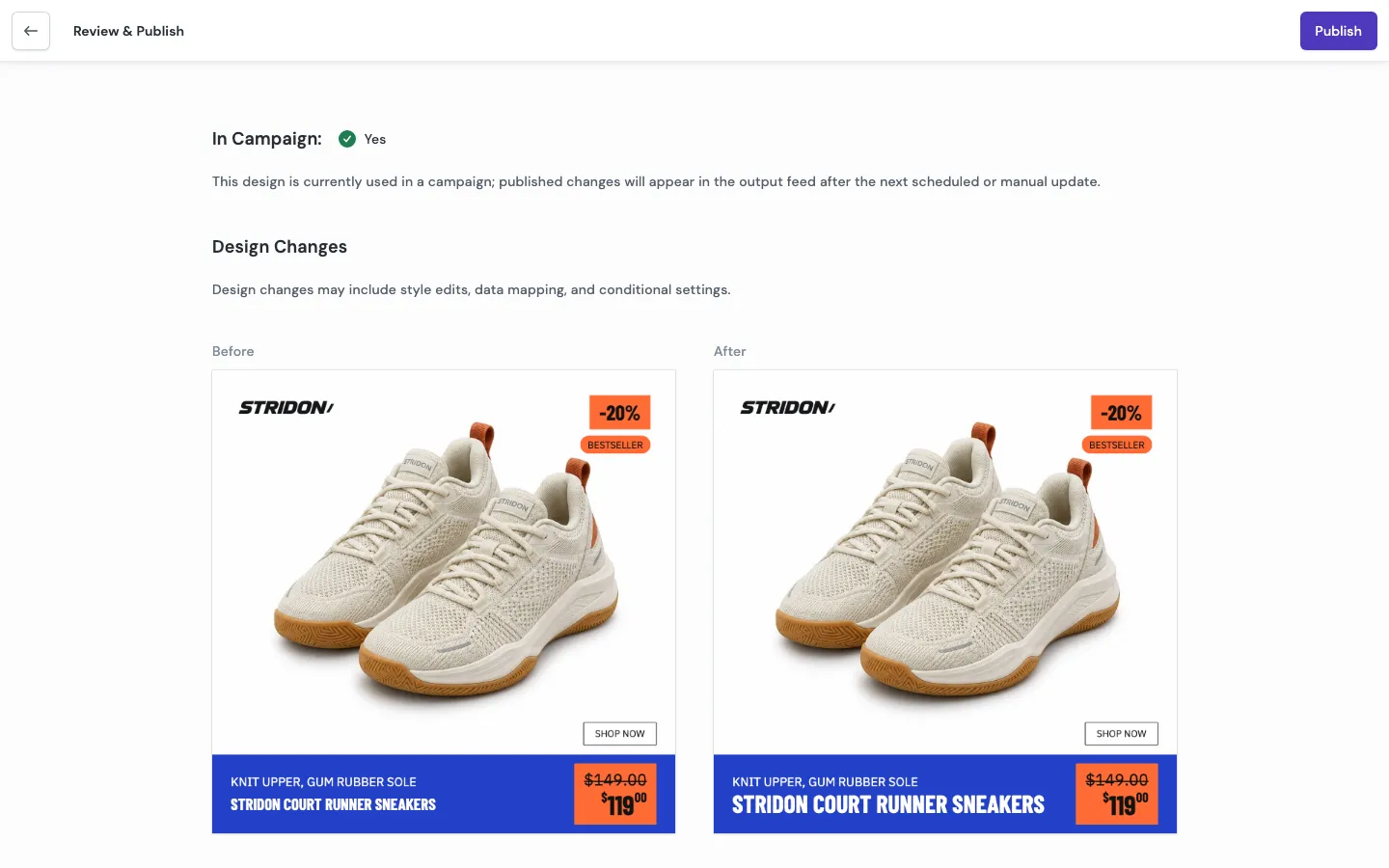
The header has the back arrow, the title Review & Publish and the Publish button. Below it, the page shows, from top to bottom:
- In Campaign: with Yes when a project of your team uses the design, or No when none does, and a sentence explaining what it means for the feed. See What publishing changes.
- Design Changes and a short description: Design changes may include style edits, data mapping, and conditional settings.
- Two pictures side by side. Before is the design as it was when you opened it. After is the design with your changes. The pictures show the design itself, not a product (see Check the design with products).
- The list of changes, in the same two columns. Each change names the layer, then the old and the new value of every property you changed: text, colours, fonts, sizes, position, data mapping, conditional properties and so on. Layers you added or removed are listed as Element added and Element removed, and a layer you moved shows Layer order changed. Changes to the design’s local styles are grouped under Styles at the top of the list.
The After picture is drawn when you open the review, so it may take a moment. While it is being drawn, it shows a loader. If it fails, the picture has a refresh button. Two cases only warn you, and you can still publish:
- The After preview took too long to generate. You can refresh it or publish anyway.
- a font that did not load, with the picture showing a substitute: a warning names the fonts that did not load.
In the review, undo and redo do not work. To change something, go back to editing.
Check the design with products
Section titled “Check the design with products”The review compares the design before and after. It does not show your products. To see how the design looks with the data of a real product, use Data Preview in the editor before you open the review. You can pick a project and a product, and even edit the product’s values, see Preview with real products.
Go back to edit
Section titled “Go back to edit”Click the back arrow in the header. You return to the editor with all your changes kept. The arrow does not work while a publish is running.
Publish
Section titled “Publish”Click Publish. The button is disabled when:
- the design has no changes (for example when you undid all of them);
- the After picture is still being drawn;
- the After picture failed to draw. A picture that only timed out does not block the button.
While the design is being saved, the button shows a loader and does nothing more.
A design used in more than one project
Section titled “A design used in more than one project”A design belongs to your team, and several projects can use it. When it is used in more than one, a window asks you to confirm before it publishes. It says the design is used in several projects and has a table with a Project column, which links to the project in a new tab, and a Campaigns column. For each project it shows how many campaigns use the design, or Added to campaign but not active or Not added to any campaign. Click Publish to publish, or Cancel to stay in the review.
After you publish
Section titled “After you publish”Cropink saves the design and shows a notification that the design was updated. You land on the Designs list. Your changes are now the published design. The name of a design is not part of this: a rename is saved as soon as you make it.
If publishing fails
Section titled “If publishing fails”The review stays open, with your changes, and a notification says the design could not be updated, or gives the reason, for example the layer limit. Try again. If Cropink can name a layer it cannot store as it is, the notification names that layer. Go back, fix or remove it, and publish again.
What publishing changes
Section titled “What publishing changes”A publish changes the design itself, so it changes in every project that uses it. The sentence under In Campaign: says what happens to your feed:
- Yes: This design is currently used in a campaign; published changes will appear in the output feed after the next scheduled or manual update.
- No: This design isn’t currently used in a campaign; published changes won’t appear in the output feed after the next scheduled or manual update until you add it to a campaign.
So the feed does not change on the spot. Products take the new design at the next update of the project. For how to start an update and where a project tells you about changes that are not in the feed yet, see The output feed.