Auto layout, padding and size
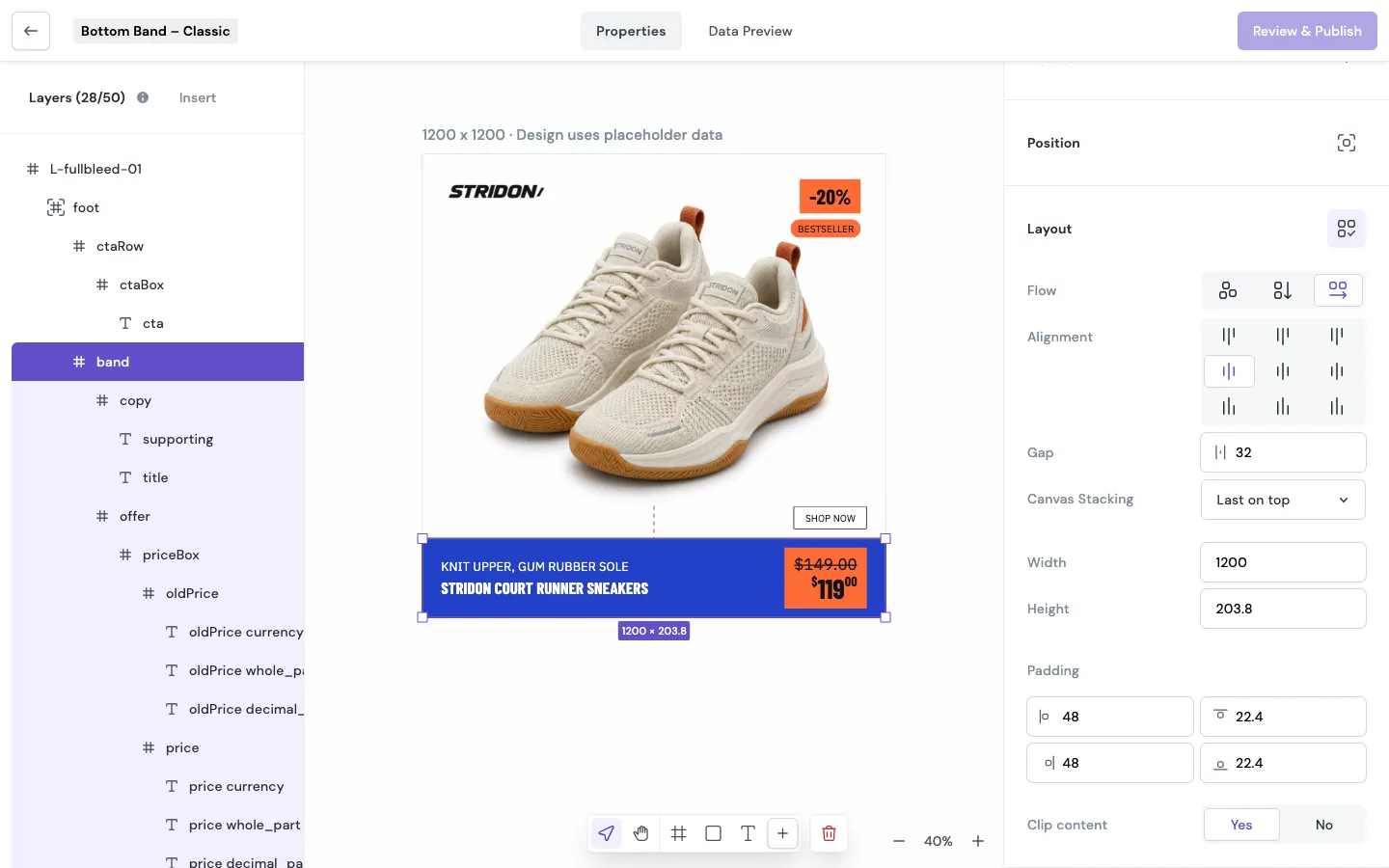
Layout is a section of the Properties tab of the design editor. It controls how a frame places the layers inside it and how big a layer is.
With auto layout, a frame places its layers one after another in a row or a column. When a text gets longer or a layer is hidden, the others move along. Without it, layers stay exactly where you put them.
Add or remove auto layout
Section titled “Add or remove auto layout”The button in the header of the section works on frames: Remove auto layout when the frame has auto layout, Add auto layout when it has not.
- Select the frame, for example the flags frame.
- In Layout, press Remove auto layout. The frame becomes free form and its layers stay in place.
- Press Add auto layout. The layers line up in a column, or in the flow the frame had before.
- Under Flow, pick Vertical for a column or Horizontal for a row. Free form is the same as removing auto layout.
A frame that is a grid shows no flow controls and no button. Only its padding and its clip content are available.
Alignment, gap and stacking
Section titled “Alignment, gap and stacking”These fields show only while the flow is a row or a column.
- Alignment: nine spots, from Top left to Bottom right. They say where the layers sit inside the frame. The spot stays the same when you change the flow. There is no option to spread the layers out evenly.
- Gap: the space between two layers. You can type a negative number, and the layers then overlap. There is one gap for the whole frame.
- Canvas Stacking: which layer is painted on top where layers overlap. Last on top puts the last layer of the flow on top, First on top puts the first one on top. It changes only what you see, not the order in the Layers panel.
Layers do not wrap onto a second row or column.
Padding and clip content
Section titled “Padding and clip content”Padding is the space between the edge of the frame and its layers. It has four fields with icons and no text: left, top, right and bottom. A padding cannot be negative. Each side has its own value. Typing in one field saves all four sides in one step, so Undo takes them back together. Padding shows only for a frame that has layers and a flow (not Free form).
Clip content decides whether what a layer paints outside the frame is cut off (Yes) or still shows (No). The top-level frame always clips, so the field does not show for it.
- Select the frame, for example the band frame.
- Type a number in Gap and press Enter. The layers move apart live.
- Type a number in one of the padding fields and press Enter.
- Click another spot of Alignment.
Size of a layer
Section titled “Size of a layer”Width and Height take a number from 1 to 4000 px, with decimals. A smaller or larger number is set to the nearest limit. They show the size the canvas works out for the layer.
There is no selector for fixed, hugging or fill. A layer hugs its content, or fills its frame, as long as you do not give it a size. When you type a size, that layer stops hugging on that side and keeps your number. A text that hugs and gets a width still grows in height. Use the Resizing field of a text for the other modes (see Text).
The fields show only for a layer that has a size of its own: a layer in a frame without auto layout, a layer taken out of the flow, a layer in a row or column, and the top-level frame. The cells of a grid have none.
- Select the layer, for example the ctaBox layer.
- Type a number in Width and press Enter. The layer keeps that width even when its text changes.
- Select a frame with auto layout, for example flags, and type a negative number in Gap. Its layers overlap.
- Switch Canvas Stacking between Last on top and First on top and watch which layer is on top.
The size of the design
Section titled “The size of the design”Select the top-level frame in the Layers panel and type a Width and a Height. This sets the size of the design: the image Cropink generates has these dimensions. The frame grows or shrinks from its top left corner and every layer stays where it is. Layers are not scaled, so move or resize them yourself after a big change.
Good to know
Section titled “Good to know”- Everything in this section is recorded in Undo and shows up in Review.
- A layer that you took out of a flow with Absolute position ignores the gap and the alignment of its frame.
- The controls change with the layer you select. Dropping a layer into a frame with auto layout changes which fields you see.