Browse and filter templates
The Templates page is where you look for a template to start from. It shows ready-made templates in rows, and you can narrow them down with filters.
Read the rows
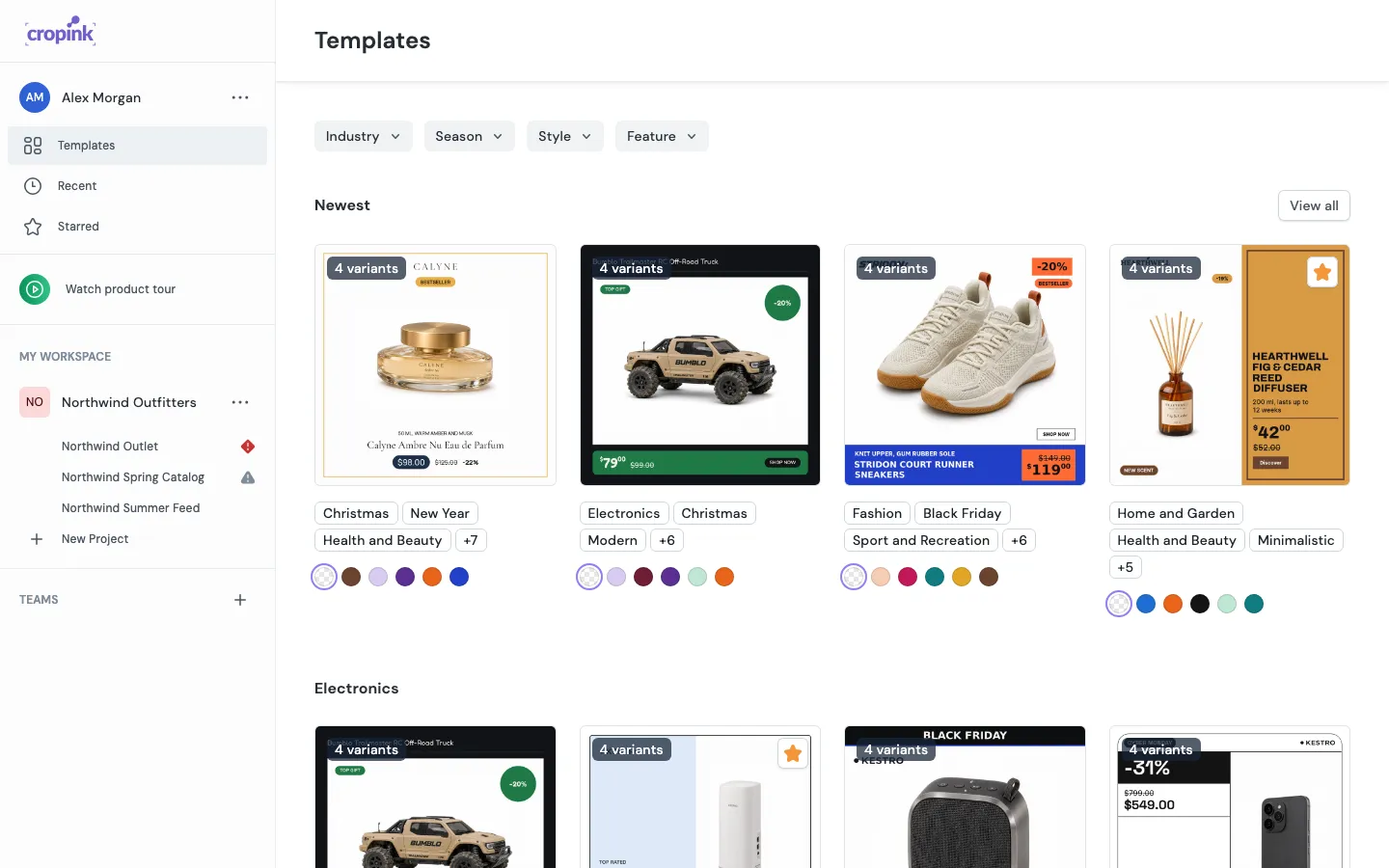
Section titled “Read the rows”Without a filter, the page is a list of rows. The first row is Newest, then come the industries, the one with the most templates first. Others is always last. A row without templates is hidden. Each row shows one line of templates: 2, 3, 4 or 6 tiles, depending on the width of your window.
When a row has more templates than fit in the line, it has a View all button:
- on an industry row it opens the page of that industry (see below);
- on the Newest row it opens a list of all templates with Newest as its title and an arrow to go back.
The Newest row and list put the most recently updated templates first.
Read a template tile
Section titled “Read a template tile”Each tile shows the preview of the template and, below it:
- up to three tags, and a “+N” badge for the rest (hover it to see them);
- a row of colour dots, when the template has styles. The first dot is the template as it is, the others are its styles (up to five, then a “+N” counter).
On the preview itself you may also see:
- a badge with the number of variants, and small pictures of the variants at the bottom of the tile;
- a star in the top right corner.
Click a colour dot to see the preview in that style. Click a variant picture to switch the tile to that variant. Click the tile to open the preview of the template. On the rows of this page, the style you picked is kept; in filtered lists and industry pages it is not. See Preview a template and use it.
Filter templates
Section titled “Filter templates”Four buttons sit above the list: Industry, Season, Style and Feature.
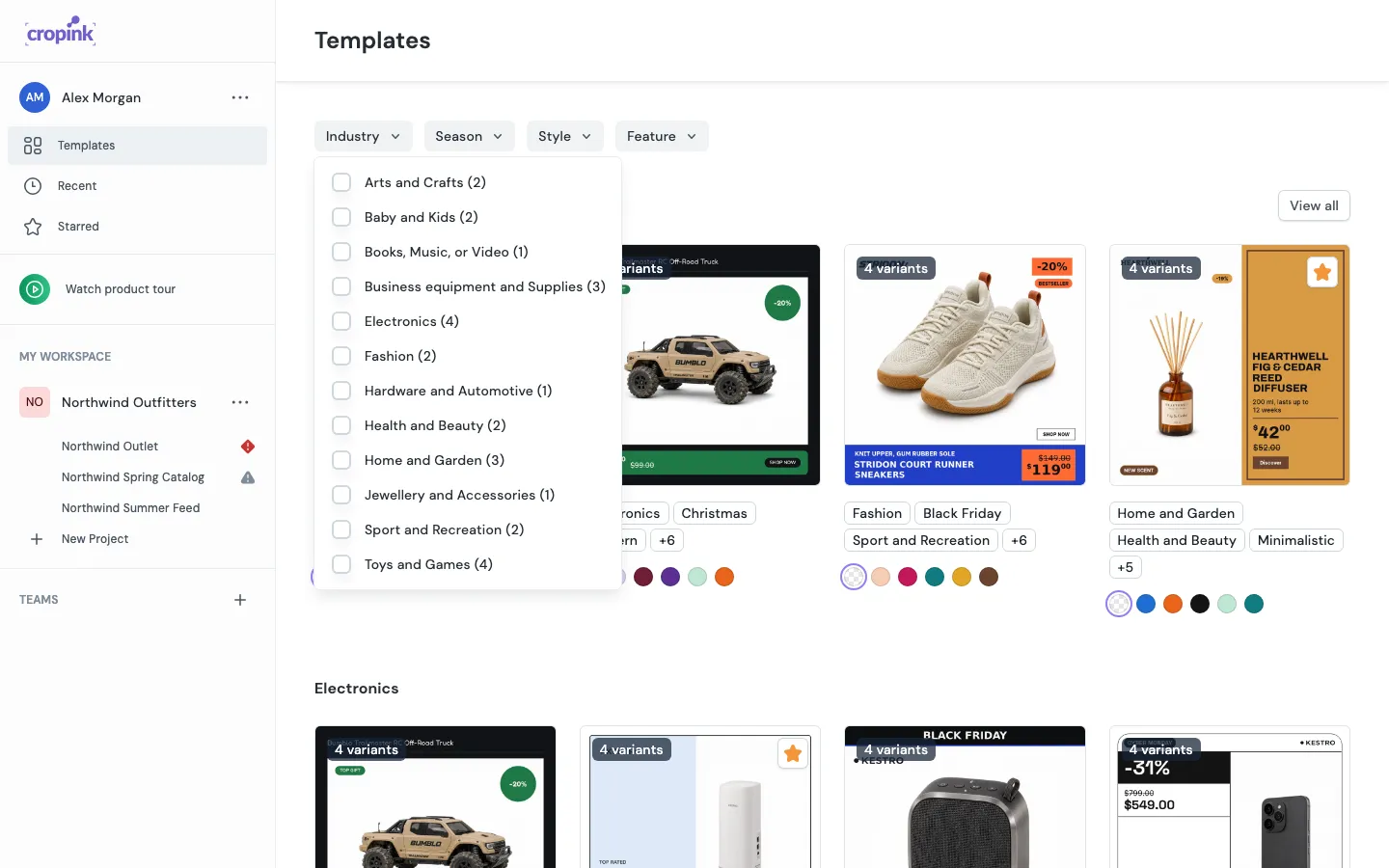
- Click a button to open its list. Each value is written as
Value (count), with the number of templates it has. The values are sorted alphabetically. - Click a value to select it. The list closes. Open it again to select more values or to unselect one.
- To remove a filter, click the cross on its button. That clears all values of that button.
A button that has selected values turns dark and shows them. With more than two values it shows how many you selected. A button with no values to offer is disabled.
Your filters are kept in the address of the page. If you copy the link, reload the page or go back in your browser, the same filters are applied.
Filtered and sorted lists
Section titled “Filtered and sorted lists”As soon as you pick a filter, the rows are replaced by one list of all matching templates, most recently updated first. The list shows 12 templates per page; use the page buttons below it to move on. If no template matches, the list is empty. The Templates title stays, and clearing the filters brings the rows back.
Open one industry
Section titled “Open one industry”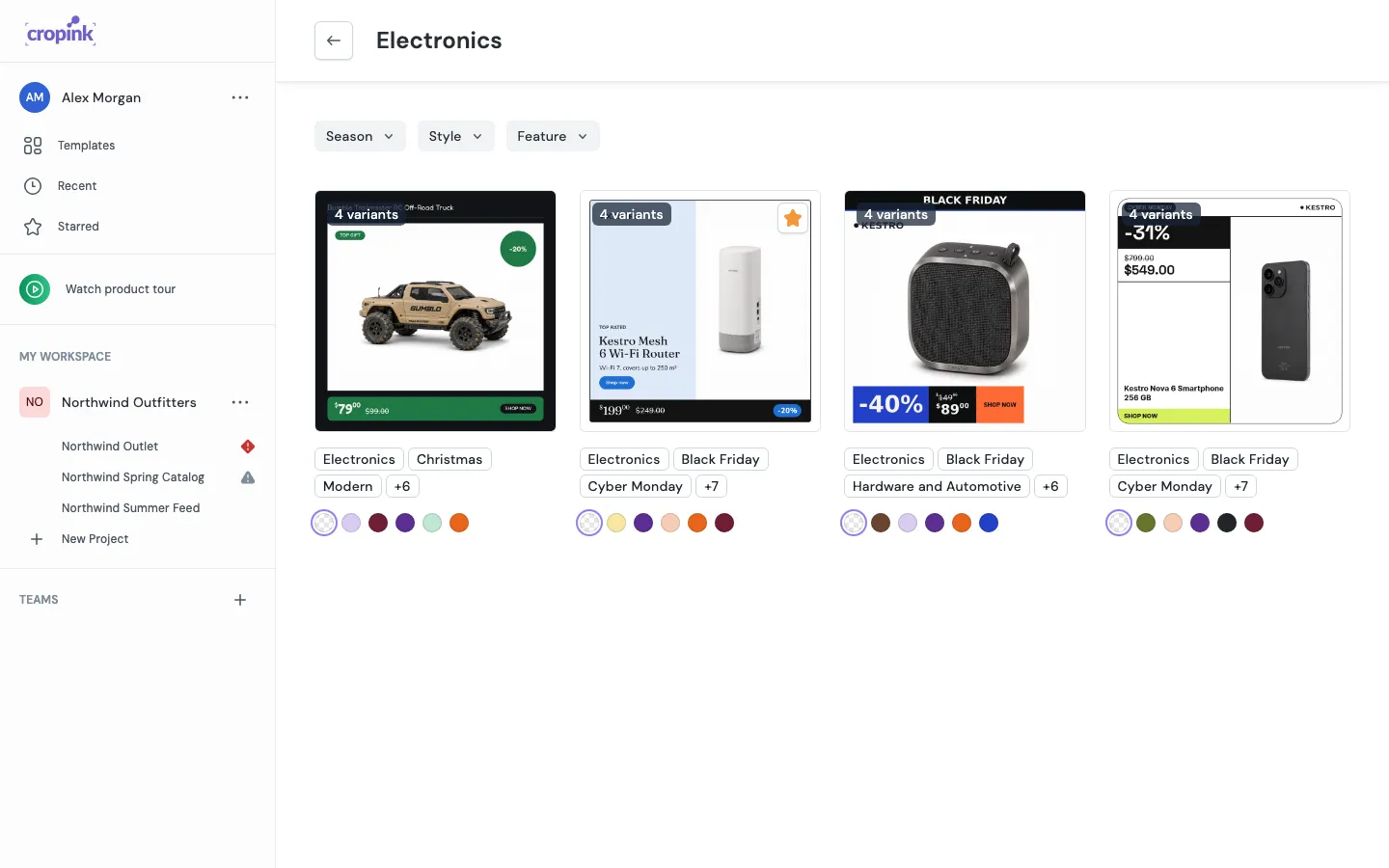
Click View all on an industry row. The page shows the name of the industry as its title. Use the arrow next to the title to go back to the templates page.
The industry page lists all templates of that industry, 12 per page, most recently updated first. The Season, Style and Feature filters work here too, on top of the industry. The industry button is not shown.
Star a template
Section titled “Star a template”Click the star on a tile to add the template to your starred templates; click it again to remove it. A filled star means the template is starred. Find your starred templates in Recent and Starred.