Preview images
The image preview is a full-screen list of the products of one campaign, each with the image the campaign made for it. Use it to check the result before you send the feed to an ad platform.
Open the preview
Section titled “Open the preview”- In the Campaigns tab, open the menu of a design and choose Preview Products. The preview opens filtered to that design.
- In the same tab, on an additional image, open its menu and choose Preview.
The title tells which campaign you look at: Default (Image Link) or Additional Image … followed by “Preview”. The arrow at the top goes back to where you came from.
The tabs
Section titled “The tabs”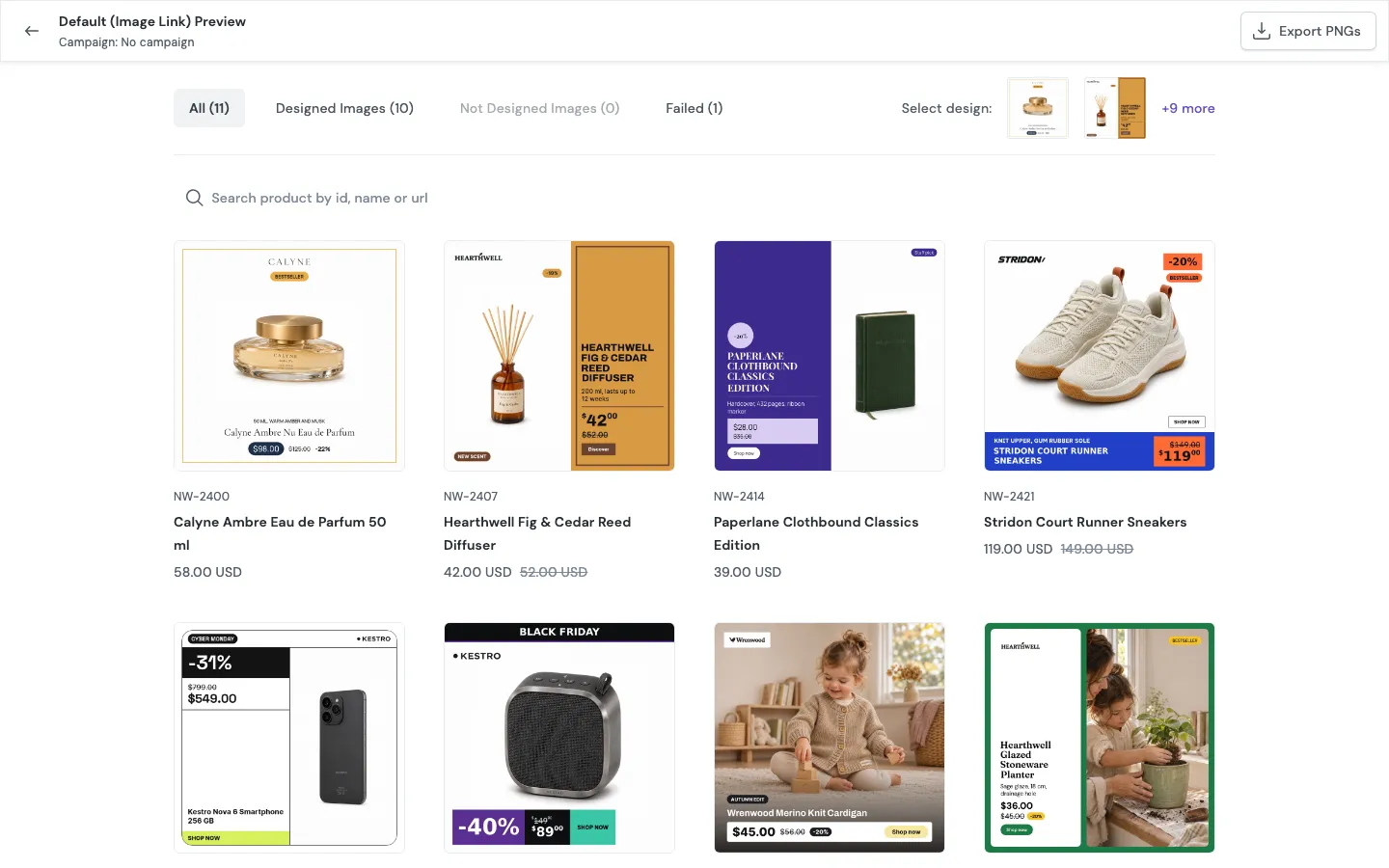
The tabs show how many products each one holds. A tab with no products is disabled.
- All (…): every product of the campaign.
- Designed Images (…): products whose image was made with a design.
- Not Designed Images (…): products that kept your original image. This tab is on the default campaign. On an additional image, the third tab is Default Images (…) instead.
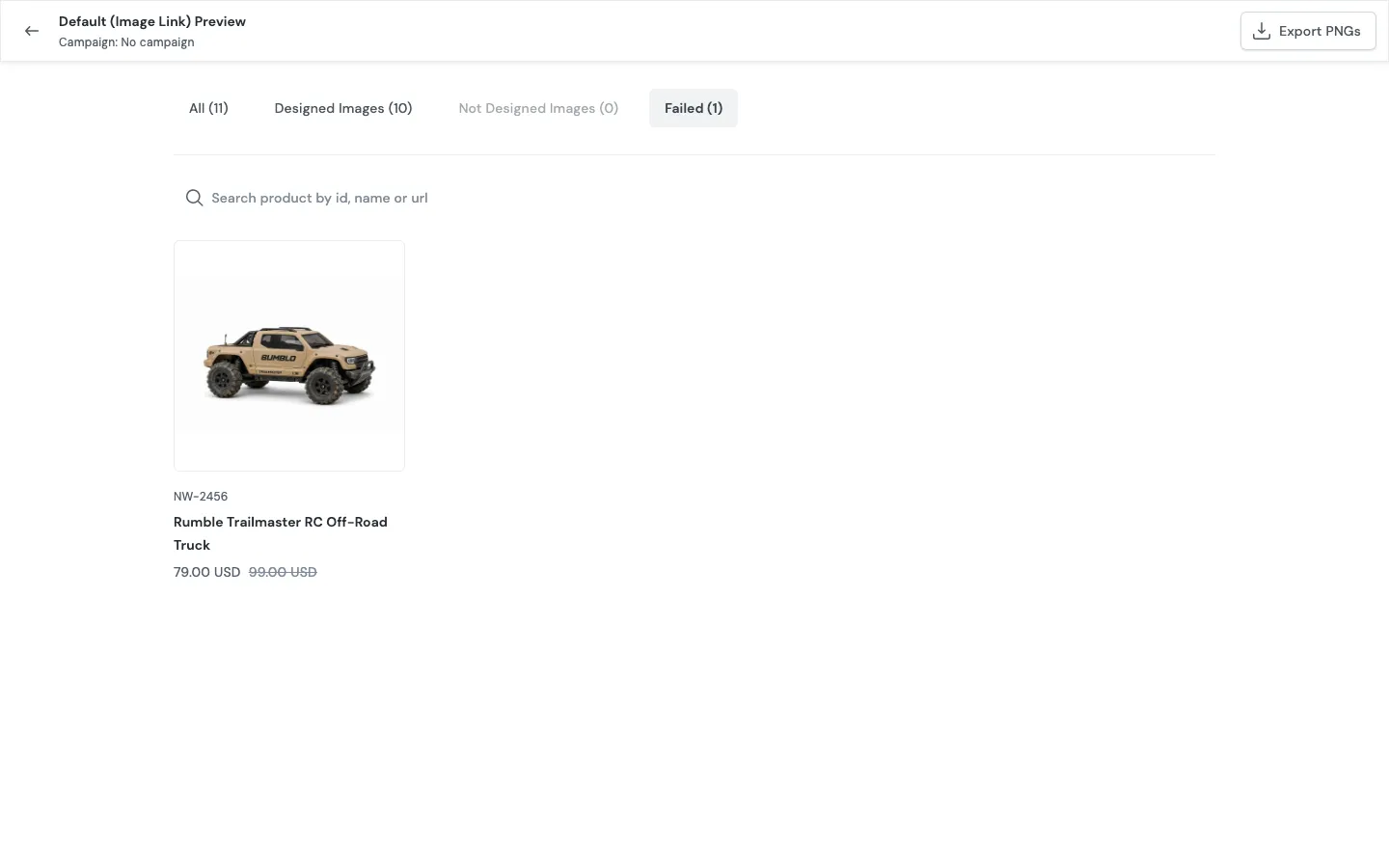
- Failed (…): products whose image could not be made.
Filter and search
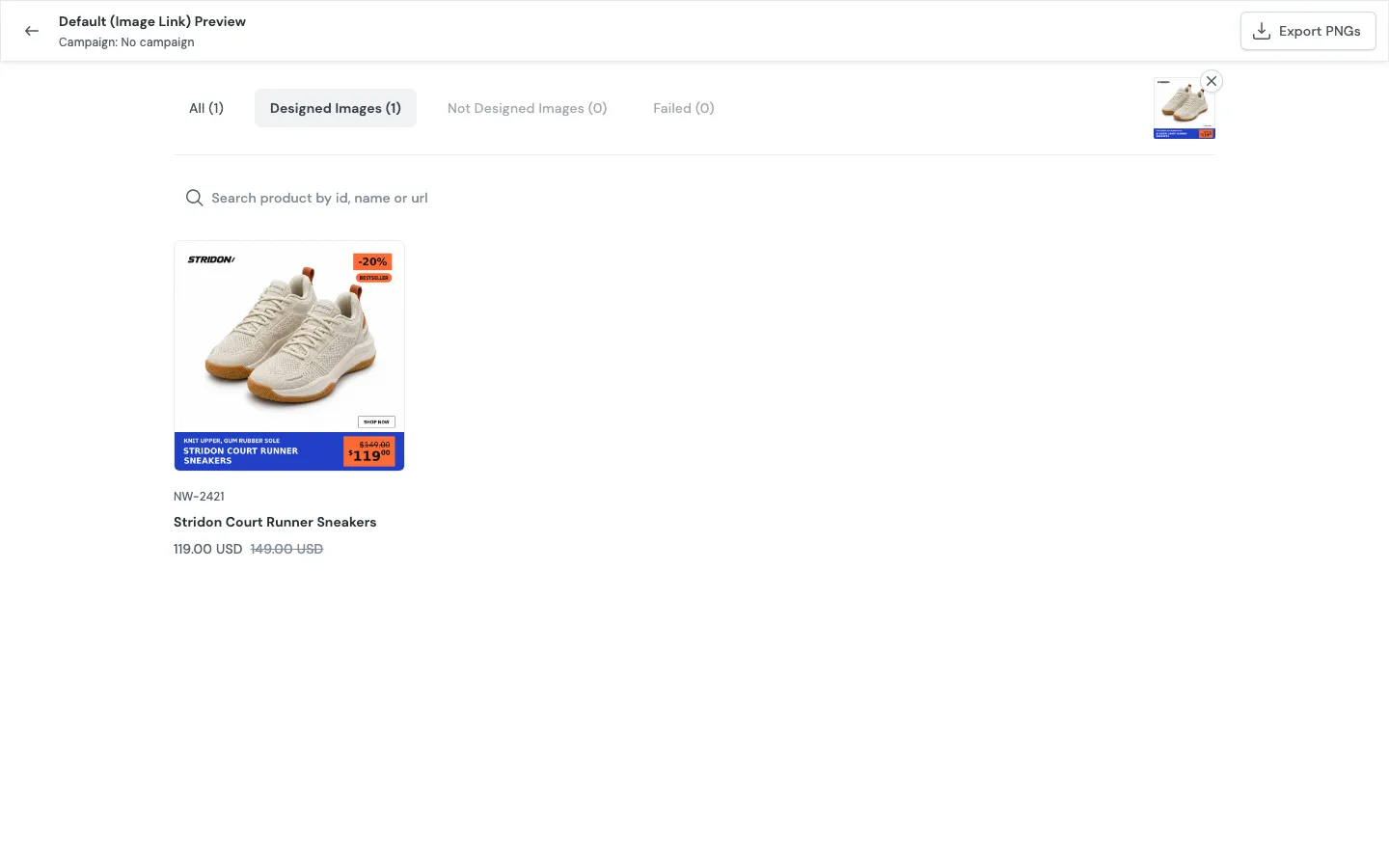
Section titled “Filter and search”- Design. Right of the tabs you see the designs the campaign used. With one design, it is shown after Used design:. With several, click one after Select design: to filter by it. Cropink shows up to three designs; with more, it shows two and a +… more link that opens the list in Used designs. To show all designs again, click the cross on the selected design (Clear Filter), or click the same button in the dialog. The design filter is not shown on the Not Designed Images (…) and Failed (…) tabs. When the campaign used no design, you see No Design Added!
- Search. Type at least 3 characters in the search box. Cropink filters the products by title. Shorter text clears the search.
If nothing matches, the list says No Results Found
Work with the images
Section titled “Work with the images”The list shows 24 products per page. A tile has the product ID (click it to copy), the title and the price, like in the output feed. Hover over the image to see three buttons: download the image, open it in a new tab and Product informations, which opens the data panel of the product described in the output feed article.
Click Export PNGs at the top to download the images of the products on the current page as one ZIP file.
Preview in a shared project
Section titled “Preview in a shared project”The same preview is available in a shared project. There you can use it without logging in.