Facebook ads
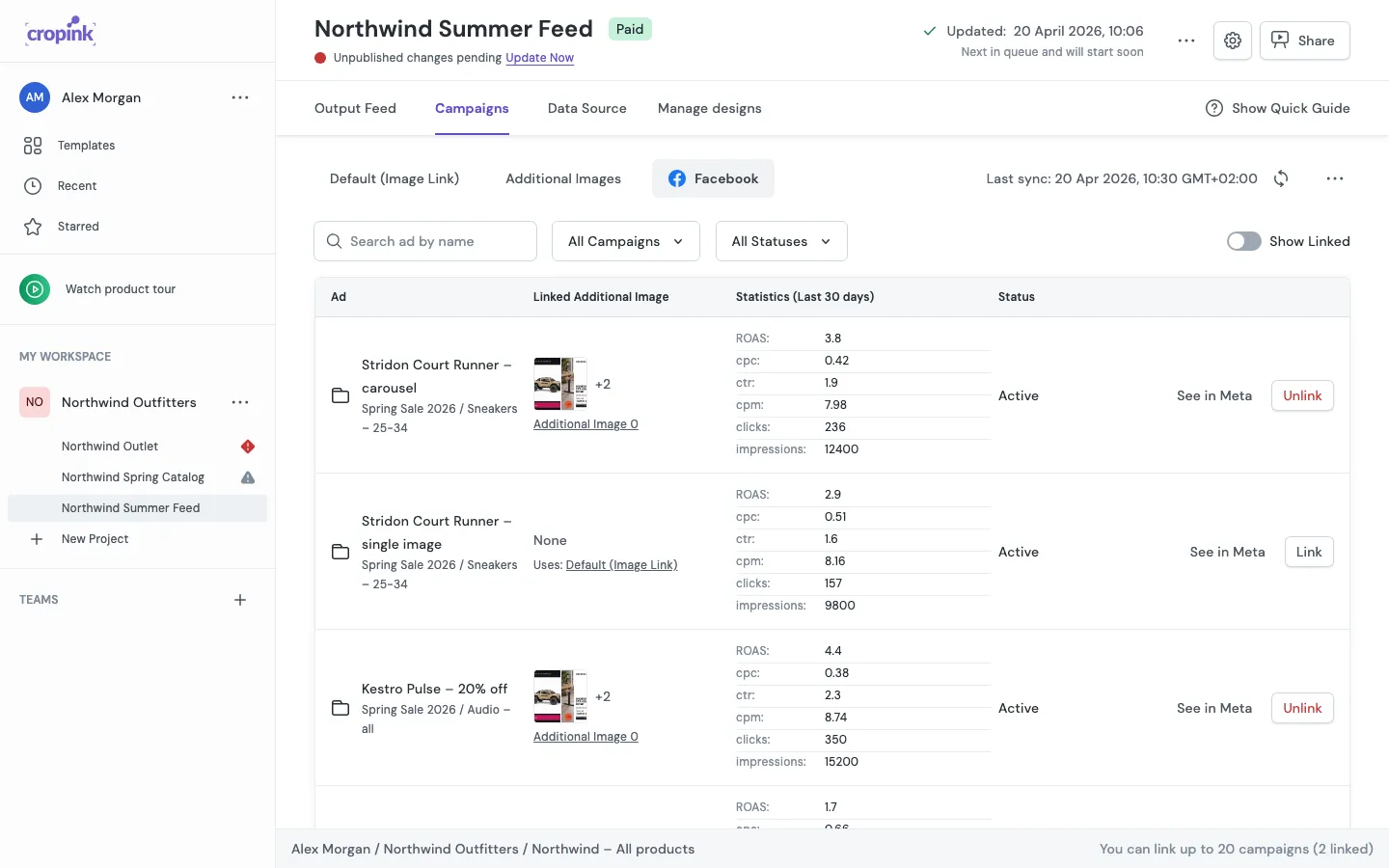
The Facebook tab of the Campaigns tab connects a project to a Facebook ad account and catalog, and lists the ads in that catalog. You link an ad to one of your additional images, so the ad shows the designs of that image instead of the default image.
Facebook ads are an experimental feature and may not be available on your account. If you do not see the Facebook tab, it is not turned on for you.
Connecting your Facebook business account to the team happens in your team settings and on Meta’s pages. This article covers what you do in Cropink once that connection exists.
What the tab shows
Section titled “What the tab shows”The tab changes with the state of the connection.
- Your team is not connected to Facebook. The tab says No Facebook Account Connected and points to the Team Settings link, where you connect a Business Facebook account before linking an ad account.
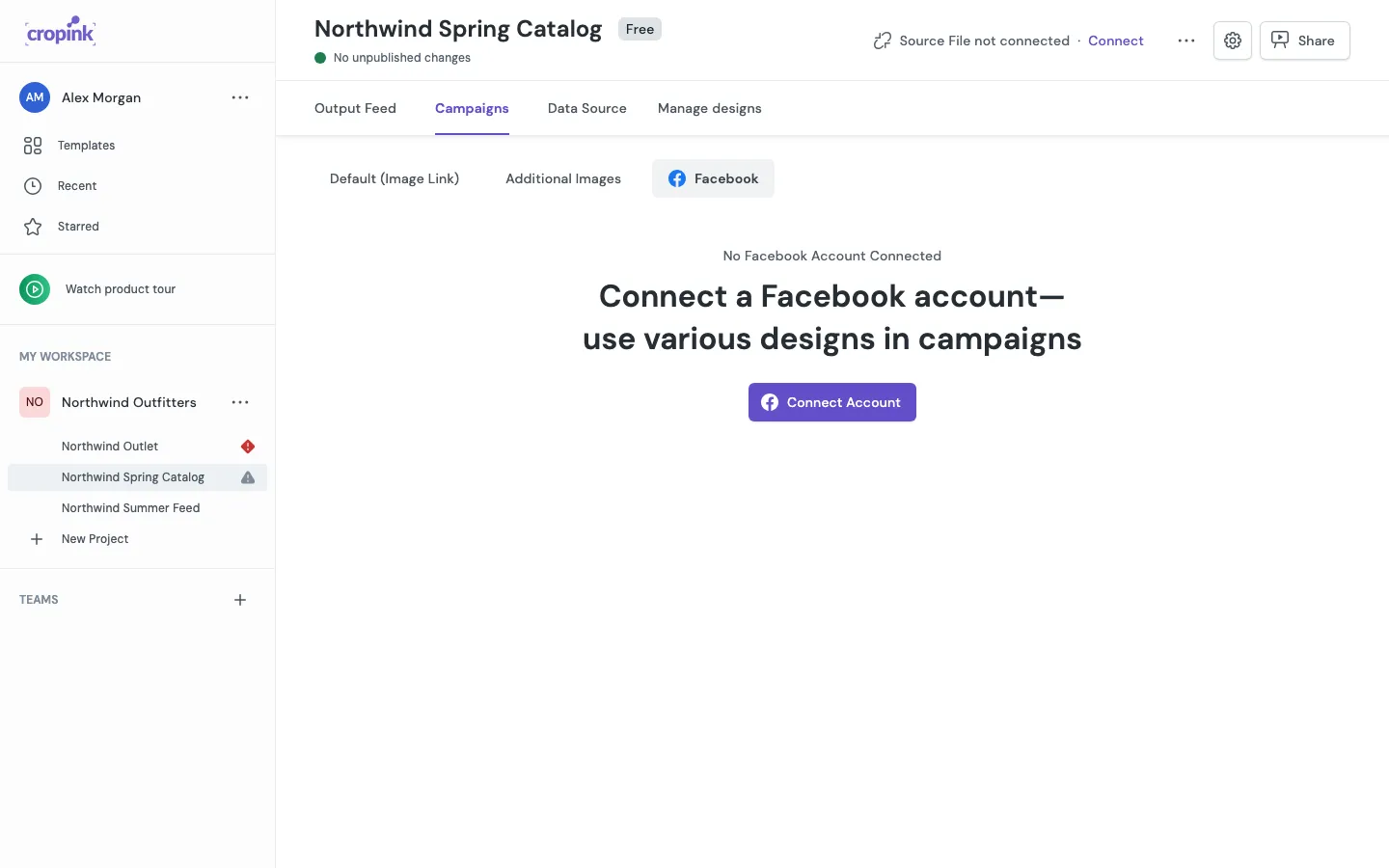
- The team is connected, the project is not. The tab says No Facebook Account Connected. Click Connect Account to connect, see below.
- The project is connected but the list is empty. The tab says No Ads Found in the Connected Catalog (Drafts aren’t listed) Only ads linked to the selected catalog are shown, and draft ads are left out. While Cropink loads the ads it says Loading your ads… Otherwise, Edit Connection reopens the connection screen.
- The project is connected and has ads. You see the ads table.
- Disconnecting. After you disconnect, the tab shows Disconnecting... and a note that this can take up to 10 minutes. After that you can connect a new account.
Connect an ad account
Section titled “Connect an ad account”Click Connect Account. A full-screen Connect Facebook Account window opens.
- Check the Facebook connection shown at the top (its name, ID and status). Click Change Business Account to use another connection of your team.
- Choose the Account and the Catalog.
- Click Connect.
The button stays disabled while the selected connection is not in a connected state. After you connect, Cropink starts loading the ads of the catalog. Exit closes the window without connecting.
Two cases can stop you:
- If the catalog is already connected to another project, a window says Catalog already in use. Disconnect it in that project first, or choose another catalog.
- If the catalog already has a supplementary feed with a different link, Cropink asks whether to replace it. Replacing deletes the old feed and cannot be undone.
Manage the connection
Section titled “Manage the connection”Once the project is connected, the top right of the tab shows the following (hidden while the team’s connection has failed):
- when the ads were last synchronised, or Refreshing list of ads while the list is refreshing;
- a refresh button, which loads the ads again;
- a menu with Edit Facebook Account (the connection screen again), Fetch Facebook Permission Report (a table of what Cropink needs from your Facebook account and whether it has it) and Disconnect.
Disconnect asks you to type the word “disconnect” before it goes ahead. It removes the supplementary feed that Cropink added to the catalog.
A bar at the bottom of the tab shows the account, connection and catalog you are using, how many ads are linked and the limit of linked ads Cropink shows there (20).
Connection problems
Section titled “Connection problems”A red banner appears above the tab when something is wrong. For a failed connection or synchronisation, the tab also shows a red alert mark.
- We couldn’t fetch data because Business Facebook account authorization failed The settings from the last successful synchronisation stay in place. Go to Team Settings opens your team settings, where you restore the connection.
- The authorization failed, so we couldn’t synchronize data The banner has Refresh, Edit Connection, Check permissions and Disconnect. It also shows when a permission was revoked.
While the team’s Facebook connection is not connected, the tab is dimmed and you cannot click in it.
The ads table
Section titled “The ads table”Each row is an ad from the connected catalog. Draft ads and ads that are not connected to the catalog are not listed, and synchronising with Meta can take a few minutes. The list shows 12 ads per page.
| Column | What it shows |
|---|---|
| Ad | The ad name, and below it the Facebook campaign and ad set. |
| Linked Additional Image | The designs of the linked additional image with a link to it, or None and a link to the default image, which the ad uses then. |
| Statistics (Last 30 days) | ROAS, cpc, ctr, cpm, clicks and impressions, or a dash when Meta has none. |
| Status | The ad status, for example Active, Paused or Disapproved. |
At the end of a row, See in Meta opens the ad on Meta in a new tab, and the link button links or unlinks the ad.
Filter the ads
Section titled “Filter the ads”- Type at least three characters in the search box to find an ad by name.
- The campaign list filters by Facebook campaign. It starts on All Campaigns.
- The status list filters by one or more ad statuses. It starts on All Statuses.
- Show Linked keeps only the ads linked to an additional image.
- Clear Filter resets the search, the campaign and the status filters. It shows only while one of them is set.
On a narrow screen the campaign, status and linked filters move behind a Filters button. When nothing matches, the table says No ads found (or No linked ads found with the linked filter).
Link an ad to an additional image
Section titled “Link an ad to an additional image”- In the row of the ad, click Link.
- In the Select Additional Image window, choose one additional image. Each row shows its designs and, under Linked Facebook Ad Campaign, the ad already linked to it.
- Click Select Campaign.
A notice says the campaigns were updated and that it can take a few minutes before you see the result in Meta. To undo it, click Unlink in the row: the ad goes back to the default image.
You need at least one additional image to link an ad. If there is none, the window says No Additional Images Available and a button takes you to Additional images. While the list is refreshing, the link buttons are disabled.
The ad summary page
Section titled “The ad summary page”Every ad linked to an additional image has a summary page. It shows what that image does to your products. To open it, go to the output feed, open a product’s images and click the ad name under an additional image.
- At the top, a list of your linked ads switches between their summary pages, with the account, connection and catalog beside it. The list is disabled when only one ad is linked.
- Counts of all products, designed images and the images that use the default image, as designed and not designed, with a red line when some images failed.
- Design Usage: the designs the image uses, with their designed, not designed and failed counts. Click a design to preview the products that use it.
- Campaign Preview: a grid of product images, a link to the additional image, and a button that opens all images in the preview, see Preview images.