Log in and reset your password
Log in
Section titled “Log in”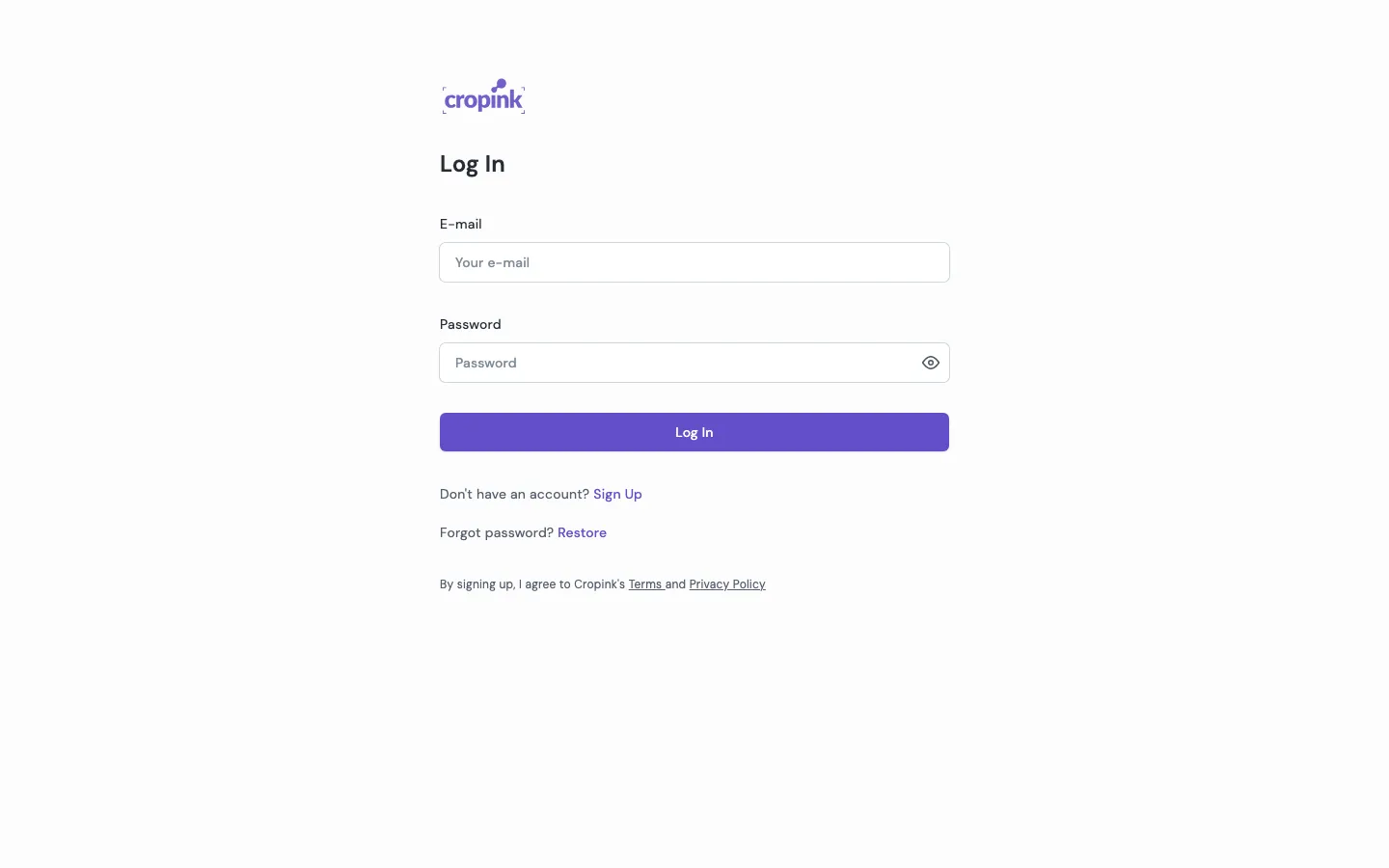
- Type your e-mail in E-mail. It must look like an address (Entered value does not match email format appears otherwise).
- Type your password in Password.
- Click Log In.
Both fields are required. If Cropink does not accept the details, the error is shown above the form.
If you came from a link to a shared project preview, you return to it after you log in.
Under the form:
- Sign Up, if sign-up is available, opens the page where you create an account. See Create your account.
- Restore (after Forgot password?) opens the password reset.
Reset your password
Section titled “Reset your password”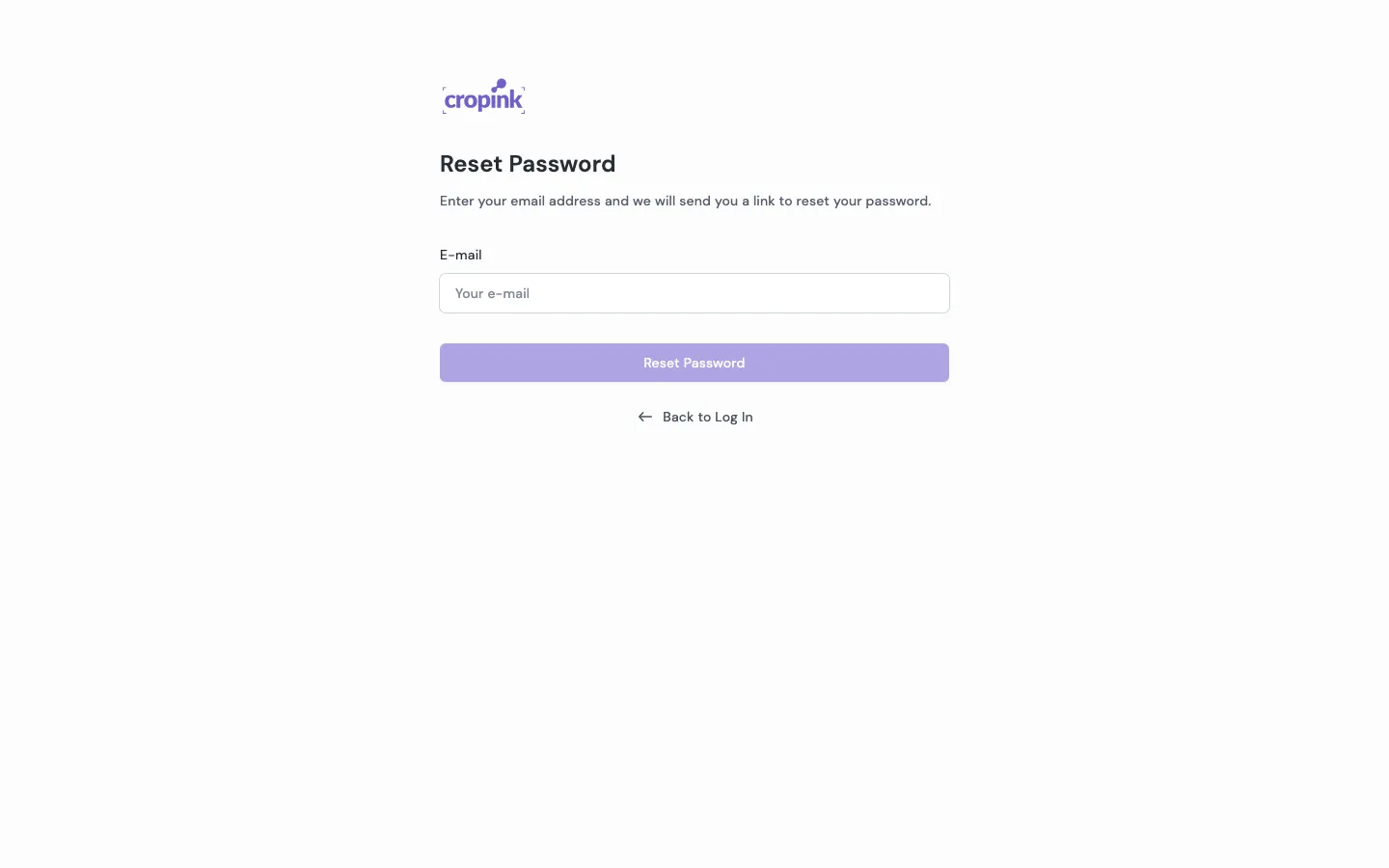
Reset Password: type the e-mail of your account and click Reset Password. The button stays disabled until you type something. Back to Log In returns to the log-in page.
Cropink then shows Check your email. The message says that, if an account exists with that address, Cropink sent an e-mail with instructions. It does not say whether the account exists.
- Resend E-mail sends the e-mail again.
- Back to Log In returns to the log-in page.
If the request fails, the error appears as a notification.
Set a new password
Section titled “Set a new password”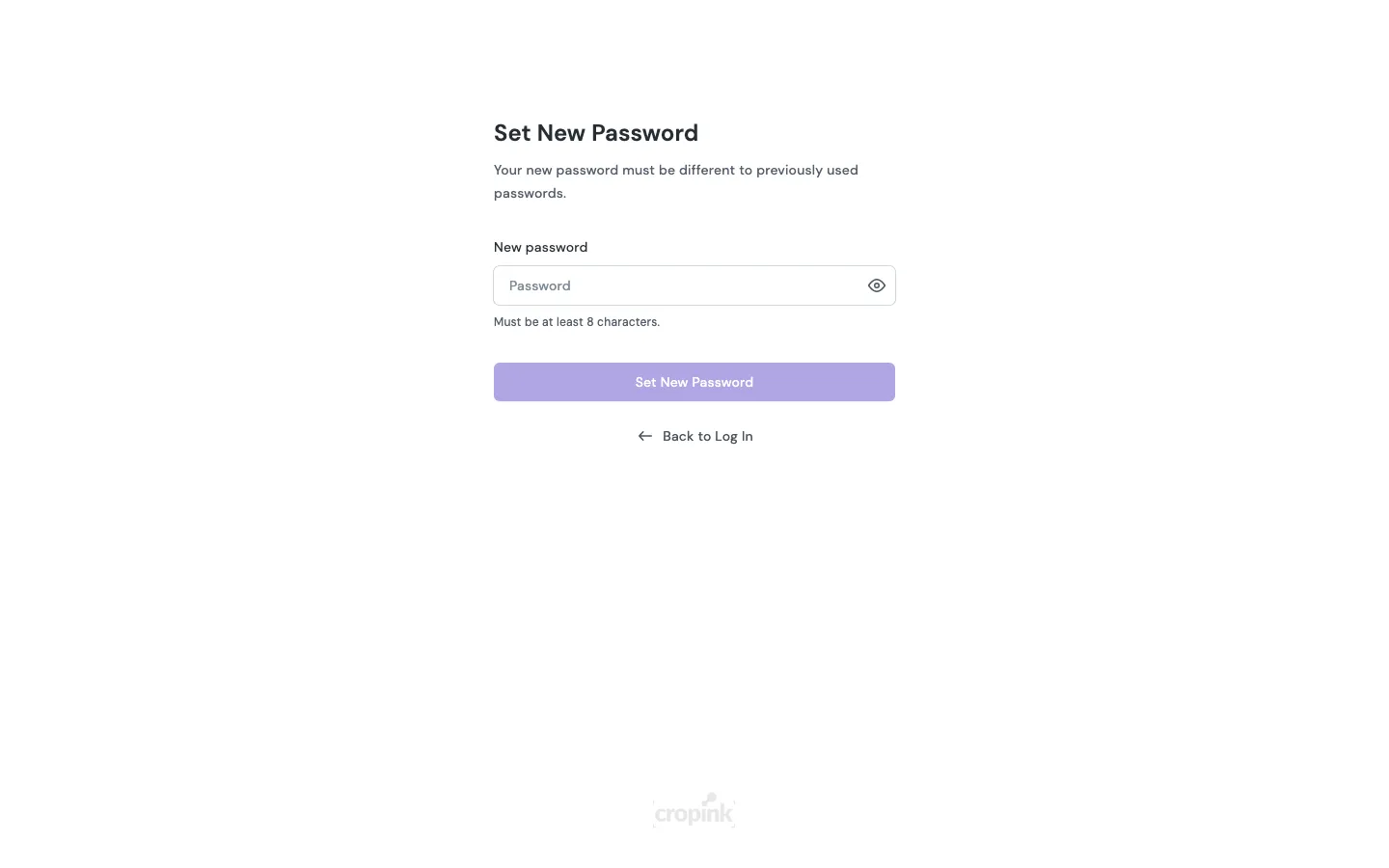
Open the link from the e-mail. The page is Set New Password.
- Type the new password in New password. It must be at least 8 characters (Must be at least 8 characters.), and different from your previous passwords. The eye icon shows or hides what you type.
- Click Set New Password. The button stays disabled until you type a password. Back to Log In returns to the log-in page.
Cropink then shows New Password has been Set. Click Continue to go to the log-in page and use your new password.
If you open this page without the link from the e-mail, Cropink sends you back to the password reset so you can request a new link.