Accept a team invitation
When a team member who can invite people invites you, Cropink sends you an e-mail with a link. Opening the link confirms the invitation. What you see next depends on whether you already have a Cropink account.
If you already have an account
Section titled “If you already have an account”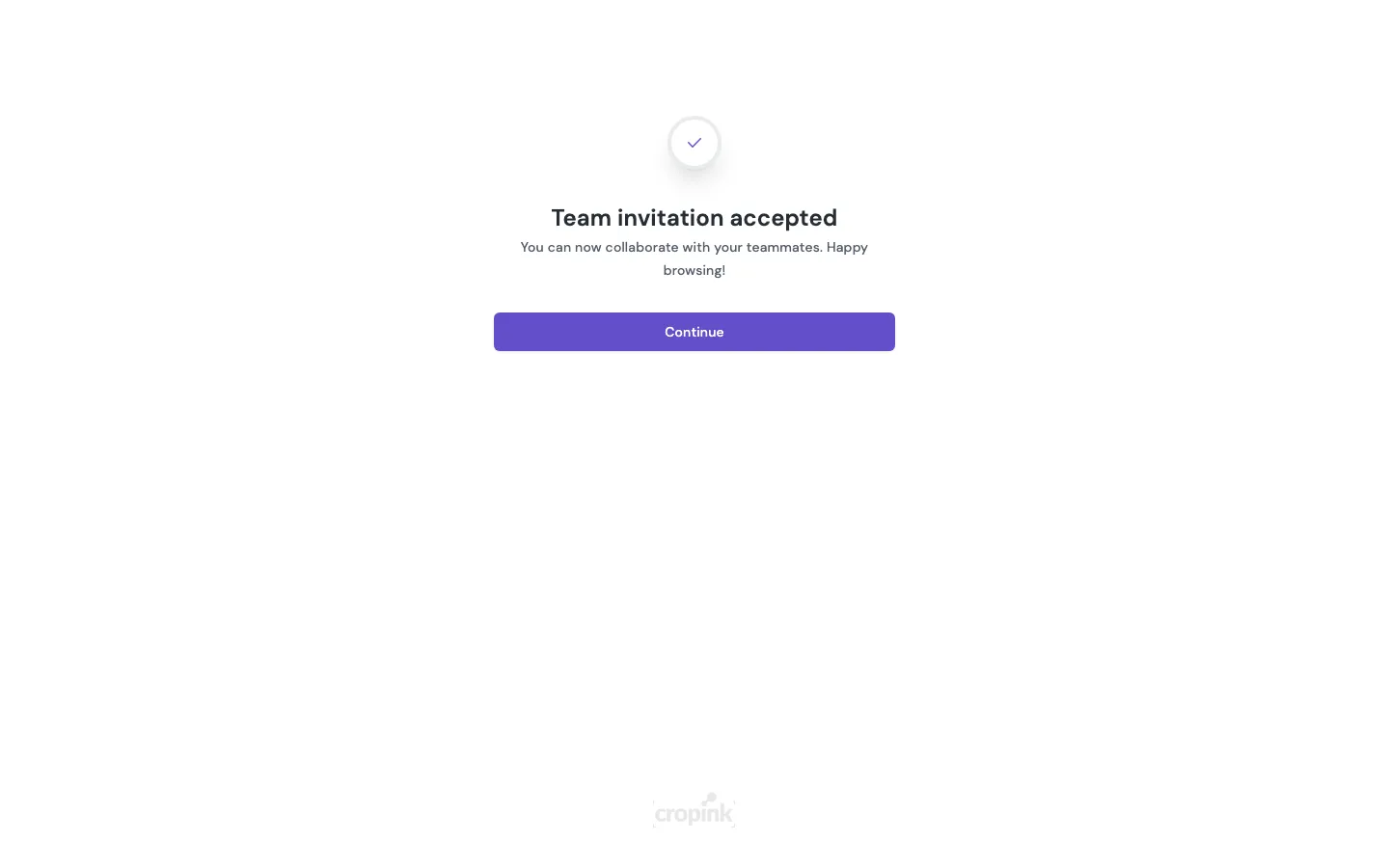
The page shows Team invitation accepted and You can now collaborate with your teammates. Happy browsing! Click Continue to open Cropink.
If you are new to Cropink
Section titled “If you are new to Cropink”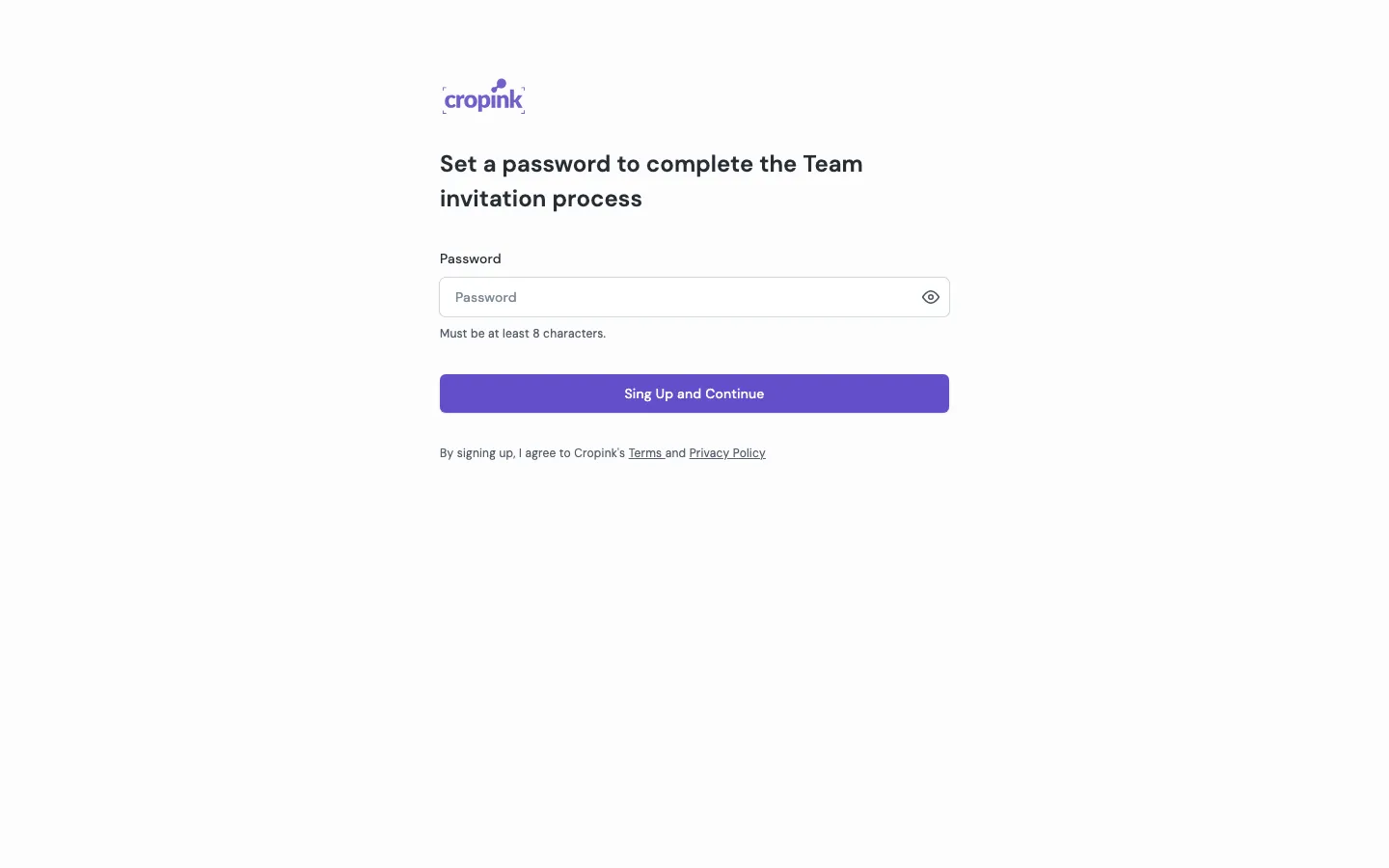
You have no account yet, so Cropink asks you to create one. The page says Set a password to complete the Team invitation process.
- Type a password in Password. It must be at least 8 characters (Must be at least 8 characters.).
- Click Sing Up and Continue.
By clicking, you agree to the Terms and the Privacy Policy linked below the form. Cropink signs you in and opens the app. You do not need to confirm your e-mail with a code or answer the survey.
If something goes wrong
Section titled “If something goes wrong”- If the link has no token, or Cropink does not recognise the invitation, you see a “not found” page.
- If Cropink cannot confirm the invitation, the page shows There was an error with the reason, and a Continue button that opens Cropink.
Invitations are sent by e-mail from the team’s members list, when a team member who can invite people invites you or sends the invitation again.