Change your password
Use this tab when you know your current password and want a new one. To open it, click your name at the bottom of the side panel, then the Change Password tab. See Your account and theme.
If you forgot your password, you cannot use this form. Reset it from the log-in page instead. See Log in and reset your password.
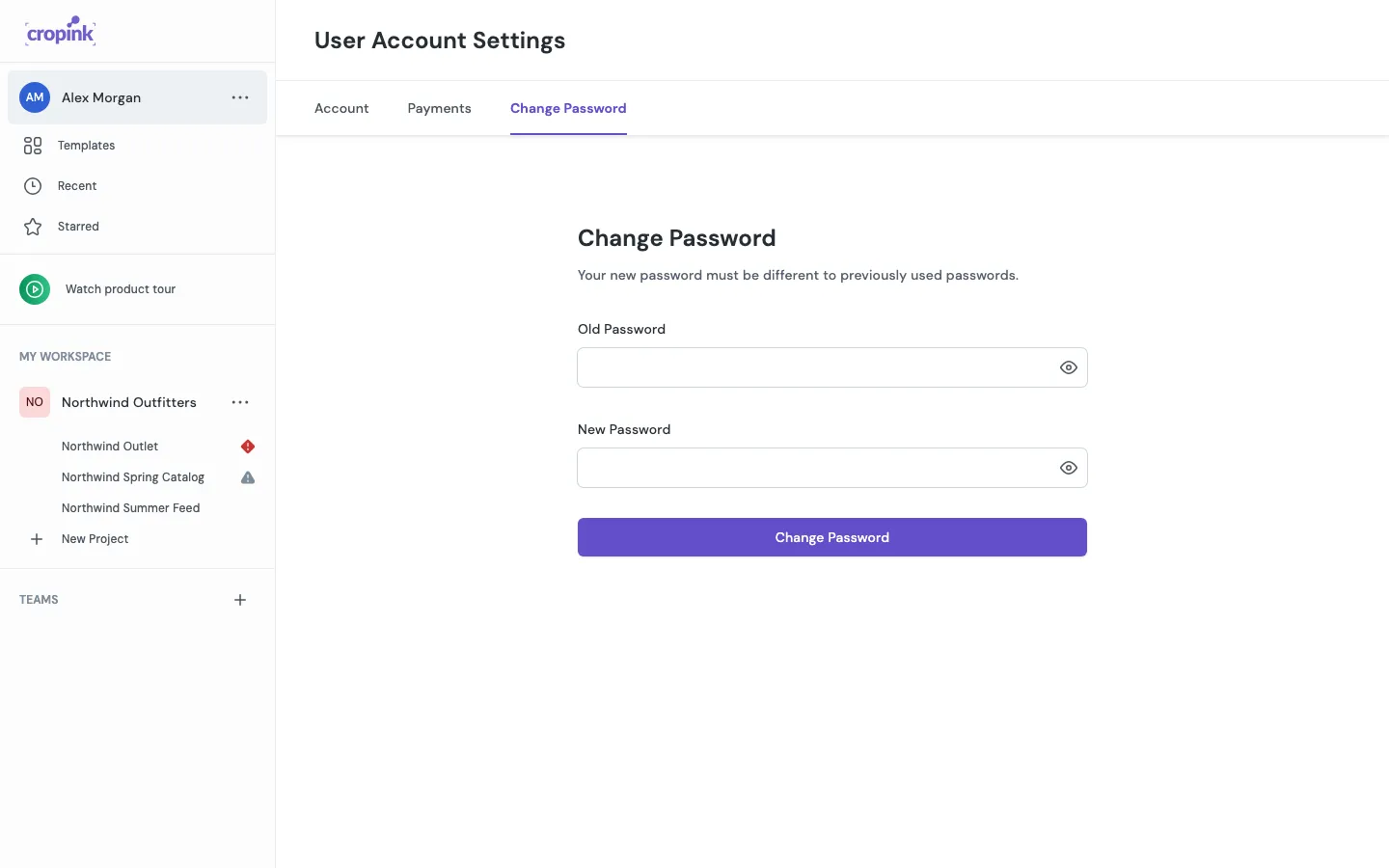
Change it
Section titled “Change it”The page says: Your new password must be different to previously used passwords.
- Type your current password in Old Password.
- Type the new one in New Password. It needs at least 8 characters.
- Click Change Password.
Both fields hide what you type; click the eye icon to show it.
Errors and success
Section titled “Errors and success”- A field left empty shows This field is required.
- A new password shorter than 8 characters is rejected under the field.
- If Cropink does not accept the change, for example because the old password is wrong, the reason appears in red above the form and nothing changes.
When the password is changed, Cropink shows Your password has been changed and clears both fields. Use the new password the next time you log in.