Additional images
The default campaign makes the main image of each product, the image link. An additional image is a second, third, and so on image for the same product in the feed. Each additional image is its own campaign with its own designs, schedule and product rules.
If a product gets no design in an additional image, the feed uses the image from the default campaign for it.
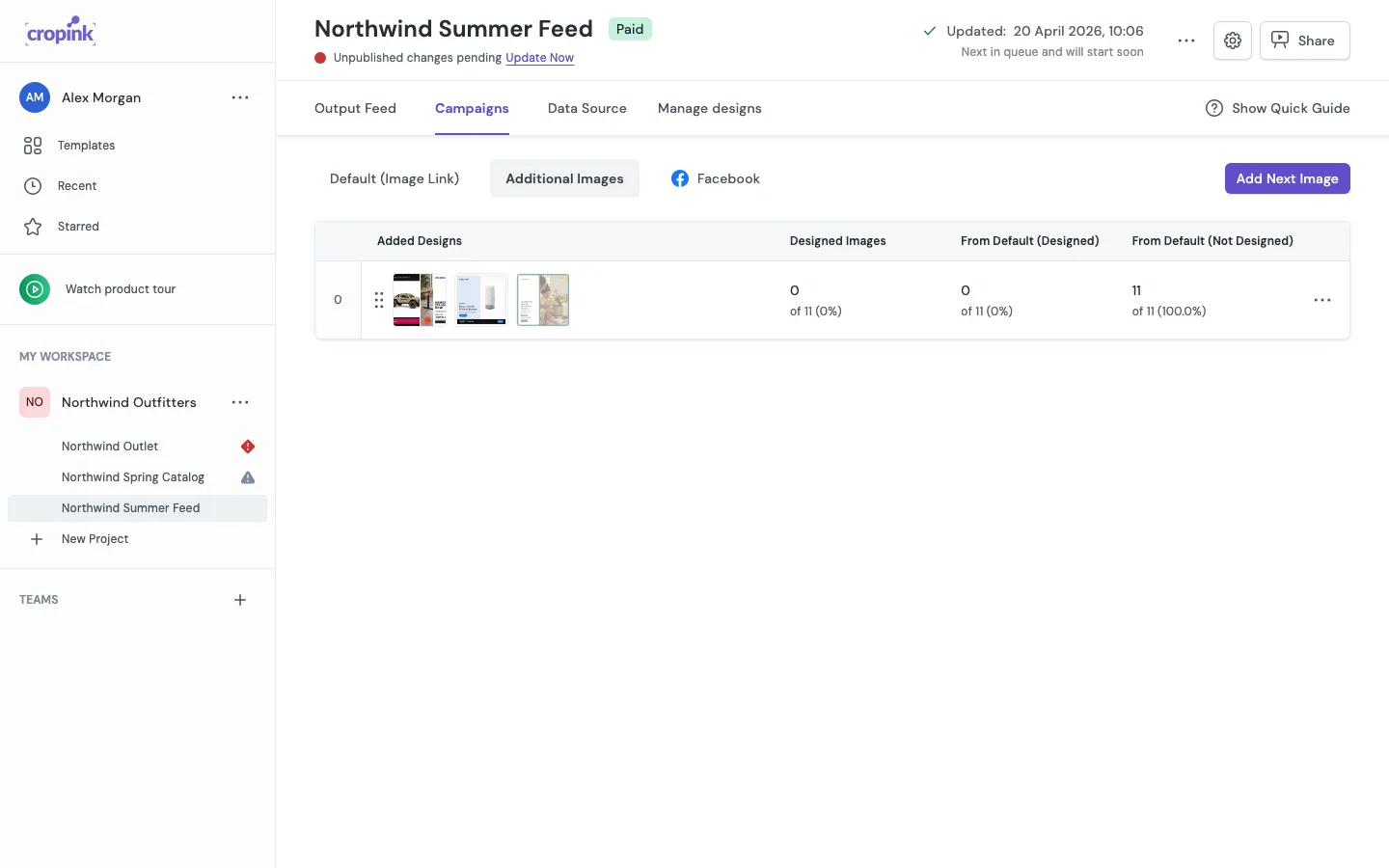
Open the Additional Images tab
Section titled “Open the Additional Images tab”In the Campaigns tab, click Additional Images. With no additional image yet, the tab says No Additional Images Added.
Otherwise it lists your additional images in a table:
- A number: its position, starting at 0.
- Added Designs: a preview of the designs it uses. A group of designs shows as one stack. An additional image with no designs says None (Uses default campaign), and one whose designs are all turned off says All Inactive (Uses default campaign).
- Designed Images: how many products got a designed image from this additional image, out of all products.
- From Default (Designed) and From Default (Not Designed): how many products use the image of the default campaign instead, split by whether that image has a design. The counts come from the last feed update.
Drag a row by its handle to change its order. The numbers update at once.
Add an additional image
Section titled “Add an additional image”- Click Add First Additional Image in an empty tab, or Add Next Image above the table when you already have some.
- In Select Design(s), tick one or more designs, or Raw Product Image. See Select designs. If your team has no designs yet, the window says so; create one first, see The Designs list.
- Click Select Design (Select Designs for several designs).
Cropink creates the additional image and opens it. You do not name it: it is called Additional Image …, where the number is its position in the list, starting at 0. If Cropink cannot add one, a notification shows the reason.
Work inside an additional image
Section titled “Work inside an additional image”An open additional image shows its title with a back arrow, and below it the same table of behaviors as the default campaign. See Default image for the table, and Table and calendar views for the views.
- With no designs, it says No Designs Added (Uses Default Campaign). Click Select Design to add one.
- Click Select Design to add more designs, and Preview to look at the images it made (it appears once the feed has designed images for this additional image). See Preview images.
- Click a row, or choose Set Design Behavior in its menu, to set its schedule and which products it is used for. See Set design behavior and schedule. Additional images have no Product Data Overrides.
- Click the back arrow to return to the list.
Edit, preview or delete
Section titled “Edit, preview or delete”Open the menu at the end of a row in the list:
- Edit opens the additional image, like clicking the row.
- Preview opens the image preview for it.
- Delete asks Delete additional image? The action cannot be undone. Confirm with Delete Additional Image.
If you use Facebook ads (an experimental feature that may not be on your account) and the additional image is linked to ads, Cropink asks a second time: Delete campaign anyway? Deleting removes its link to those ads. See Facebook ads.
In the output feed
Section titled “In the output feed”After the feed updates, products with more than one image show them in the feed: the first is the image link, the next ones are the additional images. The product tiles on the Output Feed tab let you open and download each of them, see The output feed. After you add or change an additional image, update the feed, see Update status.