Preview and share a design
The design preview shows a finished design as an image, optionally with the data of a real product. You can share it with people who have no Cropink account.
Open the preview
Section titled “Open the preview”In the Designs list, click the three dots of a design and choose Design Preview. The page is called Design Preview. Use the arrow at the top left to go back to the list. A design with no content has no preview.
On a small screen (below 1032 px wide, for example a tablet or a phone) the editor does not open. Opening a design shows this preview instead, under a banner: Editing a design needs a larger screen. Open it on a computer to make changes; here you can preview it with your products. If the design is still empty, the page says This design is still empty with a Back to designs button.
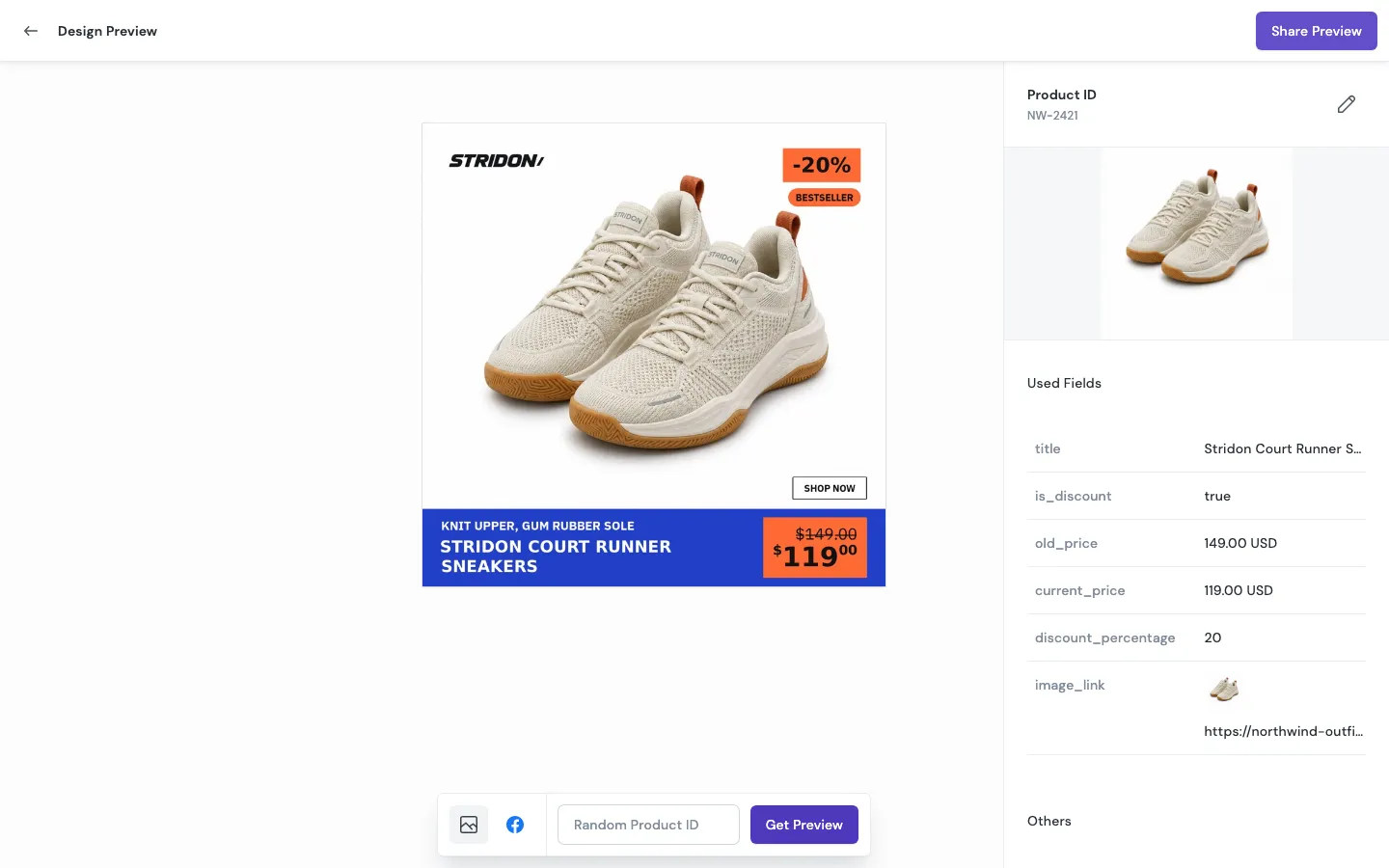
Which products it uses
Section titled “Which products it uses”The preview takes products from one project. When you open it from the Designs list, that is the first project that uses the design. A design that no project uses has no project, so the preview shows only the saved picture of the design and the bar for product previews is not shown.
If the project has no products yet (its last update did not succeed) or the design uses no product data, a banner asks you to connect a product feed in the project and map data (see Connect a data source). You can close the banner.
Preview with a product
Section titled “Preview with a product”When the project has products and the design uses product data, the bottom of the page has a bar:
- two buttons switch the view: Default Preview and Facebook Layout Preview (the image inside a Facebook ad layout);
- a field with the placeholder Random Product ID: type a product ID, or leave it empty for a random product;
- Get Preview (or Enter) generates the image. If it fails, a notification shows the error.
Until you generate one, the page shows the saved picture of the design with the note
No product data is appliedAfter you generate a preview, the right side shows the product (in the default view): Product ID, the Used Fields of the design with their values, and Others. Click Edit Data to change the values, then Generate Preview. The edits apply to this preview only.
Share the preview
Section titled “Share the preview”- On the preview page, click Share Preview (the tooltip says Share Design Preview).
- In Share design view, turn the switch on. Cropink saves it at once.
- Click Copy Link and send the link, or Open Preview to see the page yourself in a new tab.
Turn the switch off to stop sharing. Click outside the dialog to close it.
Protect the link with a PIN
Section titled “Protect the link with a PIN”- Click Protect Preview with PIN in the dialog.
- Type a 4-digit PIN (Set a 4-digit PIN) and click Save.
The row now reads Preview Protected with PIN and shows the PIN. Click it to change the PIN or to remove it with Remove PIN. Turning the switch off and on again also removes the PIN. Give the PIN to your viewers separately: it is not part of the link.
The shared view
Section titled “The shared view”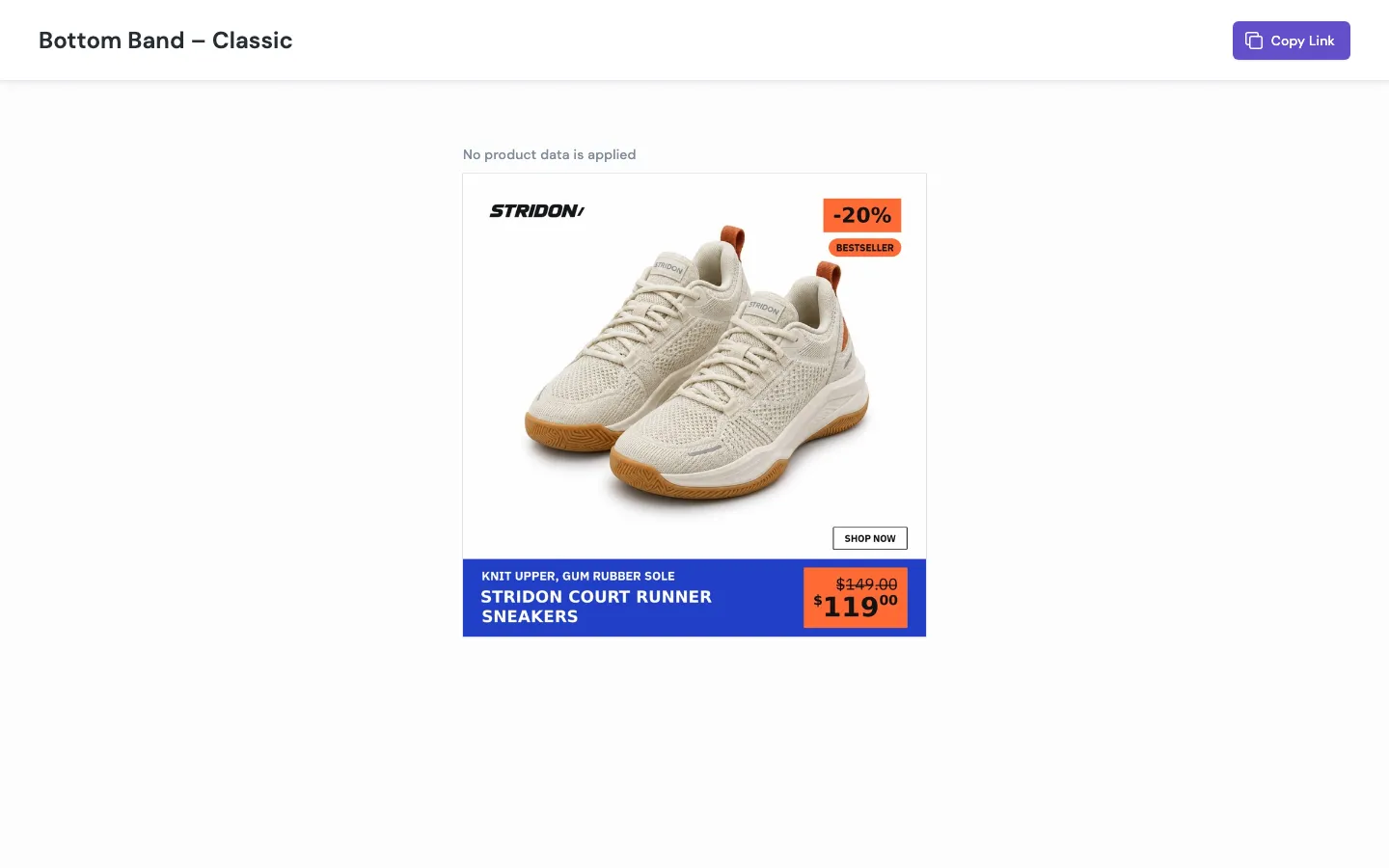
Whoever opens the link needs no Cropink account and sees a page with the name of the design and a Copy Link button, which copies the link of the page. Below it is the saved picture of the design. Visitors cannot choose products and cannot change anything.
When the link has a PIN, the visitor first sees PIN Required and types the 4 digits. A wrong PIN gives Invalid PIN code The browser remembers a correct PIN for that link, so the visitor does not have to type it again. A link that is switched off, or that does not exist, leads to a “not found” page.