When an update fails
An update can go wrong in two ways. The whole update can fail, for example when Cropink cannot download your feed. Or the update can succeed while some products are skipped, because one of their images could not be processed. Each case shows up in a different place.
On the Data Source tab
Section titled “On the Data Source tab”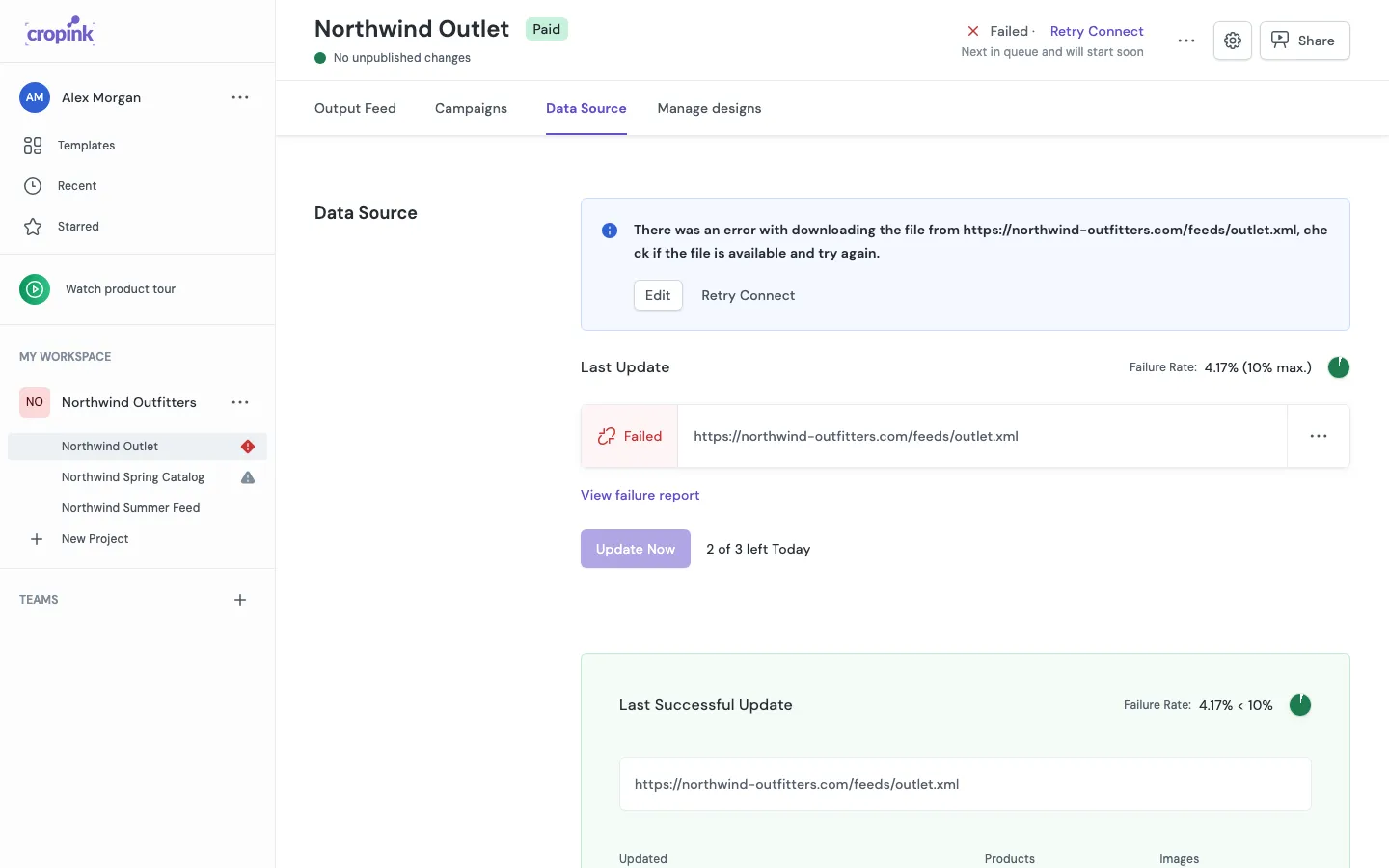
The whole update failed
Section titled “The whole update failed”The connection status turns to Failed and a banner explains what happened. The text depends on the error. For example, when the file cannot be downloaded it says there was an error downloading the file from your address and asks you to check that the file is available. The banner has two buttons:
- Edit opens the feed settings so you can fix the address or the sign-in details. See Connect a data source.
- Retry Connect runs the update again with the same settings. It counts as one of your manual updates of the day, like Update Now. While it starts, the button shows a loading state. If Cropink cannot start it, a notification shows the reason.
If your last update before the failure succeeded, a green box Last Successful Update appears at the bottom of the section with the feed address, the date and the product and image counts. Its Go to Products Preview button opens the image preview of the default campaign.
If the update failed and the project’s subscription is unpaid, there is no banner. Instead you see Payment failed. Update your Stripe details to keep your subscription active and a Go to Billing link.
Some products were skipped
Section titled “Some products were skipped”When the last update finished but some products failed, a View failure report link appears under the connection status. Click it to open the failure report. When a downloadable error report exists, a red line also says … images failed during the last update. (the dots stand for the number of images) with an Error Update Report button that downloads it as a zip file.
The tab also shows the Failure Rate of the last update. When the project has an error tolerance, the rate is shown next to its maximum (“(N% max.)”) and a pie chart. You set the limit in the project settings under Error Tolerance: The maximum failure rate of products for successful updates The failure rate and this setting may not be available on your account.
Every update, failed or not, is also listed in the update history; see Your data source.
The failure report
Section titled “The failure report”The Last Update Failure Report screen lists the products that failed in the last update.
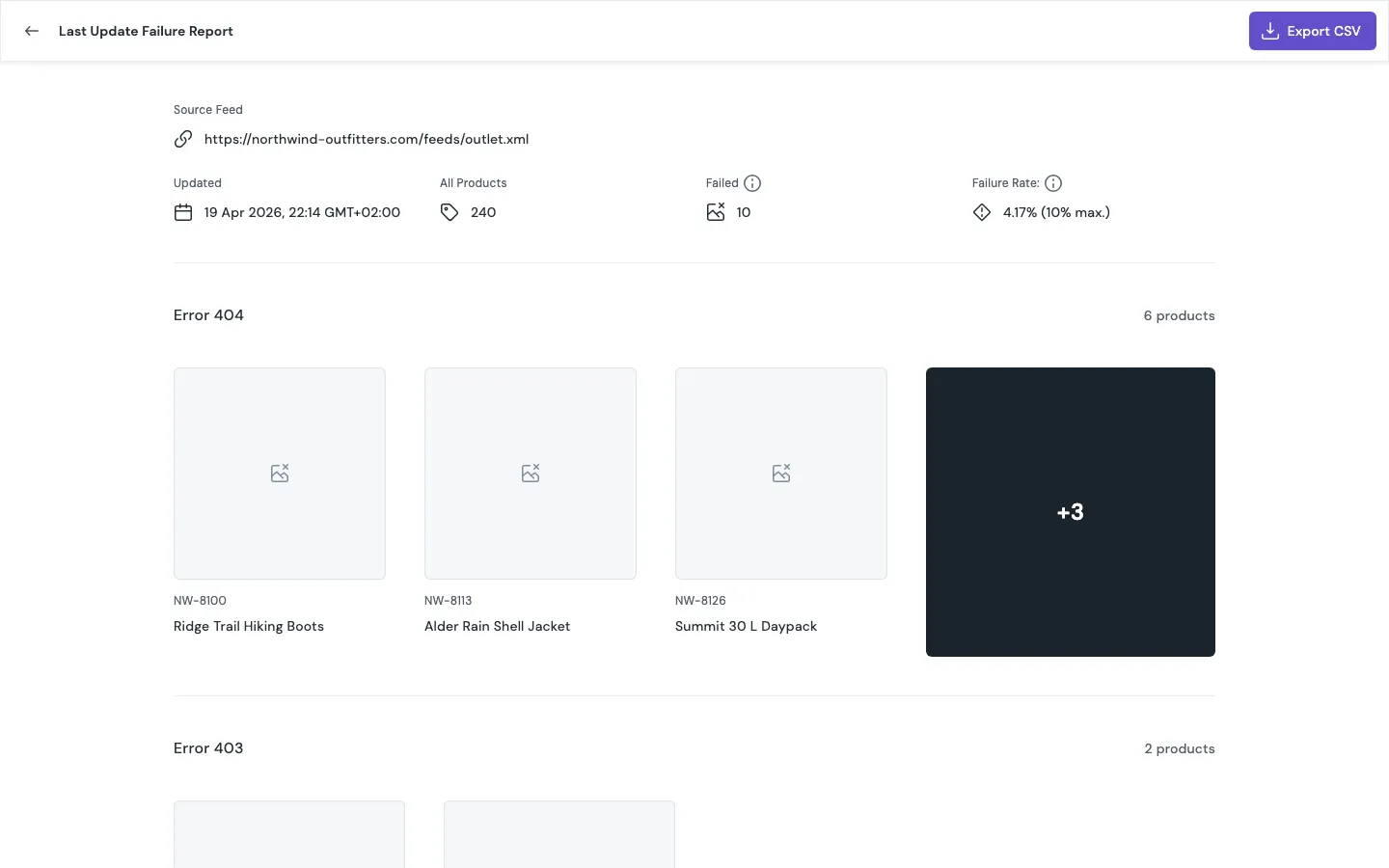
The top of the screen is an overview of the update:
- Source Feed: the address of the feed;
- Updated: when the update finished;
- All Products: how many products the update contained;
- Failed: Products with an image that could not be processed in the last update.
- Failure Rate: Share of products that failed in the last update. The maximum is set in the project settings. When a maximum is set, it appears next to the rate, and the rate turns red when it is above the maximum.
Below the overview, the failed products are grouped by what went wrong, the largest group first. A group title is either an HTTP error, shown as Error … with the HTTP code (Error 404: the image address was not found; Error 403: the server refused the download), or the name of the error, such as “Object download failed”. The group also shows how many products it holds. Each product appears as a tile with its ID from the feed and its title. A group with more than four products shows the first three and a +N tile.
The usual fix is in your feed, not in Cropink: correct or replace the image addresses of the listed products, so the next update can download them.
If there is nothing to show, the screen says No failed products in the last update.
The screen loads a limited number of products. When there are more, it says Showing the latest … of … products. Export the CSV to get the full list. (the dots stand for numbers).
Export the list
Section titled “Export the list”Click Export CSV in the top bar. Cropink collects all failed products, not only the ones on
screen, and downloads a file named after your project, for example My project-failure-report.csv. It opens in Excel
with the correct characters. The columns are category, productId, title, projectObjectId, designId, error,
httpCode, reason, url and updatedAt. The category is one of blocked, source and processing; url is the
address involved in the error.
The back arrow in the top-left corner returns you to where you came from, usually the Data Source tab.
Try again
Section titled “Try again”- After a failed update, click Retry Connect on the banner, or fix the settings with Edit first.
- After an update that skipped products, fix the images in your feed and wait for the next scheduled update, or start one with Update Now when it is available. The button has limits; see Your data source.